EasyManua.ls Logo

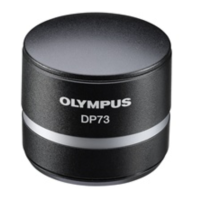
Olympus DP73 - User Manual

Olympus DP73
64 pages
Print Icon
To Next Page IconTo Next Page
Loading...
DP73
This instruction manual is for the Olympus microscope digital camera DP73. To ensure the safety, obtain
optimum performance and familiarize yourself fully with the use of this camera, we recommend that you
study this manual thoroughly before operating the camera.
For image operations including recording, editing and saving, please refer to the online manual for the
cellSens / OLYMPUS Stream Software.
Retain this instruction manual in an easily accessible place near the work desk for future reference.
INSTRUCTIONS
MICROSCOPE DIGITAL CAMERA
A X 8 2 0 8
Optical Microscope Accessory

Other manuals for Olympus DP73

Questions and Answers

  • S
    Stanley AvilaAug 18, 2025
    How to fix out of focus picture on Olympus Microscope?
    • J
      Joshua MckayAug 18, 2025
      If the picture from your Olympus Microscope is not in focus, first ensure the specimen is properly focused using the fine adjustment knob. Also, check the aperture iris diaphragm of the condenser; if it's open too wide, close it a little. Verify the field iris diaphragm setting and adjust it until the image circumscribes the field of view. Contamination on lens components or the camera's cover glass can also cause this issue; clean the objective, camera adapter lens, condenser, and/or window lens of the microscope, or clean the cover glass on the bottom of the camera head. Finally, make sure the microscope and camera are not subjected to vibration during recording; acquire images in a stable environment, using an anti-vibration bench if necessary.
  • B
    Brittany HernandezAug 26, 2025
    What to do if live image is not displayed on Olympus Microscope?
    • B
      Brandy RodriguezAug 26, 2025
      If a live image is not displayed on your Olympus Microscope, check that the camera head and PC are properly connected. Also, verify that the microscope illumination is on, the lighting and focusing are correctly adjusted, and the camera light path is selected. Ensure that the ISO speed, exposure mode, exposure time, and level are properly set.
  • E
    Erin AlvaradoAug 27, 2025
    How to fix strange colors in picture from Olympus Microscope?
    • M
      Martha OdomAug 27, 2025
      If the colors in the picture from your Olympus Microscope appear strange, first ensure that you've selected a white area with the rectangular white balance adjustment area during white balance adjustment. If you are using manual white balance adjustment, make sure the RGB balance is properly adjusted to obtain optimum colors. Additionally, verify that you've selected a black area with the rectangular black balance adjustment area during black balance adjustment. Confirm that the screen color setting of the PC is set to 24-bit color or higher (32-bit color is recommended). Finally, check that the color spaces (sRBG/AdobeRGB) of the camera and the monitor are identical.
  • M
    Maria NewtonAug 30, 2025
    What to do if still images cannot be recorded on Olympus Microscope?
    • D
      Dan Robinson PhDAug 30, 2025
      If you cannot record still images with your Olympus Microscope, first check that the camera and PC are properly connected. If cellSens or OLYMPUS Stream is processing a recording, wait until it completes before starting the next image recording. In some cases, you may need to press the Cancel button on the status bar and record the image again. Also, if cellSens / OLYMPUS Stream is processing a file save, wait until the processing completes before starting the next image recording. Finally, if the PC memory is insufficient, exit from other software before retrying recording.
  • J
    Jon BartlettSep 2, 2025
    Why Olympus Microscope software will not start up?
    • B
      Brenda DanielsSep 2, 2025
      If the software for your Olympus Microscope will not start up, ensure that the camera and PC are properly connected. Also, check that the PCIe interface board is installed correctly. If the issue persists, try reinstalling the software.
  • J
    johnsoncharlesSep 4, 2025
    How to fix not neat 4800 x 3600 and 2400 x 1800 images on Olympus Microscope?
    • R
      Randall JohnsonSep 4, 2025
      If the 4800 x 3600 and 2400 x 1800 images from your Olympus Microscope are not neat, it may be due to camera vibration during recording. Acquire images in an environment where the microscope and camera are not vibrated. Using an anti-vibration bench can be effective.
  • M
    Mrs. Stacy HolmesSep 7, 2025
    Why is external trigger signal not output from my Olympus Microscope?
    • K
      kristie29Sep 7, 2025
      If the external trigger signal is not being output from your Olympus Microscope, ensure that external triggering is enabled on the cellSens / OLYMPUS Stream software.
  • W
    wgonzalezSep 9, 2025
    Why still image cannot be acquired using external trigger input on Olympus Microscope?
    • M
      mary23Sep 9, 2025
      If you cannot acquire a still image using the external trigger input on your Olympus Microscope, make sure that external triggering is enabled on the cellSens / OLYMPUS Stream software.
  • C
    Cheryl BautistaSep 12, 2025
    What to do if cellSens or OLYMPUS Stream window is not displayed correctly on Olympus Microscope?
    • H
      hannahmilesSep 12, 2025
      If the cellSens or OLYMPUS Stream window is not displayed correctly, or if the menu characters are not displayed correctly on your Olympus Microscope, set the screen resolution to 1280 x 1024 or more in the screen properties. Also, select a small font in the screen properties if a large font has been selected for the screen.
  • M
    Megan MartinezSep 14, 2025
    Why it is impossible to open the file correctly, by the software other than cellSens/OLYMPUS Stream, in which the image acquired by 12bit color/12bit grey scale is saved on Olympus Microscope?
    • J
      Joseph BuchananSep 14, 2025
      Use cellSens/OLYMPUS Stream to open the file.

Summary

Hardware Installation

3-1 Installing the Camera Head

Step-by-step guide for attaching the camera head.

3-2-a Installing the PCIe Interface Board to Desktop PC

Instructions for installing the PCIe interface board in a desktop PC.

3-2-b Installing the PCIe Interface Board to Laptop PC

Instructions for installing the PCIe interface board in a laptop PC.

Software Installation

Software Installation Overview

Guide for installing cellSens/OLYMPUS Stream and DP2-TWAIN software.

Image Acquisition Procedure

External Triggering

Troubleshooting Guide

Software and Live Image Troubleshooting

Solutions for software startup and no live image issues.

Recording and Brightness Troubleshooting

Solutions for recording failures and brightness problems.

Safety Precautions

PC and Software

Olympus DP73 Specifications

General IconGeneral
BrandOlympus
ModelDP73
CategoryDigital Camera
LanguageEnglish

Related product manuals