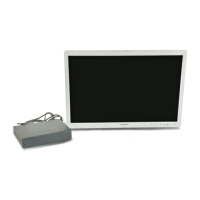
OEV262H
5. Setting
5.3 Adjustment Using the Menus
30
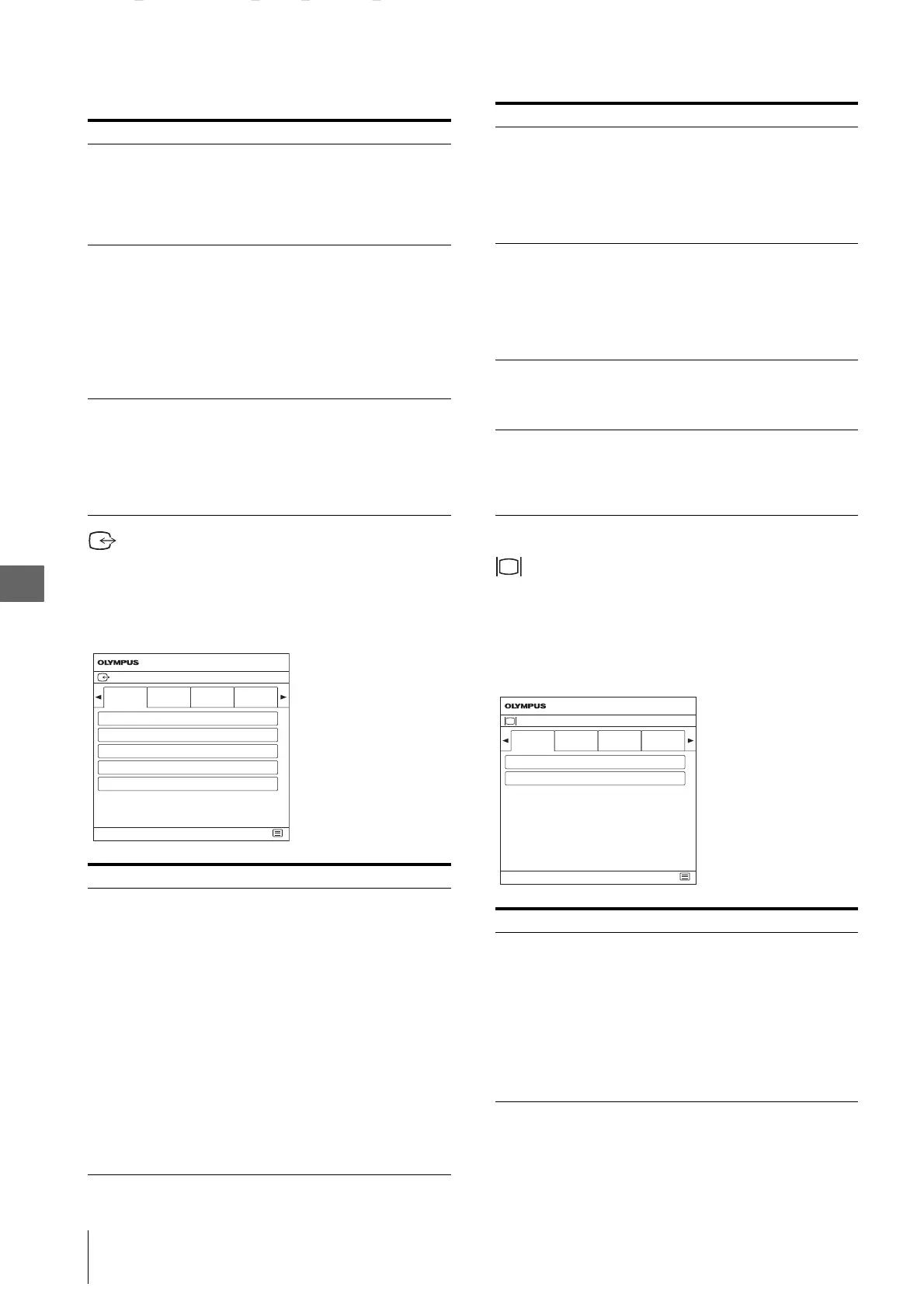
Input/Output Configuration menu
The Input/Output Configuration menu is used to set the
Clone Out, Port A/B Input Select, Input Name, and
AUX IN settings.
Example “Clone Out” menu
* Adjusts the setting for CLONE OUT (SDI).
System Configuration menu
The System Configuration menu is used to set the
Control Lock, OSD Setting, Power On Setting, Power
Save, Remote settings, Custom Button setting, and
Panel Display setting.
Example “Control Lock” menu
Submenu Setting
Clipping Size Sets the HD clipping size for each
port when using multi-image
display. Select from among
“Normal,” “4:3,” “5:4,” “Square1,”
“Square2,” “Square3,” “Square4,”
“Square5.”
Sub Screen position
PIP
POP
Sets the sub screen position for the
multi-image display (PIP). Select
from among “Lower Left,” “Upper
Left,” “Upper Right,” “Lower
Right.”
Sets the sub screen position for the
multi-image display (POP). Select
from among “Right,” “Left.”
Pattern Skip Sets the pattern that is skipped
when changing the displaying
pattern by pressing the PIP/POP
button on the front panel while
displaying multi-image display. Set
to “Not Skip” or “Skip” for the
PIP1, PIP2, POP1, or POP2 pattern.
Submenu Setting
Clone Out*
Format
Frame Rate
Flip Out
Color Adjustment Out
Black Picture Out
Sets the signal format for the clone
out (SDI signal). Select from
among “1080i,” “1080p.”
Sets the frame rate for the clone out
(SDI signal). Select from among
“60Hz,” “50Hz.”
Sets the flip out for the clone out
(SDI signal). Select from among
“Off,” “On.”
Sets the color adjustment out for the
clone out (SDI signal). Select from
among “Through,” “On,” “Mode
1,” “Mode 2.”
Sets the black picture out for the
clone out (SDI signal). Select from
among “Off,” “On.”
Clone Out
Input Name
Format 1080i
OEV262H
Frame Rate 60Hz
Flip Out Off
Color Adjustment Out Through
Black Picture Out Off
End
Port A
Input Select
Port B
Input Select
Input/Output Configuration
Port A Input Select Sets the input connector that is
skipped when changing the input
signal by pressing the PORT A
button. Set to “Not Skip” or “Skip”
for the SDI 1, SDI 2, DVI 1, DVI 2,
HD15, Composite, or Y/C input
connector.
Port B Input Select Sets the input connector that is
skipped when changing the input
signal by pressing the PORT B
button. Set to “Not Skip” or “Skip”
for the SDI 1, SDI 2, DVI 1, DVI 2,
HD15, Composite, or Y/C input
connector.
Input Name Sets the name for each input
connector. Set the name of the SDI
1, SDI 2, DVI 1, DVI 2, HD15,
Composite, or Y/C input connector.
AUX IN Setting/
Playback Message
Display
Set whether or not to display the
playback message when the AUX
IN connector is selected and no
signal is input. Select from among
“Off,” “On.”
Submenu Setting
Control Lock
Control Lock
Lock Mode
Set when you want to limit the
operation of the control panel. Set
to “Off” for no limit, “On” to limit.
Sets the limiting area of the
operation for the control panel.
Select from among “Menu,” “Menu
& Button.” This setting is effective
only when you set “Control Lock”
to “On.”
Submenu Setting
System Configuration
Control
Lock
OSD Setting Power Save
End
Control Lock Off
Power On
Setting
OEV262H
Lock Mode
Menu


 To Next Page