EN10
Part Names and Functions of the OMRONTENS App
Therapy Setting Screen
1
A
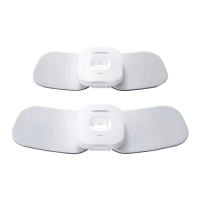
Tap to make the first connected device active. You can select a treatment
area on which the first connected device will be placed.
2
B
Tap to make the second connected device active. You can select a treatment
area on which the second connected device will be placed.
3
Battery charge is full.
Battery charge is about half full.
Battery charge is close to low.
4
Displayed when there is any notification.
5
Tap to show the therapy setting screen.
6
Tap to show the pain diary screen to record your pain level or view your pain
history.
7
Tap to show the settings screen.
8
Tap to show the help information.
9
Tap to show the proper pad placement.
J
A
Indicates the area on which the first connected device will be placed.
K
B
Indicates the area on which the second connected device will be placed.
A
B
A B
1
32
I
J
K
4
8765
Screen design may be changed. View of the screen may be slightly
different depending on the smart device type.



 To Next Page