40
7. Using the UPS monitoring software and contact signal
1. Connect the UPS to a computer.
Cable: Included connection cable (RS-232C)
Connector
Connect to
RS-232C
terminal
冷却ファン
INPUT
AC100V-120V入力
50/60Hz16A
AC入力
過電流保護
20A
バッテリ増設信号コネクタ
バッテリ増設コネクタ
DC36V/40A
Connect to RS-232C
port on PC
BU150SW
Included connection cable
接地
信号カード
増設
OUTPUTAC100-12
0V50/60Hz1ø
出力電力最大1.5kVA
/1500W
RS232C
Connector
Connect to
RS-232C
connector on UPS
信号カード
増設
RS232C
2. Install the included UPS monitoring software on the computer.
Software to install: PowerAct Pro
How to install: Refer to the separate “UPS monitoring software installation guide”.
"PowerAct Pro" UPS monitoring software
The included "PowerAct Pro" UPS monitoring software allows you to automatically save fi les and perform
shutdown processing of your PC when a power failure occurs.
Also, you can perform desired operation by setting the automatic start/stop of the UPS based on the
schedule setting.
* The time between the occurrence of a power failure and the shutdown of your PC must be within the
backup time measured in "5-1 How to measure backup time" on page 29.
For more information, refer to the Instruction Manual and online help of the UPS monitoring software.
7-1
When using the included UPS monitoring
software to perform auto shutdown
Switching hub
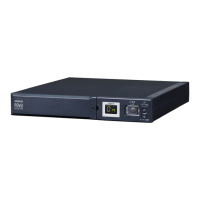
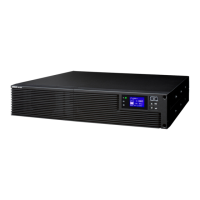
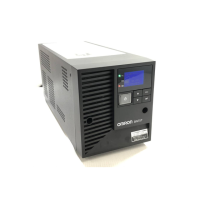
UPS (Image shows BU150SW.)
PC server 3
Power cable
Power cable
Power cable
LAN connection
Remote connection
Power cable
PC server 2
PC server 1
Network
The Included connection cable (RS-232C)
㻐
䝔䝇 䝊䝮
䚭ஹᥦ
䝔䝇 䝊䝮
䚭ቌシ
䝚䜺䞀ೳḾ㻒䝊 䜽䝌
㞹″ฝງ
䝔䜨 䝕䜽
㐘㌷
∗
When connecting 2 or more computers to the UPS.


 To Next Page
 Loading...