Troubleshooting
logo is blinking red
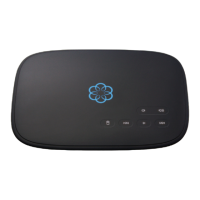
A blinking red logo indicates that your Ooma Telo is not
operational. It is normal for the logo to blink red for a
couple of minutes during boot up. Otherwise, check the
following to make sure everything is set up correctly:
• Verify that you have activated your device as described
on Page 4. If you plugged in your device before going
through the activation process, try rebooting it now.
• For Ethernet installations: Check that your network
cables are plugged in securely. Verify that the
INTERNET port is connected to your router (or modem).
The LED at the bottom right of the connector will be lit
green if the cable is connected properly.
• For Wi-Fi installations: Try moving the Telo closer
to your Wi-Fi router and repeating the directions on
Page 5 to refresh your wireless setup. If you are
unable to connect over Wi-Fi, follow the directions
on Page 17 to connect your Telo to your router using
Ethernet instead.
• Check that your Internet connection is working.
Try connecting a computer to the HOME port and
browse to my.ooma.com. You should see the login
screen for My Ooma. If not, troubleshoot your Internet
connection.
• Try rebooting your Telo, modem, and router by pulling
out the power and plugging them back in.
logo does not light up
Check that the AC adapter is plugged in and power is being
supplied to the device.
You don’t hear the Ooma dialtone
If the Ooma logo is blue but you don’t hear a dialtone, check
that your phone is correctly plugged into the PHONE port.
Incoming calls do not ring your home phone
When Do Not Disturb is turned on, the Ooma logo will light
up purple and all incoming calls will go directly to voicemail
without ringing your phones. To turn o the feature, press and
hold the
button or dial
*
7 9
from your phone.
You are unable to hear your messages
Check that the speaker hasn’t been turned o. Increase the
volume level by pressing
. The device will say what volume
it has been set to.
Voice constantly breaks up
Voice quality is dependent on the speed and quality of your
Internet connection.
For best results, Ooma recommends that you hardwire your
Telo between the modem and router as shown on Page18.
This conguration allows phone calls to be intelligently
prioritized over other network trac.
You can optimize how Ooma allocates bandwidth by
connecting a computer to the HOME port, browsing to
setup.ooma.com, then clicking on the Advanced tab.
14 15
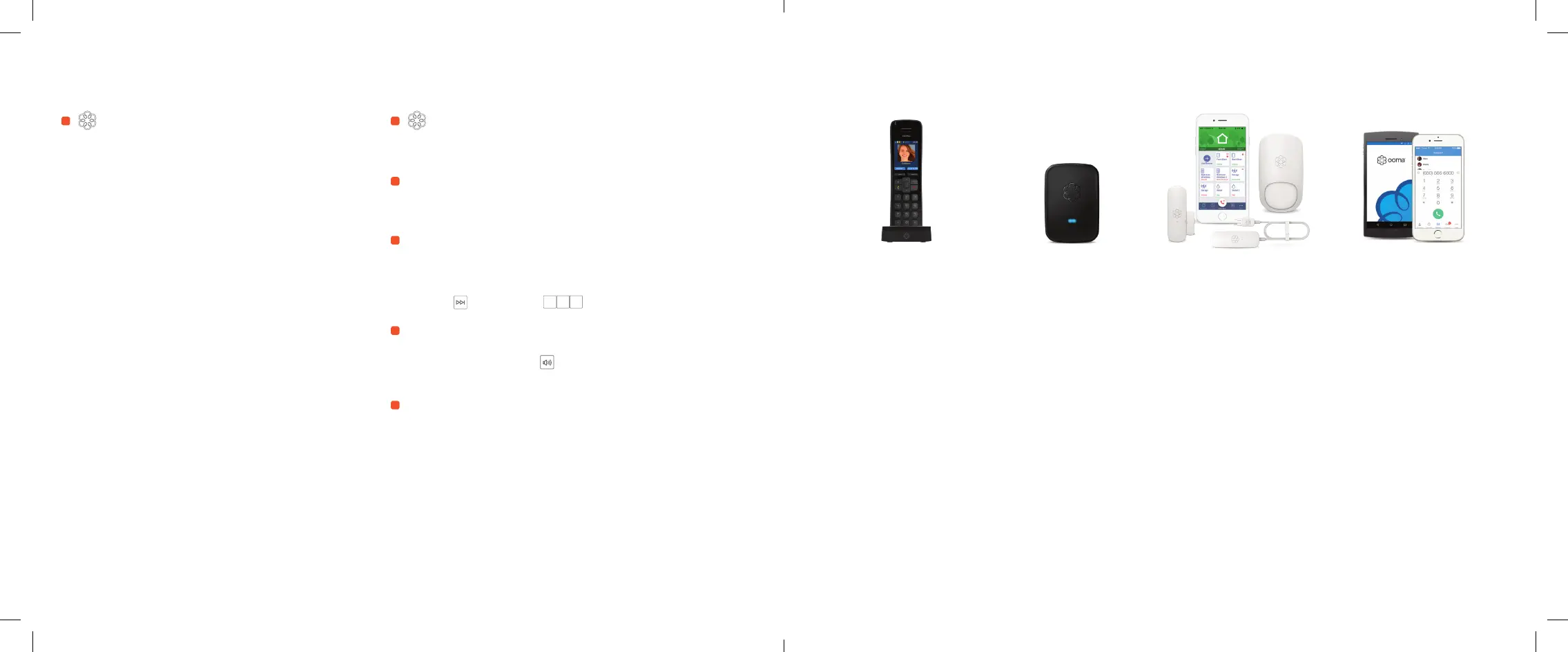
Add-Ons for Ooma Telo
To learn more about these accessories for the Ooma Telo, visit: my.ooma.com/products
Ooma
HD2 and HD3 Handsets
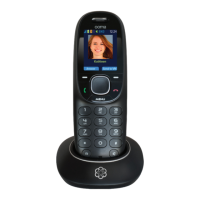
The Ooma HD2 and HD3
handsets sync wirelessly
with the Ooma Telo to
give you the freedom to
set them up anywhere in
your home. The handset
supports many advanced
features, including contact
list syncing, Facebook
picture caller-ID, custom
musical ringtones, access
to the Instant Second
Line, and much more.
Ooma
Linx
Sometimes you want
a telephone in a room
that doesn’t have the
wiring to set one up. The
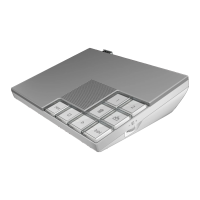
Ooma Linx device is a
remote phone jack that
syncs wirelessly with the
Ooma Telo to support a
telephone anywhere there
is an available electrical
outlet. With Premier
service you can assign a
separate number to the
Ooma Linx for a perfect
home oce solution.
Ooma
Home Security
Add home monitoring to
your current Ooma home
phone service and check
the status of your home
24/7. Call 911 remotely
from your home phone
number even when you
are not at home. Receive
notications when
doors open or close.
Monitor movement from
anywhere. Detect water
before it causes damage.
Ooma
mobile app
Available for both iOS and
Android devices, the free
Ooma mobile app allows
you to make and receive
phone calls through
your Wi-Fi or 3G/4G
data connection without
using cell phone minutes.
The app also oers a
convenient interface to
listen to voicemails
and to manage your
Ooma account.
Ooma-Telo-Air-QSG_EN-FR 700-0192-100-Jan2018-R2.indd 14-15 1/31/18 2:36 PM


 To Next Page
 Loading...