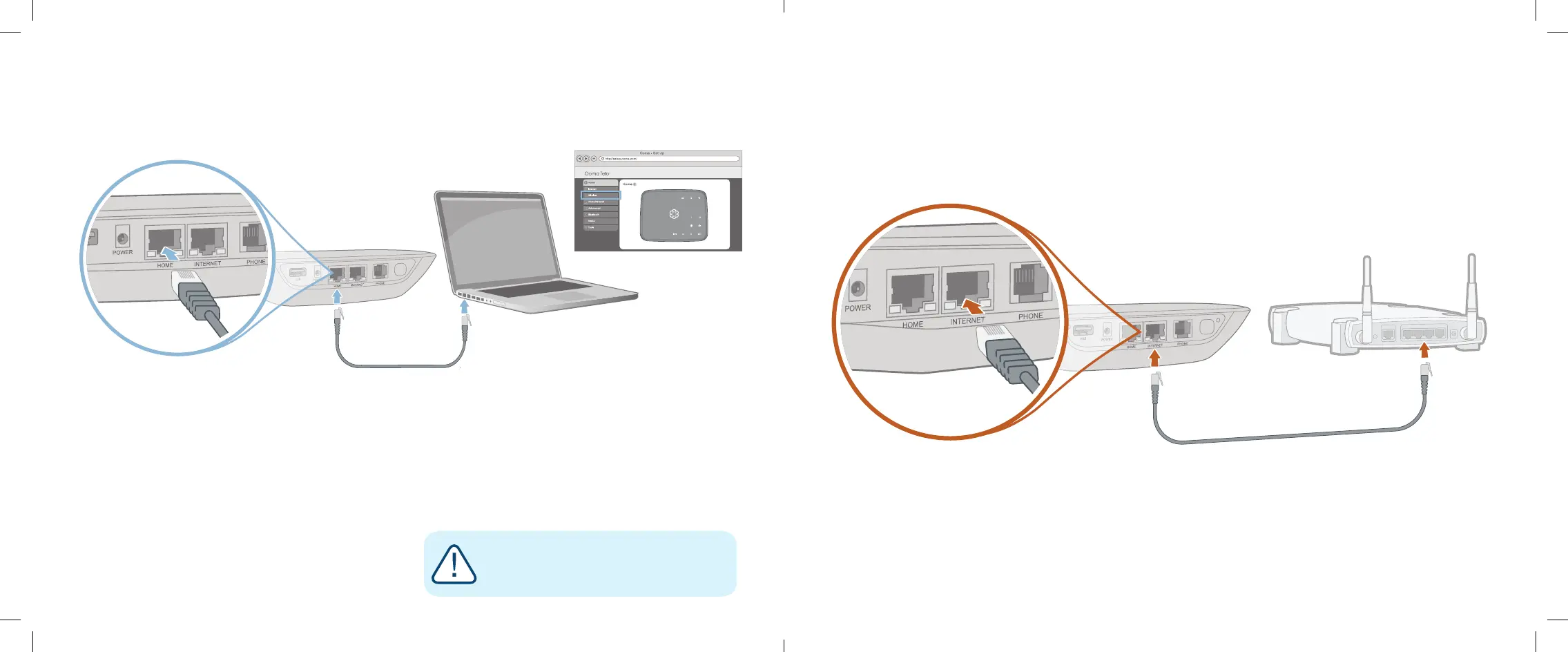
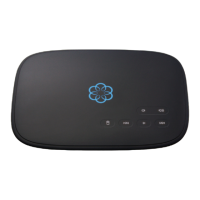
If you do not wish to connect your Telo to your Wi-Fi network, you can use a hardwired connection
instead. Insert one end of the Ethernet cable into the INTERNET port on the back of the Telo.
Connect the other end of the cable to an open port on your router.
Plug the included AC adapter into the POWER port. The Ooma logo will blink red for a few minutes.
When it turns blue, the Telo is ready.
We recommend using the Ooma Telo setup app for Wi-Fi setup.
If you cannot use the mobile app, follow the instructions below:
Connect a Computer to your Ooma Telo
Power on your Telo Air using the included AC cord. It is
normal for the lights on the Telo to blink for a couple of
minutes while it boots up.
When the device has booted up, use the included
Ethernet cable to connect a computer to the
HOME port of the Telo.
Congure Wireless Settings
Open a browser on the computer connected to the
Telo and navigate to setup.ooma.com, a special site
embedded in your Telo.
Click the Wireless tab on the left side of your screen.
Follow the onscreen instructions to conenct the Telo to
your Wi-Fi network using your network name
and password.
Alternative Wi-Fi Setup Connecting Your Telo Using Ethernet
IMPORTANT: If the computer has Wi-Fi,
it must be disabled. The computer must
have a wired connection to the Telo.
16 17
Ooma-Telo-Air-QSG_EN-FR 700-0192-100-Jan2018-R2.indd 16-17 1/31/18 2:36 PM


 To Next Page