Operating the System 37
DS2200 User Manual - OPEX Corporation use only - not for distribution
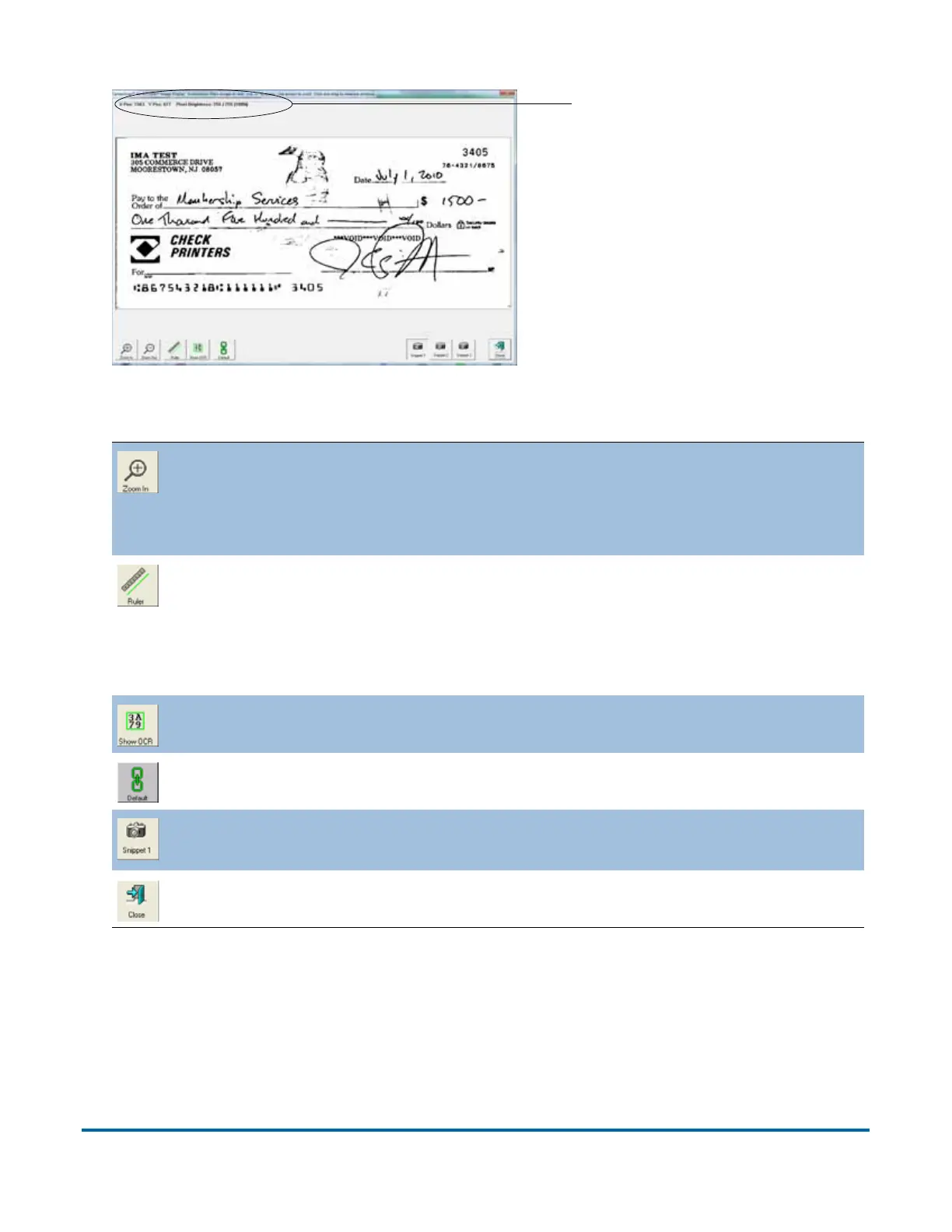
Figure 8: Zoom screen
The Zoom In and Zoom Out buttons enlarge and reduce the image in
the Zoom screen. Re-center the zoom by touching the new center on
the monitor or use the mouse. You can also use the + and - keys on the
keyboard to zoom in and out.
Use the Ruler function to measure distance from one place to another
on the image. Use the mouse to click the Ruler button, then click and
hold the left mouse button on one location while you drag the cursor to
the other location. Notice that as you move the cursor from place to
place, its exact position is indicated in the field as noted in Figure 8.
Display the designated scan area for the OCR lines.
Make this image the Default for this page type.
View any Snippets associated with the image. The snippets the system
captures are set up in the Page Type Parameters.
Close the Zoom window.
X,Y - axis position


 To Next Page