52 Operating the System
DS2200 User Manual - OPEX Corporation use only - not for distribution
2 Take the document out of the sort bin.
3 Press Rescan to replace the document in the batch.
Note: If an audit trail was printed on the document the first time it was
scanned, press Rescan NP (no printing) to replace the document in the
batch. This way, no additional audit trails will be printed on the
document.
4 Drop the document onto the drop feeder.
5 Verify that the image is acceptable.
Note: The Rescan buttons will only be available if activated for the current job.
Deleting documents from the batch
When the machine is stopped, you can delete documents from the batch.
Press the Delete button to delete a document image.
Note: The Delete button will only be present if activated for the current job.
The action of the Delete button depends on the setting of the Allow Delete job
parameter:
• If the parameter is set to Delete Last Item, you will only be able to delete the
most recently scanned document image from the batch. Press Delete to
delete the last image.
• If the Allow Delete parameter is set to Delete To End Of Batch, you can also
choose a document thumbnail and delete all the documents scanned after
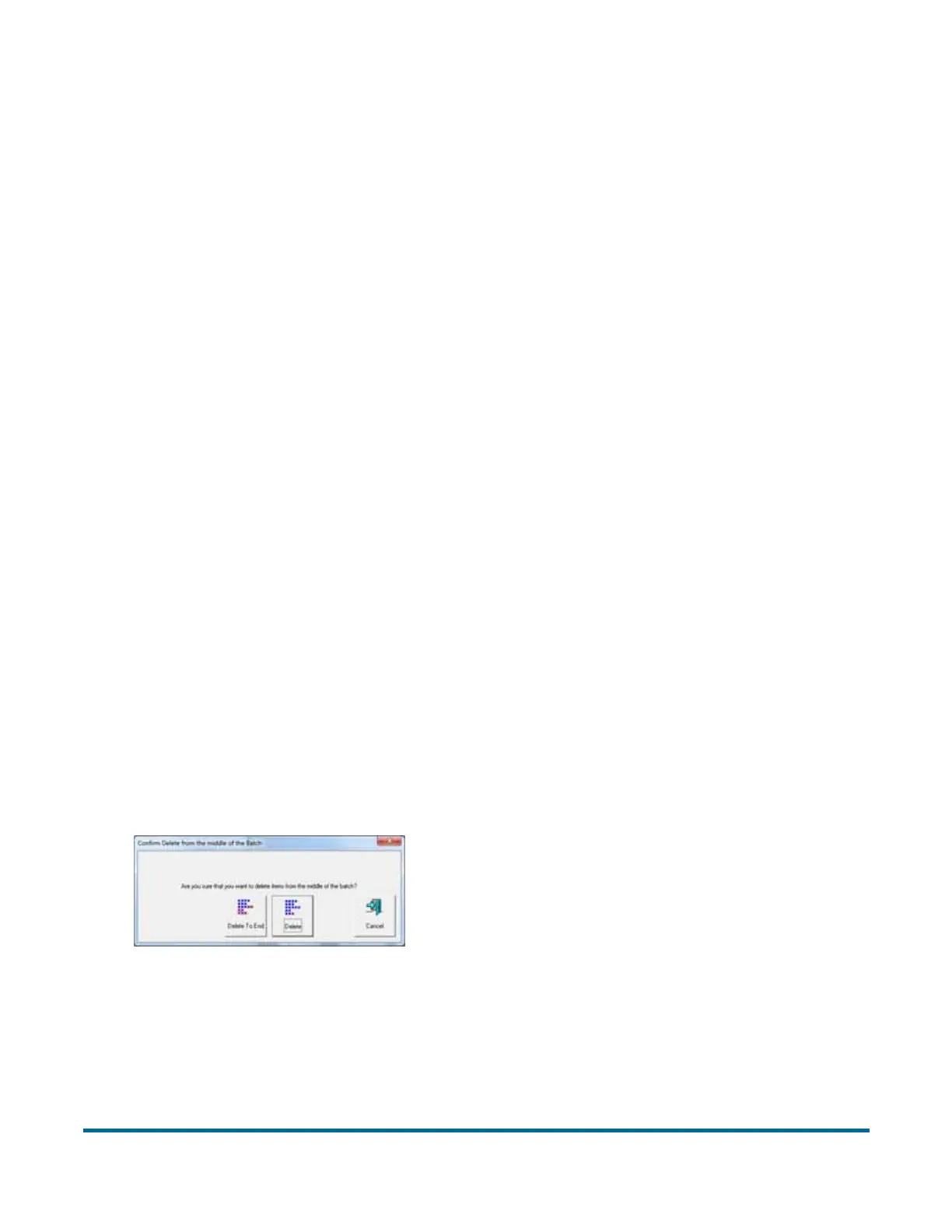
the selected document. When the Delete button is pressed, the Confirm
Delete window (Figure 15) will appear.
Figure 15: Confirm delete
Note: It is not possible to delete a single document image from the middle of
the batch. If you need to delete an image from the middle of the batch,
you must also delete all the images to the end of the batch as well.


 To Next Page