U
U
s
s
e
e
r
r
m
m
a
a
n
n
u
u
a
a
l
l
14
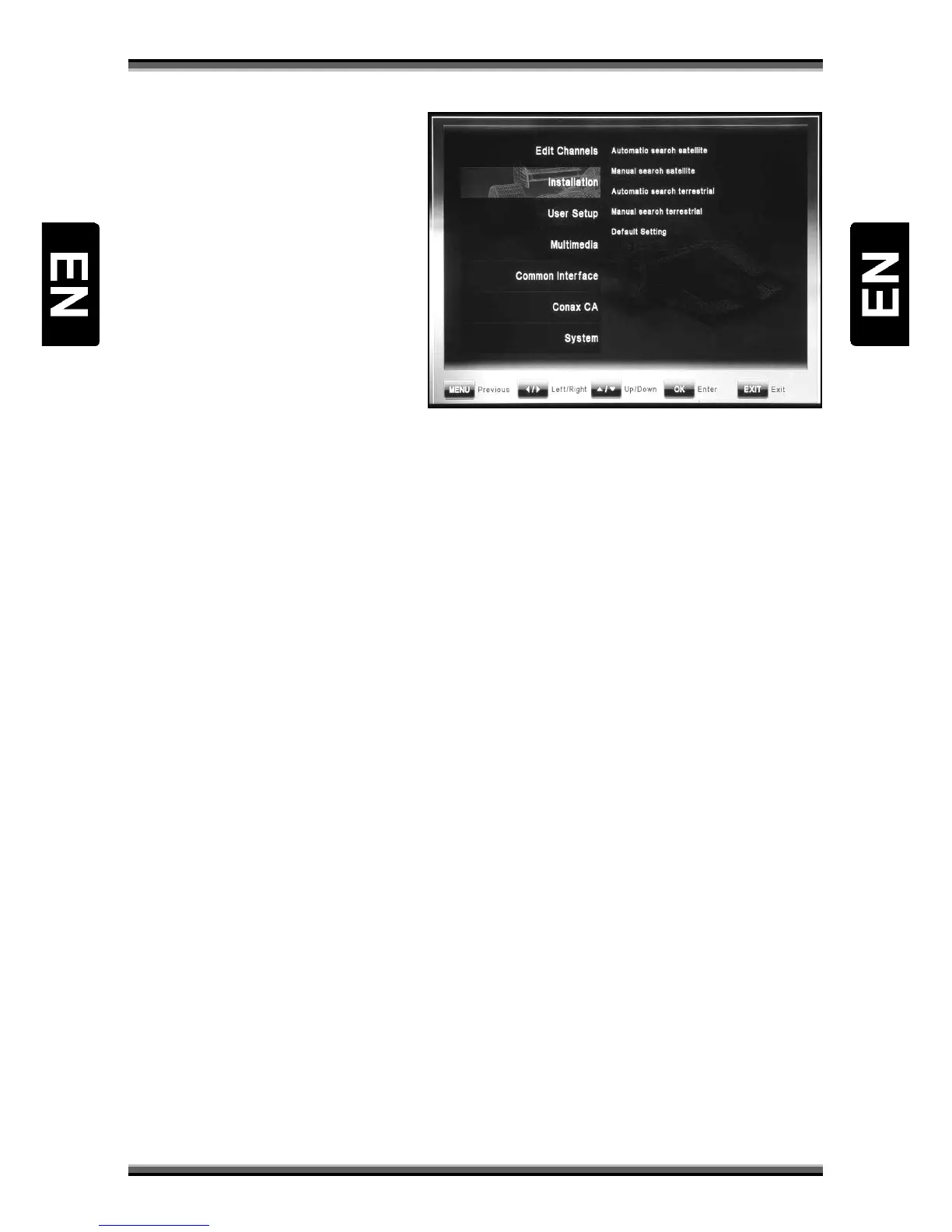
9.2. Menu „Installation”
Menu „Installation” includes 5 submenu
items:
• Automatic search satellite
• Manual search satellite
• Automatic search terrestrial
(optional)
• Manual search terrestrial
(optional)
• Default Setting
9.2.1. Automatic search satellite
This function enables quick way to scan satellite channels. Automatic search satellite screen consist at
beginning only satellite list. Using
↑,↓ buttons, user can select satellite from list. OK button pressed on
specified satellite, marks it on list and displays simplified parameters of installation, where user can
choose used in installation hardware DiSEqC equipment and change DiSEqC switch settings. Another
press of OK button leave settings window and returns to satellites list.
After selecting all needed satellites, Scan (Red button) starts scanning of channels.
9.2.2. Manual search satellite
This function enables more expanded way to scan channels. Manual search satellite screen consist at
beginning only satellite list. Using
↑,↓ buttons, user can select satellite from list. OK button pressed on
specified satellite displays satellite parameters. Another press of OK button leave settings window and
returns to satellites list.
After selecting all needed satellites, Scan (Red button) starts scanning of channels. Press one of color
button on remote to call corresponding function:
Scan (Red button): Starts scanning of channels on current satellite.
Edit (Green button): Enables edition of all satellite parameters. In this window, functions of color
buttons are different: Scan (Red button): starts scanning of channels on current satellite, TP Search
(Green button): enables scanning of only one transponder from whole satellite, Rename (Yellow
button): enables changing name of satellite, Motor (Blue button): enables settings of additional
positioner hardware.
Motor (Blue button): Enables settings of additional positioner hardware.
TP (Yellow button): Displays lists of satellites and transponders. In list of satellites (left) user can
choose satellite. In this window, functions of color buttons are different: Add TP (Green button) can
add new transponder to transponder list of satellite. In transponders list (right) user can manage
transponders using: TP Search (Red button): enables scanning of selected transponder, Delete (Yellow
button): enables erasing transponder from list, TP Edit (Blue button): enables modifying actual
parameters of transponder on list.
9.2.3. Automatic search terrestrial (optional)


 To Next Page