34
English
Appendices
Image Problems
No image appears on-screen
Ensure all the cables and power connections are correctly and
securely connected as described in the “Installation” section.
Ensure the pins of connectors are not crooked or broken.
Check if the projection lamp has been securely installed. Please
refer to the “Replacing the lamp” section.
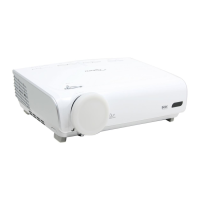
Make sure you have removed the lens cap and the projector is
switched on.
Partial, scrolling or incorrectly displayed image
Press “Re-Sync” on the remote control or control panel.
If you are using a PC:
For Windows 95, 98, 2000, XP:
1. Open the “My Computer” icon, the “Control Panel” folder,
and then double click on the “Display” icon.
2. Select the “Settings” tab.
3. Verify that your display resolution setting is lower than or
equal to SXGA+ (1400 x 1050). (*)
4. Click on the “Advanced Properties” button.
If the projector is still not projecting the whole image, you will
also need to change the monitor display you are using. Refer
to the following steps.
5. Verify the resolution setting is lower than or equal to
SXGA+ (1400 x 1050) resolution.
Troubleshooting
If you experience a problem with your projector,
please refer to the following information. If a
problem persists, please contact your local re-
seller or service center. (See page 43 for details)
(*) The resolution
WXGA (1280 x 720) is
recommend for com-
puter signal.


 To Next Page