Oracle Field Service
Using Core Application
Chapter 2
Dispatcher Activities
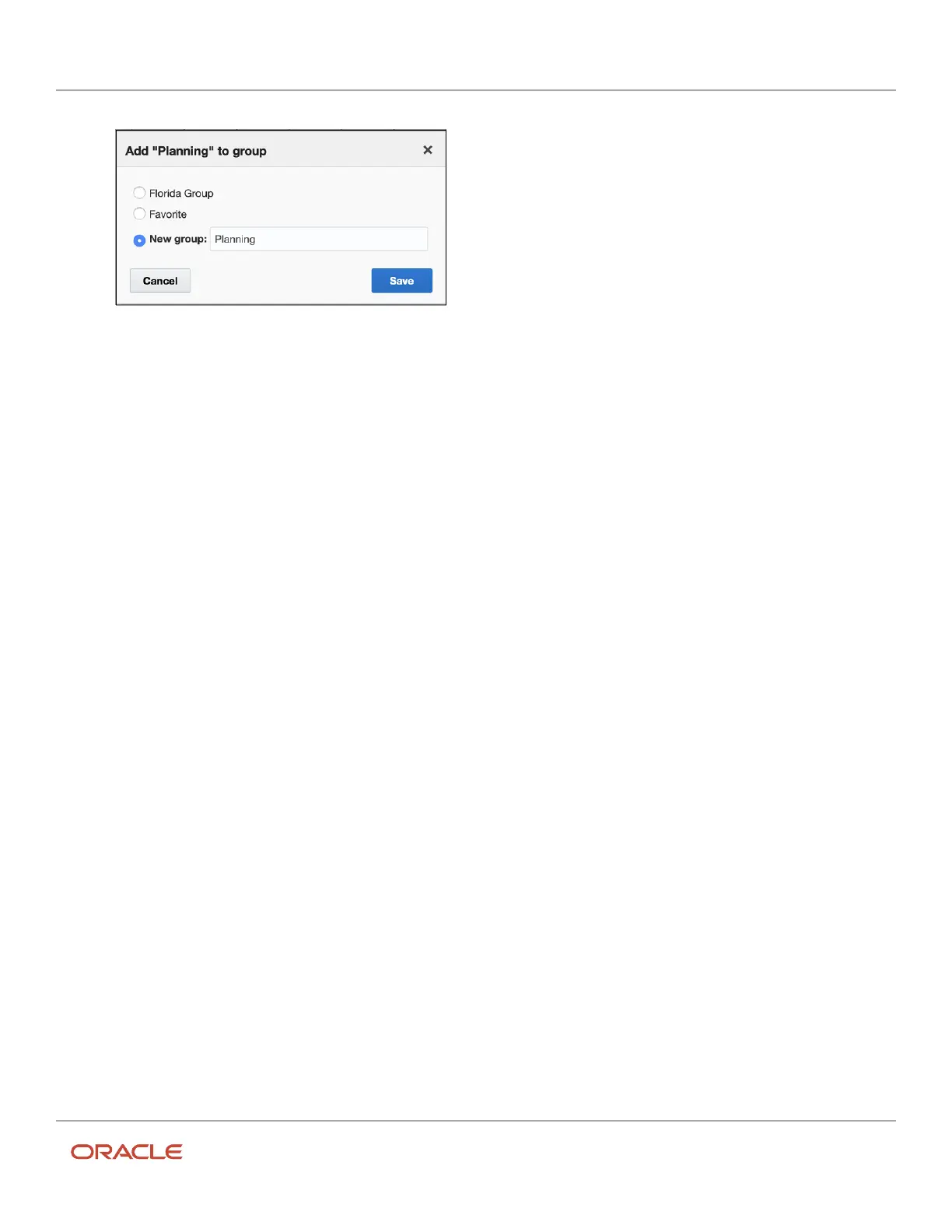
5. Click Save.
When you add a resource to a group, the star icon on the resource hint is filled.
Add a Resource to an Existing Favorite Group
When you start managing new resources, you can add them to the existing favorite groups.
1. Determine the resource that you want to be in a new group.
When adding an organization unit or a bucket, note that the OrgUnit/Buckets is a dynamic entity. This means
that the child resources within this group may change over time, and these changes show in your group
content. Therefore, if you want to have specific resources in your managed group, assign those resources
individually. Selecting a group resource automatically selects all its child resources.
2. Open the Resource Hint.
3. Click the star icon.
4. Select an appropriate group and click Save.
The star icon for the resource is filled.
5. To go to a child resource of an Organization Unit, a Bucket, or a Group, click the arrow in front of the resource.
6. To go to a parent resource, click the arrow before a resource (one level up). Or, click the 'organization' icon to
jump to the root level in the resource tree.
Edit a Favorite Group
You can edit a favorite group to rename, remove, or add a filter to it.
1. To rename a group:
a. Click the star icon next to the group name.
b. Click Edit group.
c. Change the name in the Group name field.
d. Click Submit.
2. To remove a favorite group:
a. Click the star icon next to the group name.
b. Click Remove group.
c. Click Submit on the confirmation dialog box.
Only the group is removed. The resources added to the group are not deleted.
3. Select a filter that applies to the group:
a. Ensure that your administrator has created a filter for the resource entity and selected the List/Time/
Map/Daily checkbox. This filter is used when displaying the members of the group on the Manage
screen.
b. Select the desired checkboxes to add or remove resources to the group.
c. Click Submit to save your changes.
141










 To Next Page