There are two different ways of recording your song: Quick Recording and Multi-Track
Recording.
(All the recording data will be saved automatically as MIDI Format 0 File to your USB Disk).
QUICK RECORDING
1. Insert the USB Disk into the USB socket.
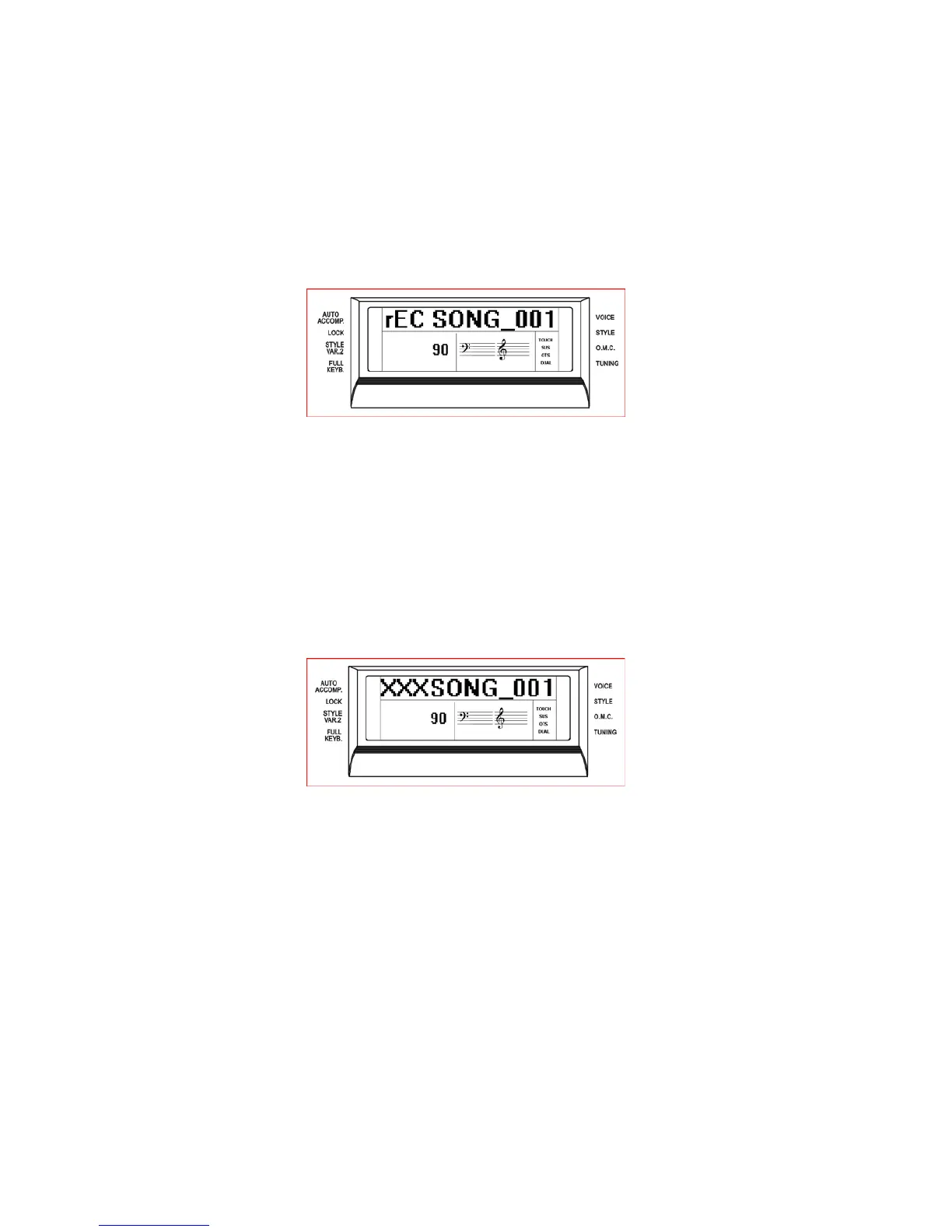
2. Press the [RECORD] button to start recording.
The display shows:
As soon as [RECORD] is pressed the Metronome will automatically start. This can be
switched off at any time by pressing the Metronome button OFF.
The display will show the down beat dot as long as the first key on the keyboard or the
[START/STOP] button is pressed, and the recording will start.
3. As soon as the recording is started the downbeat dots will indicate the recording running
status. During recording you can select sounds, volumes, effects, change styles and all
will be recorded in your performance.
4. To stop recording, press the [RECORD] button again. The recording stops immediately
and your song is stored in the USB Disk memory. The internal computer will
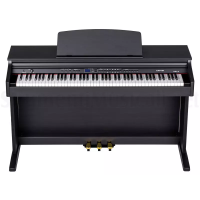
immediately store your song automatically assigning the name:
(XXX indicates the total file number. 001 indicates the recording file number).
MULTI-TRACK RECORDING
This function allows you to modify a song edited with the Quick Recording system making it
more complex by adding new tracks.
Multi-track recording provides two ways to record:
1. Use Auto Track Assignment.
2. Select Tracks yourself.
USE AUTO TRACK ASSIGNMENT
- Insert the USB Disk into the USB socket.
28


 To Next Page