14 | EdgeSync Manual rev 1 orolia.com
The Login webpage contains the following entries and buttons:
• Username (Factory default: “admin”)
• Password (Factory default: “admin”)
• Change Password hyperlink, selects Change Password webpage
• Login button – Apply Username and Password to login
• Clear button – Clear Username and Password
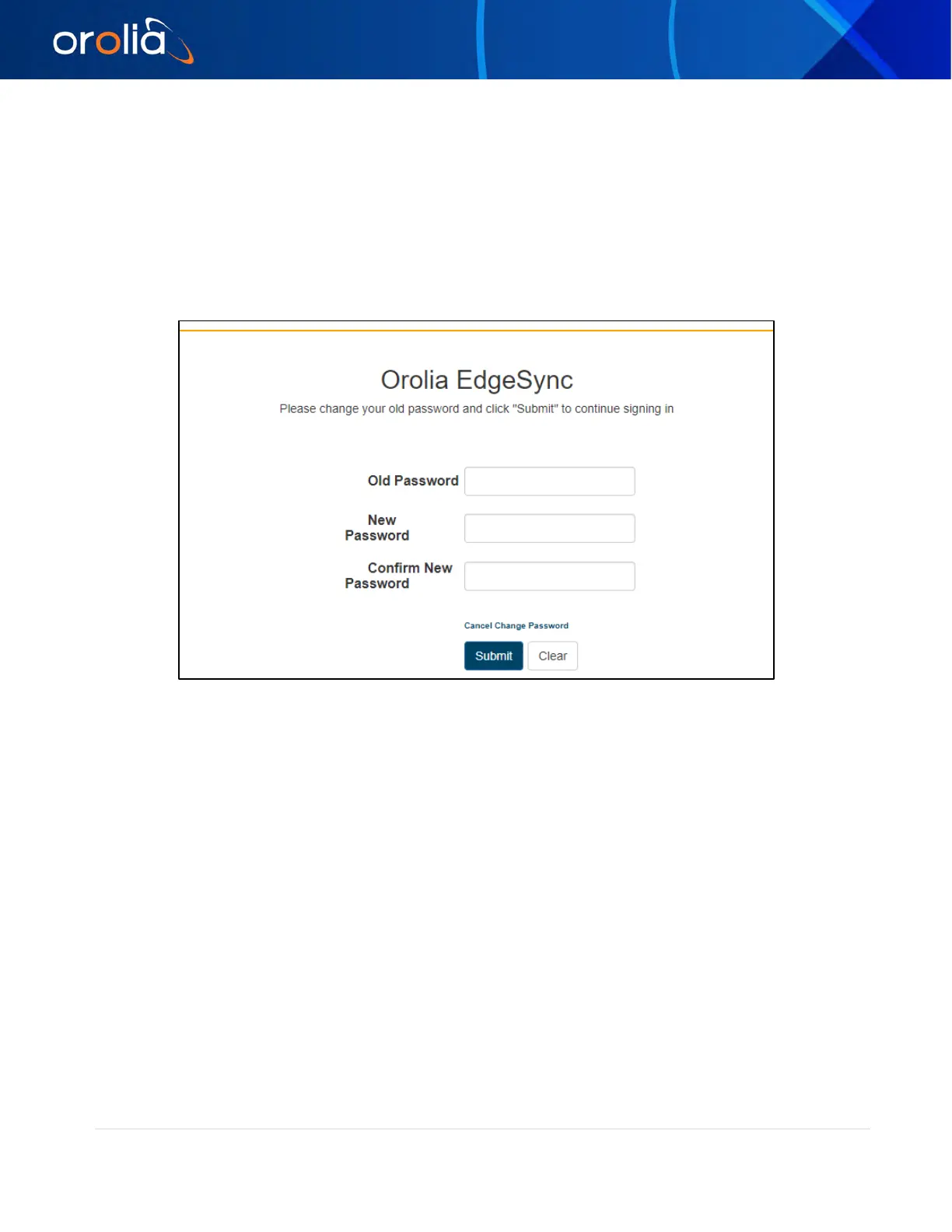
Change Password Webpage
Figure 6 Change Password Webpage
The Change Password webpage contains the following entries and buttons:
• Old Password – Enter current password
• New Password – Enter new password
• Confirm New Password – Re-enter new password
• Cancel Change Password hyperlink, selects Login webpage
• Submit button – Apply New Password
• Clear button – Clear all entries
In the case of a forgotten or lost password, the EdgeSync can be reset to factory defaults to recover
the default password. The Hard Reset Button section of this User Guide describes how to reset the
EdgeSync to factory defaults. When the EdgeSync completes the reboot, the password will be reset
back to “admin”. Prior to doing a Hard Reset, saving the current configuration of the EdgeSync is
recommended, and then reloading the configuration after reboot has completed.


 To Next Page