OvisLink
- 25
Interval to check Enter the time interval that you would like the device to
checks the email.
UNDO Click “UNDO” to clear all the settings on this page.
SAVE After completing the settings on this page, click “SAVE” to
save the settings.
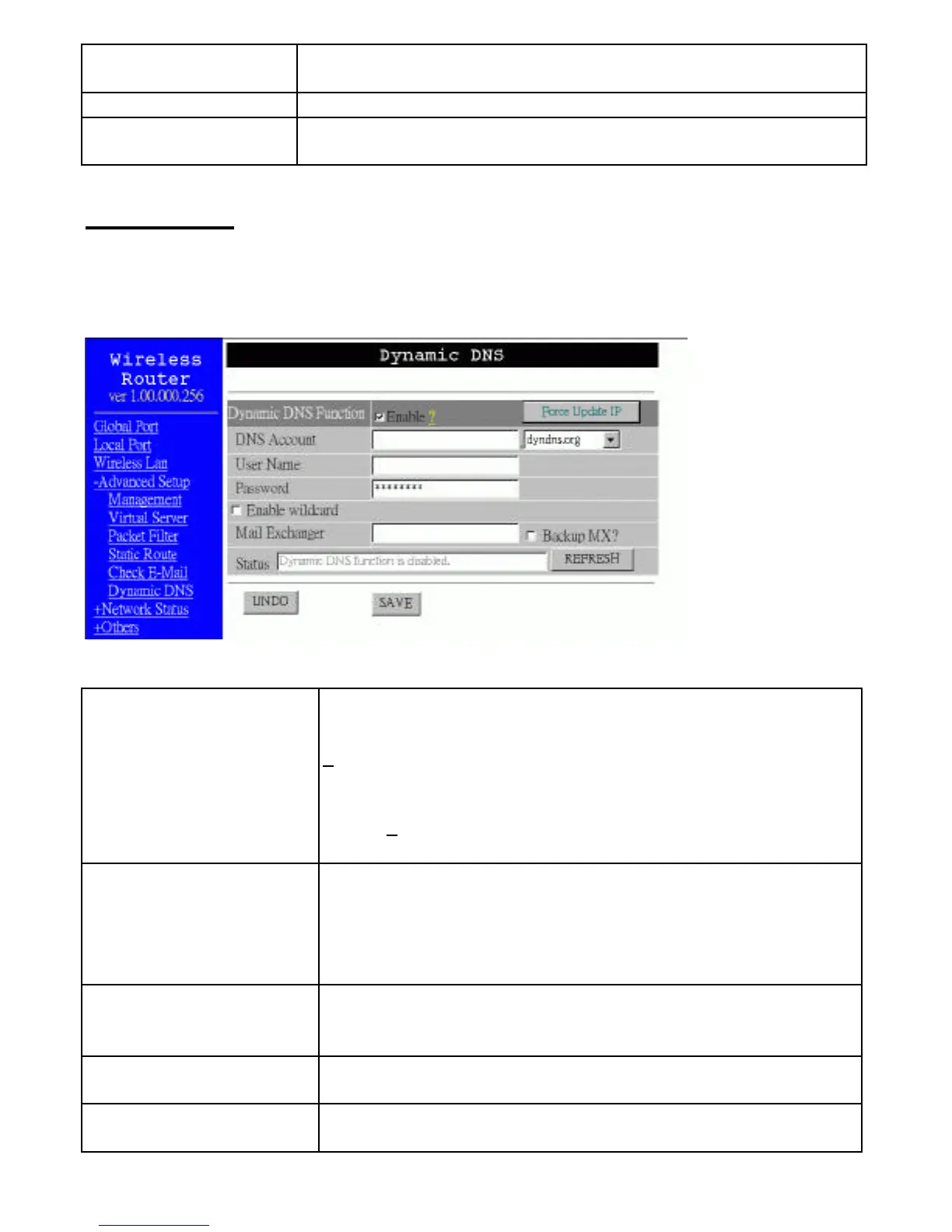
Dynamic DNS
The Dynamic DNS (Domain Name Server) allows you to alias a dynamic IP address to
a static hostname, which enables your device to be more easily accessed by specific
name. When this function is enabled, the IP address in Dynamic DNS Server will be
automatically updated with the new IP address provided by ISP.
Figure 19
Dynamic DNS
Function
Click ? Enable to enable this function and make the
settings available.
? Click on the question mark to find out more about Dynamic
DNS Service.
Note: If you don’t have the Dynamic DNS Service yet, click
on the ? and then follow the instructions to sign up for the
service.
Force Update IP Click to update the IP so that the Dynamic DNS Serve can get
the current IP. (The IP address in Dynamic DNS Server will be
automatically updated each time the device is rebooted,
therefore, it is unnecessary to force update IP unless the device
is functioning incorrectly.)
DNS Account
Enter your host domain name. Click the down arrow ? to
select your Dynamic DNS client with which you registered for
the service.
User Name Enter your user name, which was registered with the Dynamic
DNS client.
Password Enter your password, which was registered with the Dynamic
DNS client.



 To Next Page