User’s Manual
26
NOTE: Sequence cannot be used in the 4x4 display mode of the 16-channel, and 3x3 mode of the 8-channel DVR.
You can adjust the display dwell time by highlighting the box beside Interval and pressing the button. You can
select dwell intervals ranging from 1 second to 1 minute.
Highlight Event Monitoring On and press the button. Pressing the button toggles between On and Off. When
it is On, the DVR will display the camera associated with the event when an event occurs.
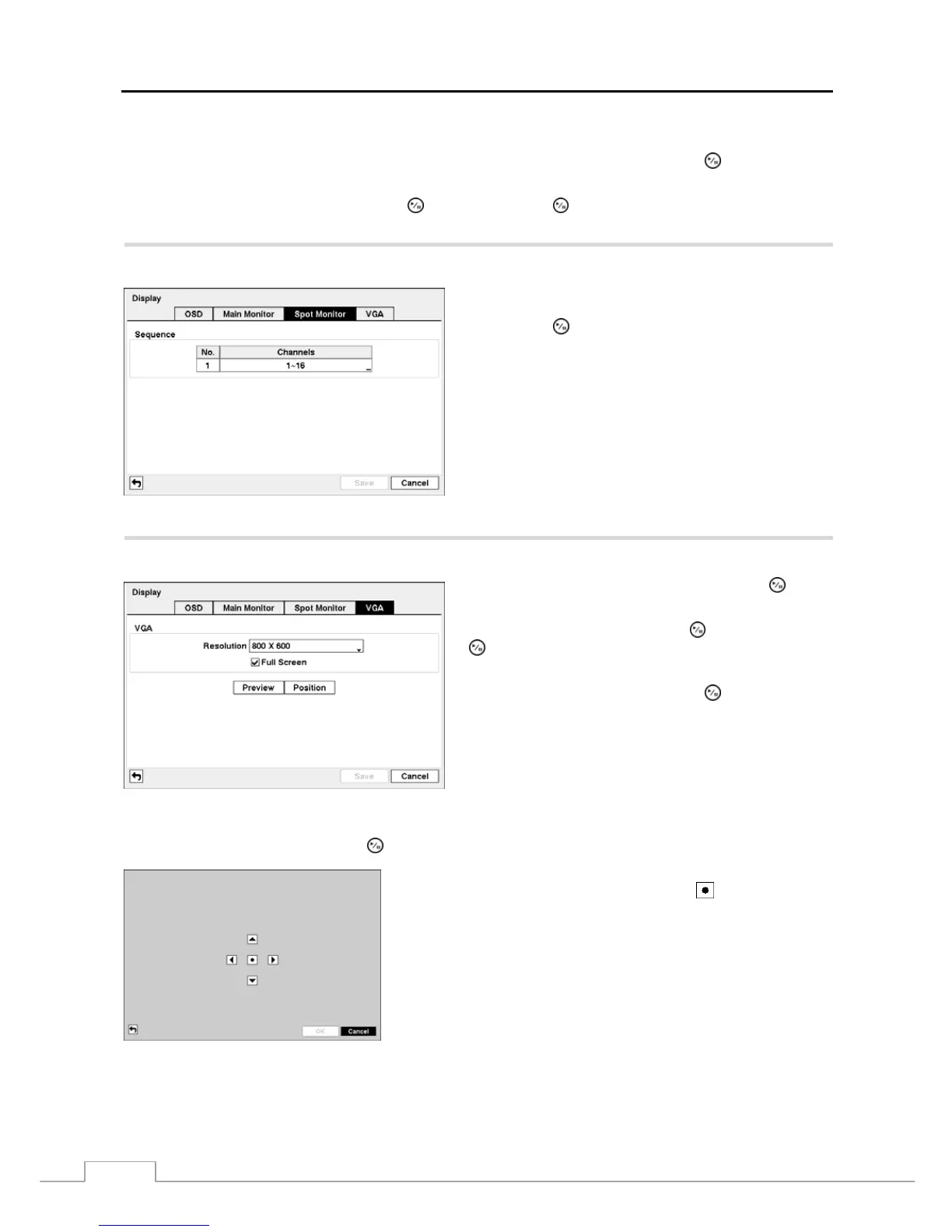
Highlight the Spot Monitor tab to switch to the Spot Monitor screen.
You can define which cameras display sequentially on the
Spot Monitor. Highlight the box in the Channels column
and press the
button.
Figure 32 — Spot Monitor screen.
Highlight the VGA tab to switch to the VGA screen.
Highlight the box beside Resolution and press the
button.
You can select from 800x600, 1024x768 and 1280x1024.
Highlight Full Screen and press the button. Pressing the
button toggles between On and Off. When it is On, the
screen on the VGA monitor displays in full screen mode.
Highlighting Preview and pressing the button allows you
to preview how the screen will be displayed on the VGA
monitor.
Figure 33 — VGA screen.
Highlighting Position and pressing the
button allows you to adjust the screen position on the VGA monitor.
Use the arrow buttons on the setup screen to move the VGA screen
position in the direction you want. Selecting the
button at the center
returns to the previous position.







 To Next Page