Digital Video Recorder
31
NOTE: When the DVR is in the Time or Time & Event mode, it ignores the pre-event settings and follows the
time settings.
Event Setup
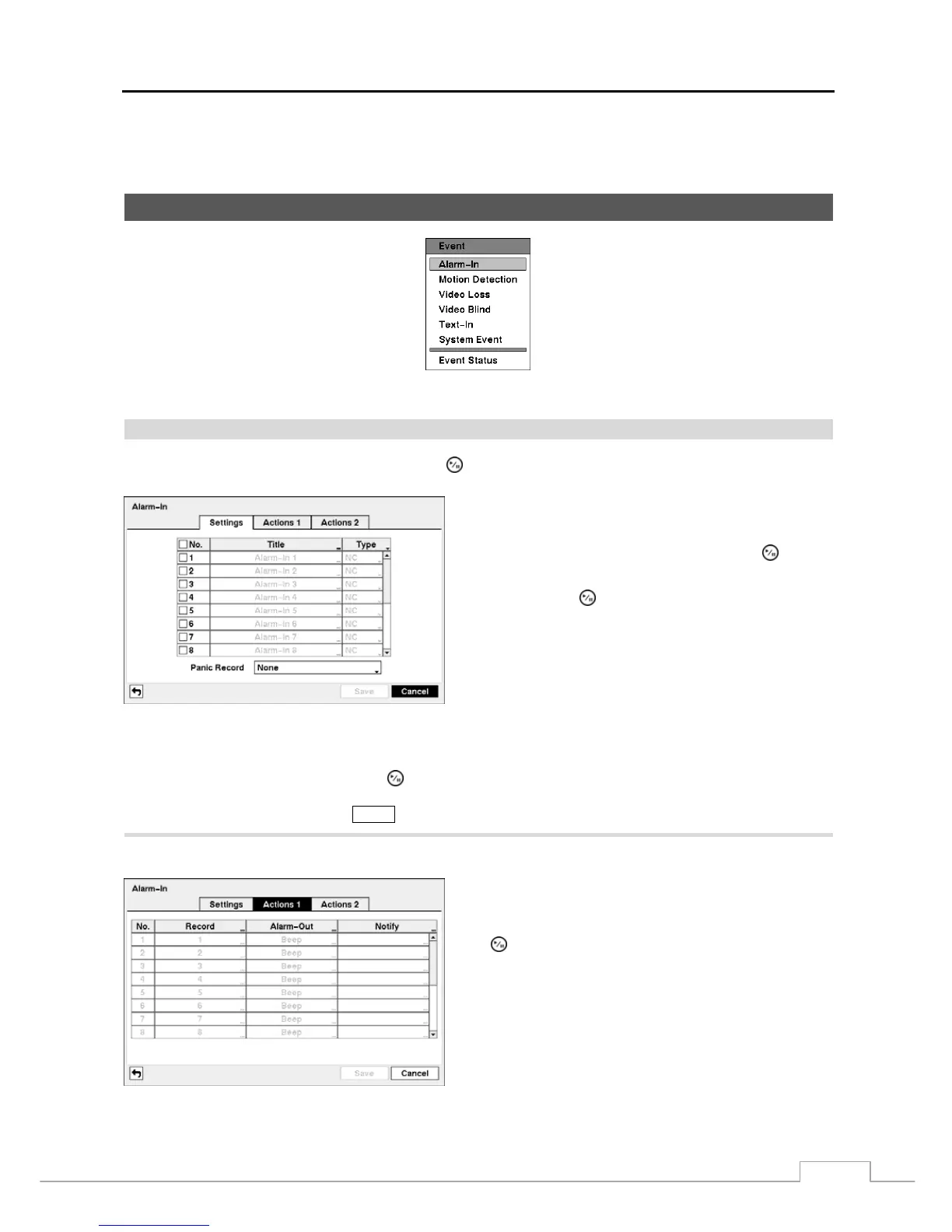
Figure 41 — Event menu.
Alarm-In
Highlight Alarm-In in the Event menu and press the
button. The Alarm-In setup screen appears.
The alarm terminal strip on the back of the DVR has inputs
associated with each alarm. You can set up each input on the
Alarm-In screen. You can turn each input On or Off by
highlighting the alarm number and pressing the
button.
Each input can be given a title. Highlight the desired Title
box and press the
button. A virtual keyboard appears
allowing you to enter a title name.
Each input can be set as NO (normally open) or NC (normally
closed).
Figure 42 — Alarm-In Settings screen.
You can set up the DVR to start panic recording whenever it senses an input on one of its alarm input connectors. Highlight
the box beside Panic Record and press the
button. A list of Alarm Inputs appears, and you can select which alarm
input you want associated with panic recording. The DVR will continue panic recording until an input on the selected
alarm input is released as long as the
PANIC button is not pressed to stop the panic recording.
Highlight the Actions 1 and Actions 2 tabs, and the Actions 1 and Actions 2 setup screens appear.
You can set the actions the DVR will take whenever it senses
an input on one of its alarm input connectors.
Highlight the desired box under the Record heading, and press
the
button. A list of cameras appears. Select the cameras
that you want the DVR to record whenever it detects an input
on the associated alarm input.
NOTE: For the Record action, the camera you select
should be set to the Event or Time & Event
recording mode in the Record Schedule setup
screen.
Figure 43 — Alarm-In Actions 1 screen.







 To Next Page