EasyManua.ls Logo

Panasonic HC-VX11 - User Manual

Panasonic HC-VX11
288 pages
Print Icon
To Next Page IconTo Next Page
Loading...
Operating Instructions
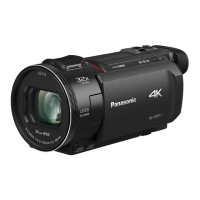
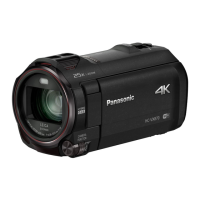
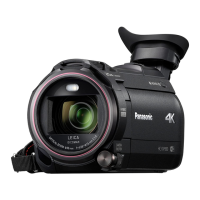
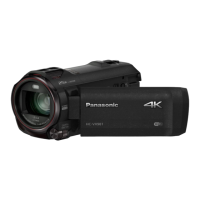
High Definition Video Camera 4K Video Camera
Model No.
HC-V800
Model No.
HC-WXF1
HC-V808 HC-WXF1M
HC-VXF1
HC-VXF11
HC-VX1
HC-VX11
Please read these instructions carefully before using this product, and save this manual for future
use.
DVQP1585ZA
F0218SQ0
until
2018/03/30
HC-WXF1-VXF1-VX1-V800EBEP-DVQP1585_eng.book 1 ージ 018年2月22日 木曜日 午後12時30

Table of Contents

Other manuals for Panasonic HC-VX11

Questions and Answers

  • C
    Casey AyalaAug 19, 2025
    How to fix a Panasonic HC-VX11 that won't operate?
    • A
      Allison SextonAug 19, 2025
      If your Panasonic Camcorder is not operating correctly or is unresponsive even when turned on, try removing the battery or AC adapter, waiting about a minute, and then reconnecting it. Wait another minute before turning the unit on again. If the problem persists, disconnect the power and consult the dealer from whom you purchased the camcorder.
  • M
    Matthew SullivanAug 21, 2025
    What to do if my Panasonic Camcorder cannot be turned on?
    • M
      Misty SimsAug 21, 2025
      If your Panasonic Camcorder won't turn on, ensure the battery is adequately charged. If it still fails to power on, remove the battery or AC adapter, wait approximately one minute, then reconnect it and try turning the unit on again. If normal operation is still not restored, detach the power connected, and consult the dealer who you purchased this unit from.
  • M
    Mindy PerezAug 23, 2025
    Why does my Panasonic HC-VX11 Camcorder battery drain so fast?
    • M
      Michael WoodwardAug 23, 2025
      To address the issue of your Panasonic Camcorder not turning on, not staying on long enough, or the battery draining quickly, ensure the battery is fully charged. If you are in a cold environment, be aware that battery life is reduced in cold places. If the operating time remains short even after a full charge, the battery may be worn out and require replacement.
  • J
    jodi78Aug 26, 2025
    What to do if my Panasonic HC-VX11 Camcorder displays 'Error occurred'?
    • M
      Michael AndersonAug 26, 2025
      If your Panasonic Camcorder displays the message “ERROR OCCURRED. PLEASE TURN UNIT OFF, THEN TURN ON AGAIN,” the unit has detected an error. Try restarting the unit by turning it off and then on again. If the error message continues to appear after restarting, the unit may require repair. Disconnect the power and consult the dealer from whom you purchased the camcorder. Do not attempt to repair the unit yourself.
  • E
    edeanAug 28, 2025
    Why is there no sound or picture when connecting my Panasonic Camcorder to the TV?
    • D
      deannamillsAug 28, 2025
      If images or sounds are not output even when your Panasonic Camcorder is correctly connected to a TV, read the operating instructions of your TV and select the channel that matches the input used for the connection. Note that the audio during playback mode is not output from this unit when connected to a TV. Sound levels cannot be adjusted using this unit, so adjust the sound on the TV.
  • B
    Barbara BarronAug 30, 2025
    Why can't I copy files from my Panasonic Camcorder SD card via USB?
    • C
      christopherperezAug 30, 2025
      If you cannot copy scenes on the SD card by connecting your Panasonic Camcorder to other equipment with the USB cable, the other equipment might not have recognized the SD card. Try unplugging the USB cable and reconnecting it.
  • G
    Gloria SantosSep 1, 2025
    Why won't my computer recognize my Panasonic HC-VX11 Camcorder via USB?
    • J
      Jessica DavisSep 1, 2025
      If your Panasonic Camcorder is not detected by the PC when connected by the USB cable, re-insert the SD card into the unit and reconnect the supplied USB cable. Try selecting another USB terminal on the PC. Check the operating environment. Connect the supplied USB cable again after restarting the PC and turning on this unit again.
  • A
    Alexander FisherSep 3, 2025
    Why does my Panasonic HC-VX11 Camcorder battery run down so quickly?
    • E
      emuellerSep 4, 2025
      If your Panasonic Camcorder battery is running down quickly, try these steps: First, fully charge the battery, keeping in mind that cold environments can shorten battery life. If the operating time remains short after a full charge, the battery may be worn out and require replacement. If charging doesn't solve the issue, remove the battery or AC adapter, wait about a minute, reconnect, and then turn the unit on again. If the issue persists, disconnect the power and consult the dealer from whom you purchased the unit.
  • R
    Russell PhillipsSep 6, 2025
    Why is the battery indicator wrong on my Panasonic Camcorder?
    • L
      Lynn TuckerSep 6, 2025
      If the remaining battery indication on your Panasonic Camcorder is not displaying correctly, fully charge the battery, discharge it completely, and then charge it again. Keep in mind that the remaining battery capacity indication is only an approximation.
  • A
    andrewtaylorSep 8, 2025
    Why does my Panasonic HC-VX11 Camcorder keep stopping recording?
    • A
      Anna WilsonSep 8, 2025
      If your Panasonic Camcorder is arbitrarily stopping recording, ensure you are using an SD card suitable for motion picture recording. If the data writing speed has deteriorated, or after repeated recording and deletion, format the SD card or the built-in memory using the unit. Also, if [AGS] is [ON], record in the normal horizontal position or set [AGS] to [OFF].


Summary

Read this first

About the recording format for recording motion pictures

Explains different recording formats like AVCHD, 4K MP4, MP4, and 24p for video recording.

Handling of built-in memory

Back up data periodically

Emphasizes backing up data from built-in memory due to its temporary nature and potential risks.

Cards that you can use with this unit

Lists compatible memory card types (SD, SDHC, SDXC) and capacity recommendations.

Preparation

Names and Functions of Main Parts

Identifies and describes the main external components and buttons of the camera.

Power supply

Information about compatible batteries and safety precautions.

Inserting;removing the battery

Instructions on how to install and remove the camera battery.

Charging the battery

Details the process of charging the camera battery using the AC adapter.

Charging and recording time

Provides detailed tables of charging times and recording times for different formats and batteries.

Recording to a card

Covers card compatibility, speed class requirements, and insertion/removal procedures.

Inserting;removing an SD card

Step-by-step instructions for inserting and removing SD cards, including cautions.

Turning the unit on;off

Guides on powering the unit on and off using the power button or LCD monitor.

Basic

Selecting a media to record

Details how to choose between SD card and built-in memory for recording.

Recording motion pictures

Instructions on starting, pausing, and stopping motion picture recording.

Recording still pictures

Guides on taking still pictures, including focus indication and Fn button settings.

Motion picture;Still picture playback

Covers selecting media and touching tabs for playback of recorded content.

Advanced (Recording)

Using the zoom

Explains zoom operations using the lever and manual ring, including zoom bar and speed.

HDR Movie Mode

Minimizes gradation loss in high-contrast scenes for better detail in bright and dark areas.

Recording with the Sub Camera (Twin Camera)

Guides on using the sub camera for simultaneous recording from two sources.

Changing the Recording Mode

Explains how to switch between various recording modes like Intelligent Auto, HDR, and Scene.

Intelligent Auto

Details the modes within Intelligent Auto for optimizing settings based on scene conditions.

Automatic White Balance

Illustrates AWB range and manual adjustment options for color accuracy.

Auto Focus

Explains auto focus operation and limitations, including custom focus behavior settings.

Scene Mode

Optimizes settings based on selected scene type (Sports, Portrait, Night Scenery, etc.).

Slow & Quick Video Mode

Allows switching between slow and quick motion during recording.

FULL HD Slow Motion Video Mode

Records video footage at a slower frame rate for slow-motion playback.

Manual recording

Allows manual adjustment of focus, white balance, shutter speed, and iris/gain via manual ring.

White Balance

Guides on setting white balance manually or using preset modes for color accuracy.

Manual shutter speed adjustment

Details on manually setting shutter speed for exposure control, especially for moving subjects.

Iris adjustment

Instructions on adjusting iris and gain for exposure control, affecting brightness.

Manual Focus adjustment

Guides on using manual focus when auto focus is difficult, including peaking display.

REC FORMAT

Guides on switching the recording format for motion pictures (4K MP4, MP4, AVCHD, 24p).

REC MODE

Details on selecting picture quality and recording modes within a chosen format.

PICTURE ADJUST

Adjusts image quality parameters like sharpness, color, exposure, and white balance.

Using the Fn buttons

Explains how to assign functions to Fn buttons for quick access during recording.

Changing the Fn button settings

Guides on how to customize which functions are assigned to the Fn buttons.

Advanced (Playback)

Playback Operations

Details on performing basic playback actions like skipping, slow-motion, and frame-by-frame.

Deleting scenes;still pictures

Instructions on how to delete individual scenes or parts of scenes.

Protecting scenes;still pictures

How to protect scenes/pictures from accidental deletion.

Watching Video;Pictures on your TV

Guides on connecting the camera to a TV via HDMI for playback.

Copy;Dubbing

Wi-Fi function

Overview of the camera's Wi-Fi capabilities and general usage precautions.

Setting Up a Wi-Fi Connection

Guides on establishing Wi-Fi connections via access points or direct smartphone connection.

If the Wi-Fi connection cannot be established

Troubleshooting guide for common Wi-Fi connection issues.

Wireless Twin;Multi-Camera

Explains using multiple smartphones as sub cameras for multi-angle recording.

Using a Smartphone as a Wireless Sub Camera

Step-by-step guide for connecting a smartphone as a wireless sub camera.

If the Wi-Fi connection cannot be established (Wireless Twin;Multi Camera)

Troubleshooting steps for connection failures with wireless twin/multi-camera functions.

With a PC

Installation

Instructions for installing and uninstalling the HD Writer AE 5.4 software.

Connecting to a PC

Guides on connecting the camera to a PC via USB for data transfer.

Others

Messages

Lists major confirmation and error messages with their meanings and solutions.

Troubleshooting

Provides solutions for common problems related to power, operation, and unit behavior.

Cautions for use

Important safety and usage guidelines to prevent damage or malfunction.

About the battery

Information on battery types, handling, charging, and lifespan precautions.

Recording modes;approximate recordable time

Tables showing approximate recordable times for various formats, modes, and media.

Panasonic HC-VX11 Specifications

General IconGeneral
BrandPanasonic
ModelHC-VX11
CategoryCamcorder
LanguageEnglish

Related product manuals