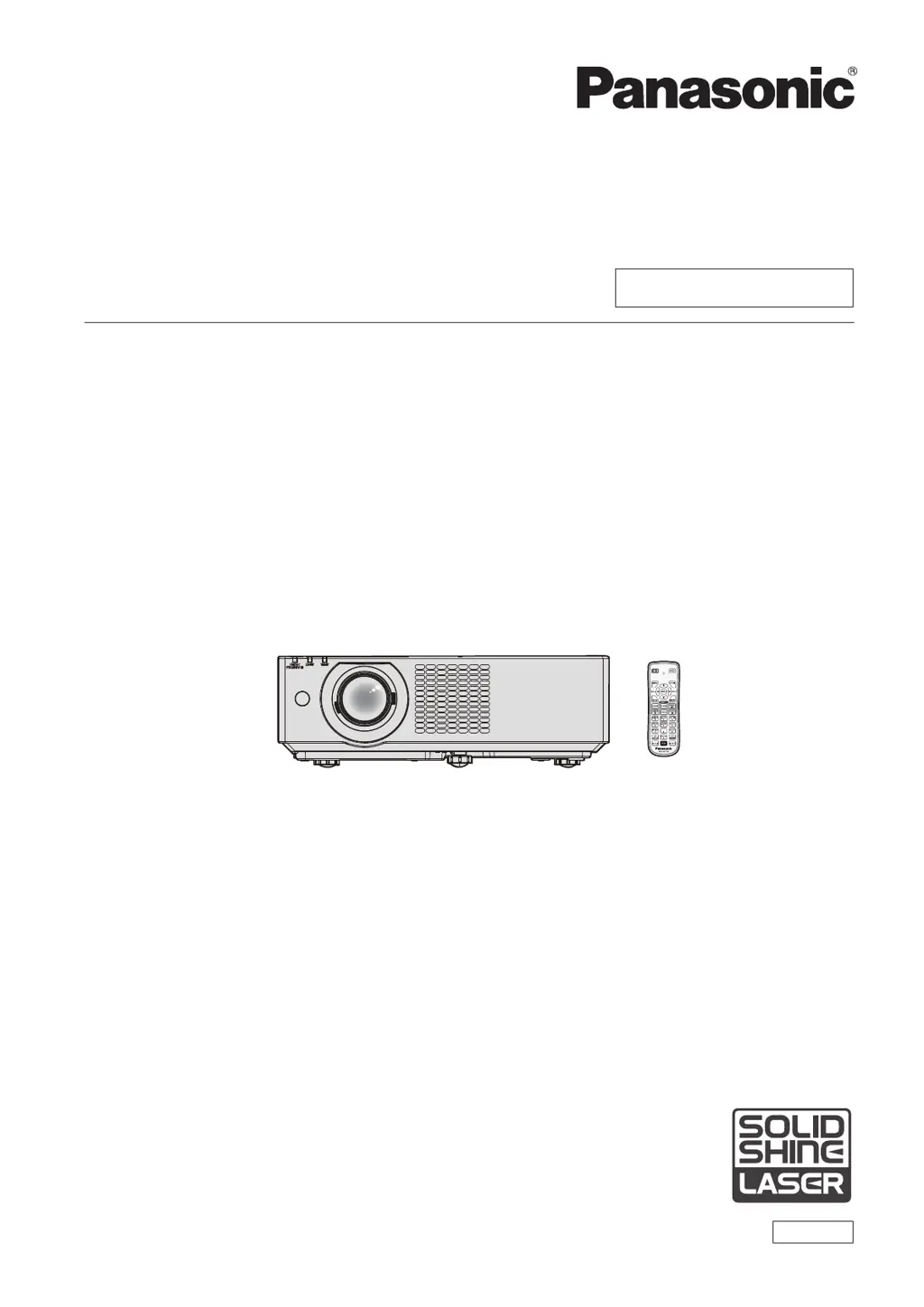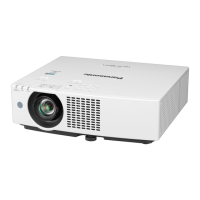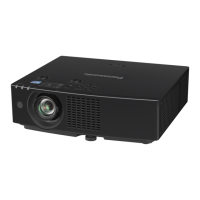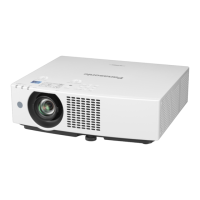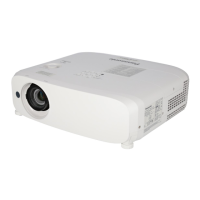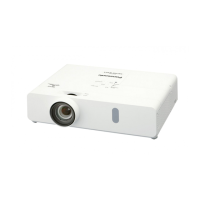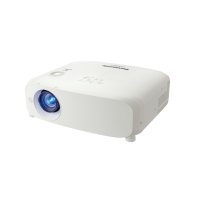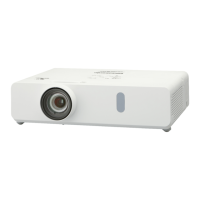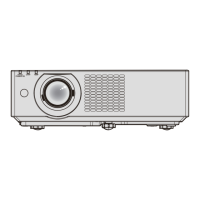
How to fix no audio from HDMI device on Panasonic PT-VMZ40?
- MmatthewspatriciaSep 9, 2025
To resolve the issue of no audio output from an HDMI compatible device on your Panasonic Projector, set the audio for the connected devices to linear PCM.
How to fix no audio from HDMI device on Panasonic PT-VMZ40?
To resolve the issue of no audio output from an HDMI compatible device on your Panasonic Projector, set the audio for the connected devices to linear PCM.
How to fix a Panasonic Projector when no image appears?
If no image is appearing on your Panasonic Projector, make sure the connections to external devices are correctly performed and that the input selection setting is correct. Also, check that the [BRIGHTNESS] adjustment is not at a minimum and that the external device connected to the projector is working properly. Finally, ensure that the shutter function is not activated.
What to do if Panasonic PT-VMZ40 remote control does not work?
If the remote control for your Panasonic Projector isn't working, check if the batteries are depleted and ensure they are inserted with the correct polarity. Make sure there are no obstructions between the remote control and the projector's signal receiver, and verify that you are using the remote within its effective range. Also, check for interference from fluorescent light and confirm that the [REMOTE CONTROLLER] setting in [CONTROL DEVICE SETUP] is not set to [DISABLE]. Finally, ensure the ID number setting operation is correct.
How to fix a fuzzy image on my Panasonic PT-VMZ40 Projector?
To correct a fuzzy image on your Panasonic Projector, first, check to see if the lens cap is still attached. Then, ensure the lens focus is set correctly and the projection distance is appropriate. Verify the lens is clean and that the projector is installed perpendicular to the screen.
What to do if video from HDMI device doesn't appear correctly on Panasonic PT-VMZ40?
If video from an HDMI compatible device does not appear or appears jumbled on your Panasonic Projector, ensure the HDMI cable is securely connected. Try turning the power of both the projector and the external device off and on again. Also, verify that the signal input is compatible with the projector.
What to do if DIGITAL LINK input image or sound is not output on Panasonic PT-VMZ40?
If the DIGITAL LINK input image or sound is not output on your Panasonic Projector, ensure the cable is compatible with the projector's condition. Verify that the connections between the twisted-pair-cable transmitter and the projector or an external device are correctly done. Check if [DIGITAL LINK MODE] is set to [AUTO], [DIGITAL LINK] or [LONG REACH] and confirm it is not set to [ETHERNET]. Also, ensure the signal input is compatible with the twisted-pair-cable transmitter.
Why Panasonic PT-VMZ40 color is pale or grayish?
If the color on your Panasonic Projector appears pale or grayish, consider the following: * Ensure that [COLOR] or [TINT] is adjusted correctly. * Verify that the external device connected to the projector is adjusted correctly. * Check if the RGB signal cable is damaged.
Why no power supplied from terminal of Panasonic PT-VMZ40?
If there's no power supplied from the terminal of your Panasonic Projector, check the following: * Verify if the [PROJECTOR SETUPU] menu ? [ECO MANAGEMENT] ? [STANDBY MODE] is set to [ECO]. * Ensure that the external device connected to the terminal has not exceeded the rating (5 VDC, maximum 2 A).
Why does the color appear pale or grayish on my Panasonic PT-VMZ40 Projector?
If the color on your Panasonic Projector appears pale or grayish, check whether [COLOR] or [TINT] is adjusted correctly. Ensure the external device connected to the projector is also adjusted correctly. Finally, inspect the RGB signal cable for any damage.
What to do if Panasonic Projector buttons on the control panel do not work?
If the buttons on the control panel of your Panasonic Projector are not working, check if the [CONTROL PANEL] setting in [CONTROL DEVICE SETUP] is set to [DISABLE].
Crucial safety warnings, laser notices, and compliance information.
Details safety, transport, and installation guidelines for the projector.
Covers connecting power, turning the projector on/off, and interpreting power indicators.
Explains projector configuration options like status, ID, startup, projection method, and ECO management.
Covers wired LAN, wireless LAN setup, and web control overview.
Guides on cleaning the outer case, lens, and air filter unit, plus replacement procedures.
Provides solutions for common problems like no image, fuzzy image, or audio issues.
Provides technical details, PJLink protocol commands, and control commands via LAN.
Lists supported input signals, resolutions, and detailed projector specifications.
Crucial safety warnings, laser notices, and compliance information.
Details safety, transport, and installation guidelines for the projector.
Covers connecting power, turning the projector on/off, and interpreting power indicators.
Explains projector configuration options like status, ID, startup, projection method, and ECO management.
Covers wired LAN, wireless LAN setup, and web control overview.
Guides on cleaning the outer case, lens, and air filter unit, plus replacement procedures.
Provides solutions for common problems like no image, fuzzy image, or audio issues.
Provides technical details, PJLink protocol commands, and control commands via LAN.
Lists supported input signals, resolutions, and detailed projector specifications.
| Brightness | 4000 lumens |
|---|---|
| Resolution | 1920 x 1200 (WUXGA) |
| Light Source | Laser |
| Display Type | DLP |
| Lamp Life (Normal) | 20, 000 hours |
| Zoom Ratio | 1.6x |
| Keystone Correction | Vertical: ±30°, Horizontal: ±30° |
| Connectivity | HDMI, USB, LAN, RS-232C |
| Video Modes | 480i, 480p, 576i, 576p, 720p, 1080p |


Loading...