10
VQT4L45
TV SYSTEM
NTSC: In the case of PAL contents, it is changed into an NTSC format.
PAL: In the case of NTSC contents, it is changed into a PAL format.
AUTO: Select this if the connected TV is compatible with both NTSC and PAL.
SCREEN SAVER
Screen saver will start automatically when playback is stopped for about 5
minutes or is paused for 25 minutes if DVD/CD or USB is selected as the
playback source.
ON OFF
VIDEO
This sets the output method of this unit according to the television to connect.
INTERLACE-YUV P-SCAN YPBPR (Progressive)
TV TYPE
4:3PS : The sides of the widescreen picture are cut so it fi lls the
screen (unless prohibited by the disc.)
4:3LB : Widescreen picture is shown in the letterbox style.
16:9 : Widescreen TV (16:9).
System setup
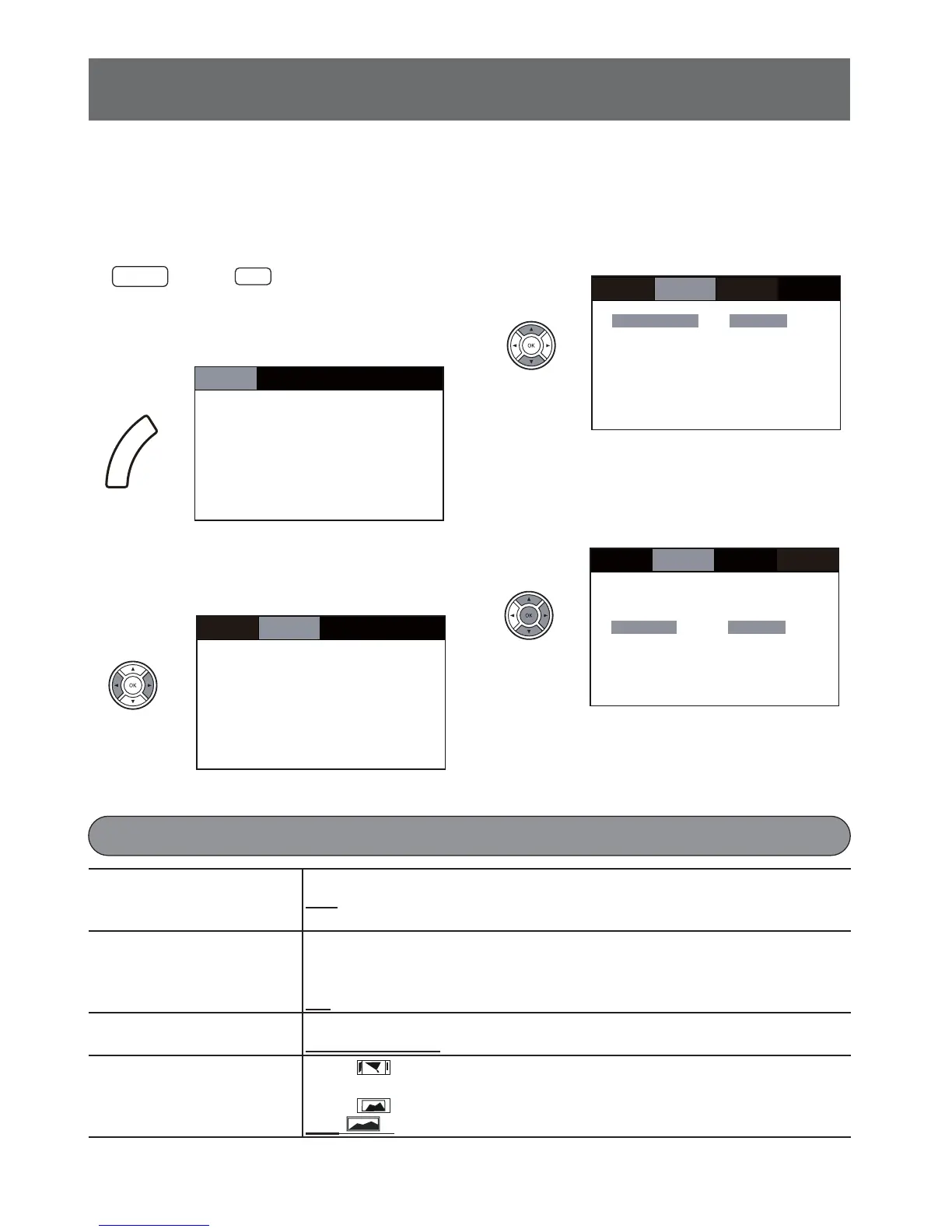
Please follow below steps to select the appropri-
ate setting.
1. Press the DVD/CD or USB button.
2. Press the SYSTEM MENU button to
display the system setup screen.
3. Press the
b
or
a
button to select the
desired menu (SYSTEM/LANGUAGE/
AUDIO/OTHER).
ヴ
ヺ
ヴ
ヵ
ユ
ヮ
ヮ
ユ
ワ
ヶ
4. Press the
o
or
p
button to select an
item to set up.
• The yellow cursor shows the selected
item.
• The blue cursor shows the current setting.
5. Press the
a
button, then select the
desired setting by pressing the
o
or
p
button and press the OK button.
(Setting is completed.)
6. Press the SYSTEM MENU button to
close the screen.
OSD LANGUAGE
MENU LANG
AUDIO LANG
SUBTITLE LANG
ENGLISH
CHINESE
SYSTEM LANGUAGE AUDIO OTHER
OSD LANGUAGE
MENU LANG
AUDIO LANG
SUBTITLE LANG
ENGLISH
CHINESE
SYSTEM LANGUAGE AUDIO OTHER
TV SYSTEM
SYSTEM LANGUAGE AUDIO OTHER
TV TYPE
VIDEO
SCREEN SAVER
DVD/CD
"SYSTEM" menu
/
/
/
SYSTEM LANGUAGE AUDIO OTHER
OSD LANGUAGE
MENU LANG
AUDIO LANG
SUBTITLE LANG
Remote control
Remote
control
Remote
control
Remote
control
Remote
control
• Underlined items are the factory settings in the menu.
USB
or




 To Next Page