EasyManua.ls Logo

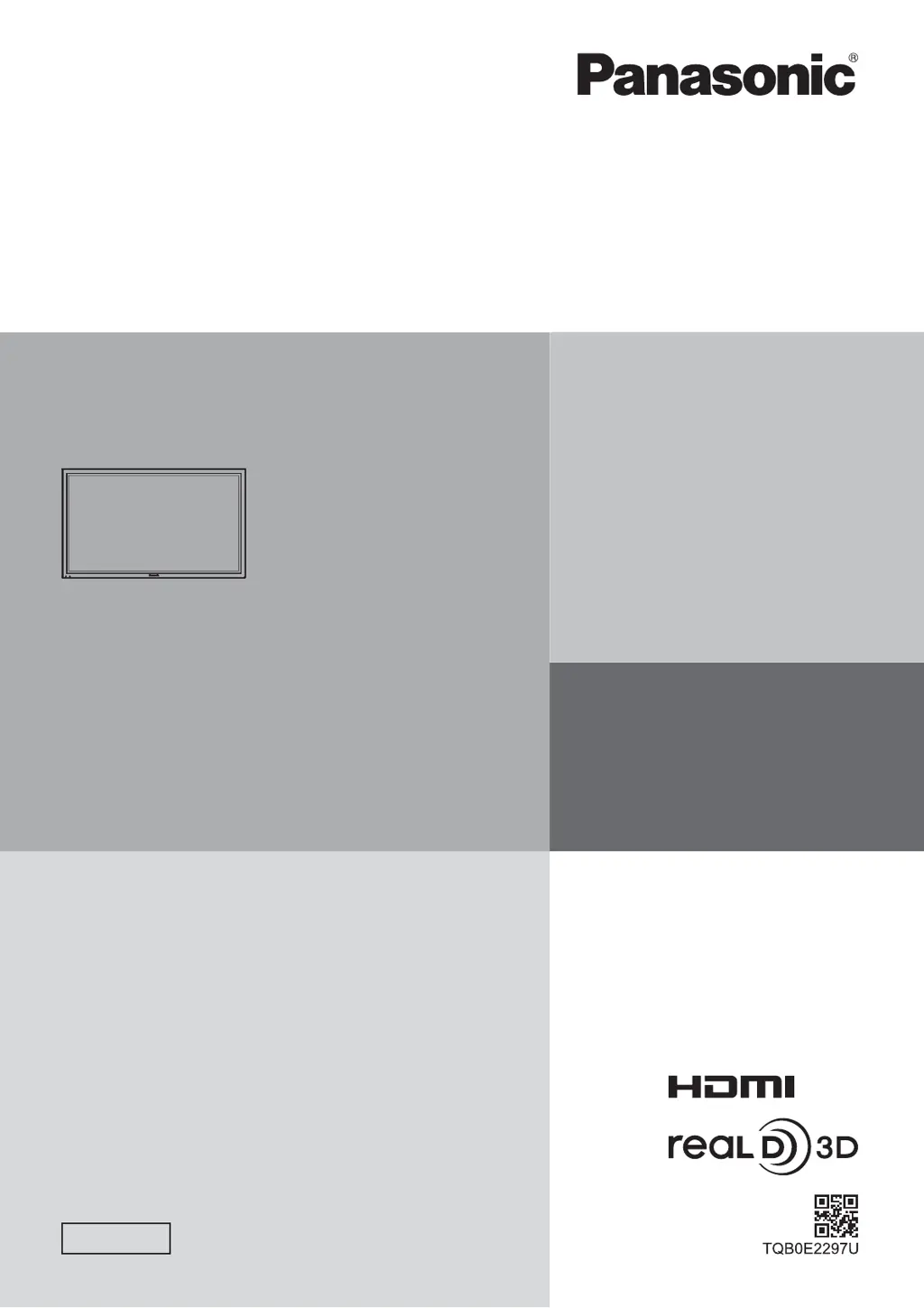
Panasonic TH-65PB1E - User Manual

Panasonic TH-65PB1E
68 pages
Print Icon
To Next Page IconTo Next Page
Loading...
Model No.
TH-65PB1E
Operating Instructions
Display Operations
Interactive Plasma Display
Please read these instructions before operating your set
and retain them for future reference.
English

Table of Contents

Other manuals for Panasonic TH-65PB1E

Questions and Answers

  • A
    Amber KellyAug 10, 2025
    How to fix Panasonic Monitor when I cannot see 3D images?
    • D
      Danielle HarrisAug 10, 2025
      If you cannot see 3D images on your Panasonic Monitor, here are a few things to check: * First, ensure that the 3D Eyewear is switched On. * Then, verify that '3D Function' in '3D Settings' is set to 'On'. * Also, confirm that '3D Picture Format' in '3D Settings' matches the picture format. * Make sure the 3D IR TRANSMITTER is turned on and correctly positioned. * Check for any obstructions between the 3D IR TRANSMITTER and the 3D Eyewear. * Verify you are within the available area for using the 3D Eyewear. * Finally, ensure your eyesight is properly corrected (e.g., wearing glasses) before use.
  • D
    Danny JordanAug 21, 2025
    What to do if the indicator lamp will not light when the 3D glasses are turned ON on Panasonic TH-65PB1E Monitor?
    • B
      Briana BlackAug 21, 2025
      If the indicator lamp won't light when you turn on your Panasonic 3D glasses, it probably means the battery is either low or completely drained. You should replace the battery or charge the 3D glasses.
  • A
    anthonyrasmussenAug 30, 2025
    Why does the 3D Eyewear turn off automatically with Panasonic Monitor?
    • C
      carterdevonAug 30, 2025
      If your 3D eyewear turns off automatically while using your Panasonic Monitor, ensure there are no obstructions between the 3D IR TRANSMITTER and the 3D Eyewear. Also, make sure the 3D Eyewear is within the coverage area.

Summary

Important Safety Notice

The Moulded Plug

Details safety precautions for the moulded three-pin mains plug and fuse replacement.

Safety Precautions

Setup

Lists optional accessories and safety guidelines for setting up the plasma display.

Cleaning and Maintenance

Provides instructions on how to clean the display panel and cabinet safely.

3 D Safety Precautions

Highlights safety warnings and precautions specifically for viewing 3D images.

Accessories

Accessories Supply

Lists the included accessories with the plasma display unit.

Remote Control Batteries

Instructions for inserting and precautions for using batteries in the remote control.

Connections

Speaker Connection

Guide for connecting speakers to the plasma display unit.

AC Cord Connection and Fixing

Instructions for connecting and securing the AC power cord.

Selecting the Input Signal

Basic Controls

Main Unit Controls

Overview of controls on the plasma display's main unit.

Remote Control Transmitter

Description of buttons and functions on the remote control.

Viewing 3 D Images

Troubleshooting for 3 D Eyewear

Helps diagnose and resolve issues related to 3D eyewear operation.

Adjusting Pos.;Size

Auto Setup and Auto Mode

Explains automatic picture positioning and sizing adjustments.

Picture Adjustments

Advanced Settings

Provides detailed fine-tuning options for picture quality.

Setup Menu

Setup Menu Screen

Lists main setup categories and their corresponding page numbers.

Network Setup

Instructions for connecting the display to a computer via a network.

Reduces Screen Image Retention

Extended Life Settings

Settings to reduce image retention and extend the display's lifespan.

Setup for MULTI DISPLAY

How to Setup MULTI DISPLAY

Guides on setting up multiple plasma displays for an enlarged picture.

Troubleshooting

Plasma Display Panel Issues

Diagnoses common problems related to the plasma display panel itself.

Panasonic TH-65PB1E Specifications

General IconGeneral
Screen Size65 inches
Panel TypeIPS
Response Time8 ms
Viewing Angle178°
Speakers2 x 10W
Aspect Ratio16:9
Input PortsHDMI, DisplayPort, USB
Resolution3840 x 2160

Related product manuals