10
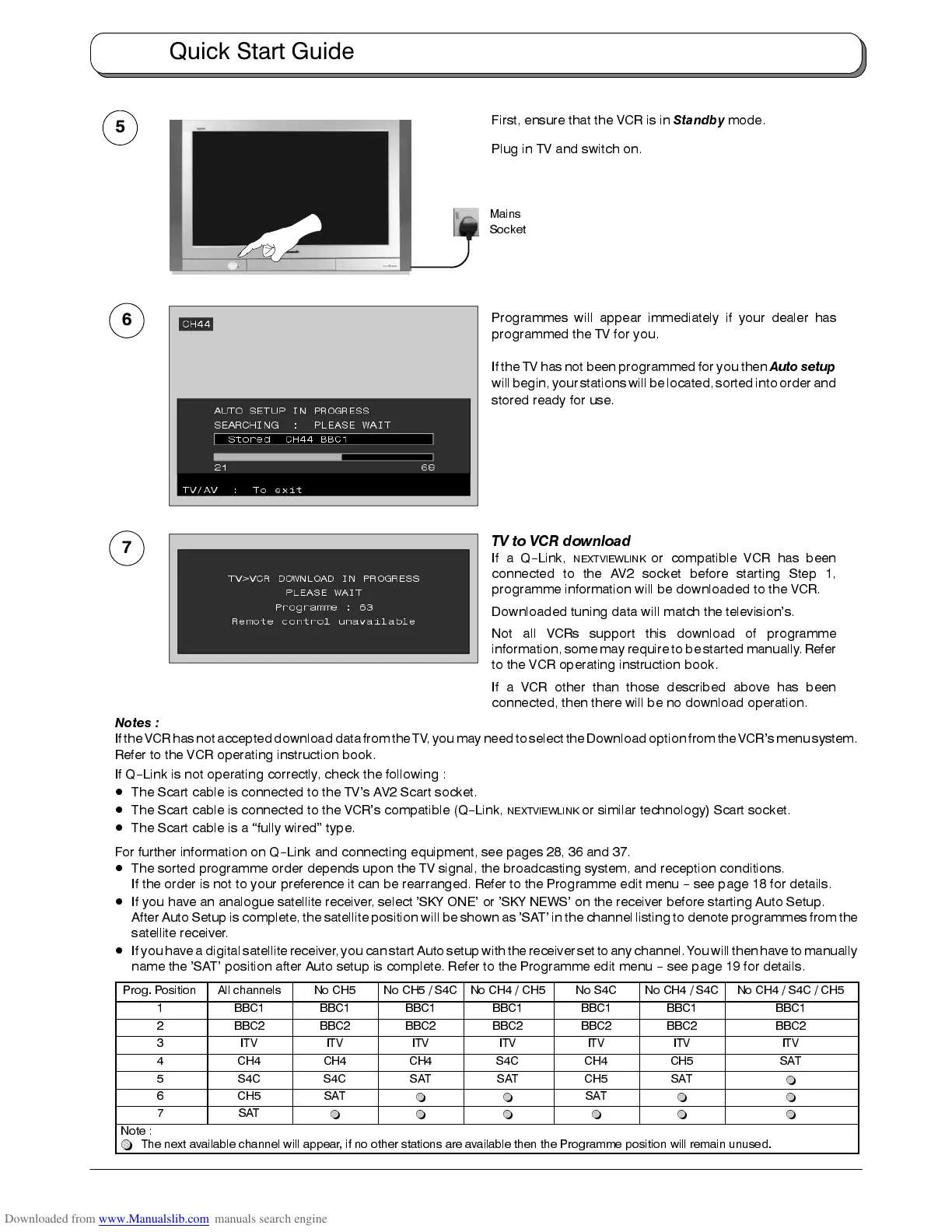
First, ensure that the VCR is in
Standby
mode.
Plug in TV and switch on.
Programmes will appear immediately if your dealer has
programmed the TV for you.
If the TV has not been programmed for you then
Auto setup
willbegin, yourstations willbe located,sorted intoorder and
stored ready for use.
5
6
Mains
Socket
7
TV to VCR download
IfaQ
--
Link,
NEXTVIEWLINK
or compatible VCR has been
connected to the AV2 socket before starting Step 1,
programme information will be downloaded to the VCR.
Downloaded tuning data will match the television’s.
Not all VCRs support this download of programme
information, some may requireto be started manually. Refer
to the VCR operating instruction book.
If a VCR other than those described above has been
connected, then there will be no download operation.
Notes :
Ifthe VCRhas notaccepteddownload datafrom theTV,you mayneed toselect theDownload optionfrom theVCR’s menusystem.
Refer to the VCR operating instruction book.
If Q
--
Link is not operating correctly, check the following :
D
The Scart cable is connected to the TV’s AV2 Scart socket.
D
The Scart cable is connected to the VCR’s compatible (Q
--
Link,
NEXTVIEWLINK
or similar technology) Scart socket.
D
The Scart cable is a “fully wired” type.
For further information on Q
--
Link and connecting equipment, see pages 28, 36 and 37.
D
The sorted programme order depends upon the TV signal, the broadcasting system, and reception conditions.
If the order is not to your preference it can be rearranged. Refer to the Programme edit menu
--
see page 18 for details.
D
If you have an analogue satellite receiver, select ’SKY ONE’ or ’SKY NEWS’ on the receiver before starting Auto Setup.
After Auto Setup is complete, the satellite position will be shown as ’SAT’ in the channel listing to denote programmes from the
satellite receiver.
D
If youhave adigital satellite receiver, youcan start Autosetup withthe receiver setto anychannel. You willthen haveto manually
name the ’SAT’ position after Auto setup is complete. Refer to the Programme edit menu
--
see page 19 for details.
Prog. Position All channels No CH5 No CH5 / S4C No CH4 / CH5 No S4C No CH4 / S4C No CH4 / S4C / CH5
1 BBC1 BBC1 BBC1 BBC1 BBC1 BBC1 BBC1
2 BBC2 BBC2 BBC2 BBC2 BBC2 BBC2 BBC2
3 ITV ITV ITV ITV ITV ITV ITV
4 CH4 CH4 CH4 S4C CH4 CH5 SAT
5 S4C S4C SAT SAT CH5 SAT
~
6 CH5 SAT
~ ~
SAT
~ ~
7 SAT
~ ~ ~ ~ ~ ~
Note :
~
The next available channel will appear, if no other stations are available then the Programme position will remain unused.
Quick Start Guide




 To Next Page