EasyManua.ls Logo

Panasonic TX-86PW100A - Recall.10; Help.10

Panasonic TX-86PW100A
48 pages
Print Icon
To Next Page IconTo Next Page
To Previous Page IconTo Previous Page
Loading...
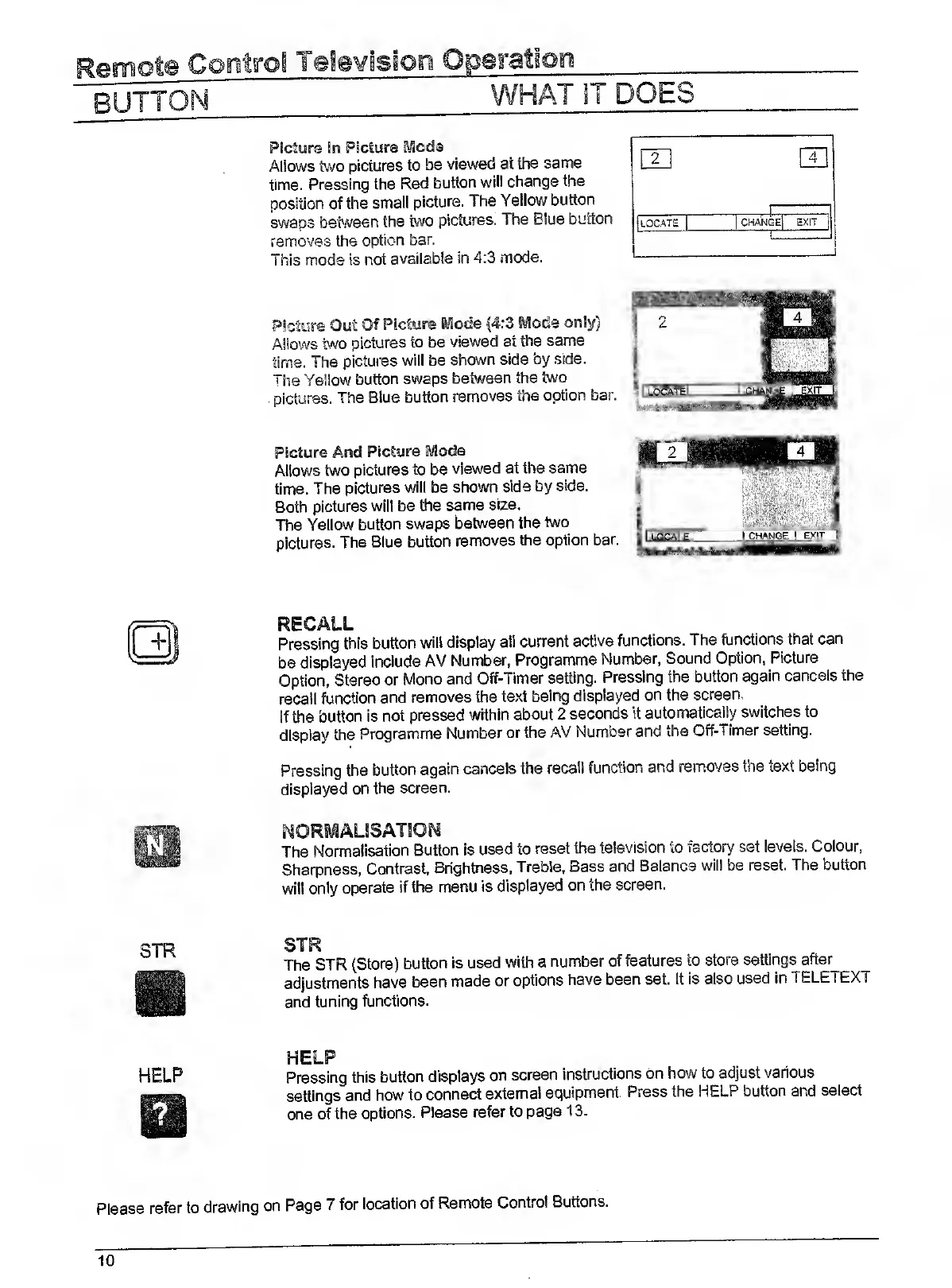
Picture
In
Picture
Mode
Allows
two
pictures
to
be
viewed
at
liie
same
time.
Pressing
the
Red
button
will
change
the
position
of
the
small
picture.
The
Yellow
button
swaps
be^A/een
the
two
pictures.
The
Blue
button
removes
the
option
bar.
This
mode
is
not
available
in
4:3
mode.
Picture
Out
Of
Picture
Mode
(4:3
Mode
only)
Allows
two
pictures
to
be
viewed
at
the
same
time.
The
pictures
will
be
shown
side
by
side.
The
Yellow
button
swaps
between
the
two
pictures.
The
Blue
button
removes
tiie
option
bar.
Picture
And
Picture
Mode
Allows
two
pictures
to
be
viewed
at
the
same
time.
The
pictures
will
be
shown
side
by
side.
Both
pictures
will
be
the
same
size.
The
Yellow
button
swaps
between
the
two
pictures.
The
Blue
button
removes
the
option
bar.
RECALL
Pressing
this
button
will
display
all
current
active
functions.
The
functions
that
can
be
displayed
include
AV
Number,
Programme
Number,
Sound
Option,
Picture
Option,
Stereo
or
Mono
and
Off-Timer
setting.
Pressing
the
button
again
cancels
the
recall
function
and
removes
the
text
being
displayed
on
the
screen,
If
the
button
is
not
pressed
within
about
2
seconds
it
automatically
switches
to
display
the
Programme
Number
or
Hie
AV
Number
and
the
Off-Timer
setting.
Pressing
the
button
again
cancels
the
recall
function
and
removes
the
text
being
displayed
on
the
screen.
NORMAUSATION
The
Normalisation
Button
Is
used
to
reset
the
television
to
factory
set
levels.
Colour.
Sharpness,
Contrast,
Brightness.
Treble,
Bass
and
Balance
will
be
reset.
The
button
will
only
operate
if
the
menu
is
displayed
on
the
screen.
SIR
The
STR
(Store)
button
is
used
with
a
number
of
features
to
store
settings
after
adjustments
have
been
made
or
options
have
been
set.
it
is
also
used
in
TELETEXT
and
tuning
functions.
HELP
HELP
Pressing
this
button
displays
on
screen
instructions
on
how
to
adjust
various
settings
and
how
to
connect
external
equipment.
Press
the
HELP
button
and
select
one
of
the
options.
Please
refer
to
page
13.
Please
refer
to
drawing
on
Page
7
for
location
of
Remote
Control
Buttons.
10

Related product manuals