- 46 -
●
Use to identify the format type of the source image.
Watching 3D Source image format
Side by Side - 3D / Side by Side - 2D / Top and Bottom - 3D /
Top and Bottom - 2D:
Displays the mode you select.
●
Not valid in Analogue and AV mode
2D
3D:
Converts 2D images into 3D.
●
Please note the 3D images appear slightly different from the originals.
●
Using this function for profit-making purposes, or publically showing
images converted from 2D to 3D in places such as shops or hotels
etc. may infringe on the rights of the copyright holder protected under
copyright law.
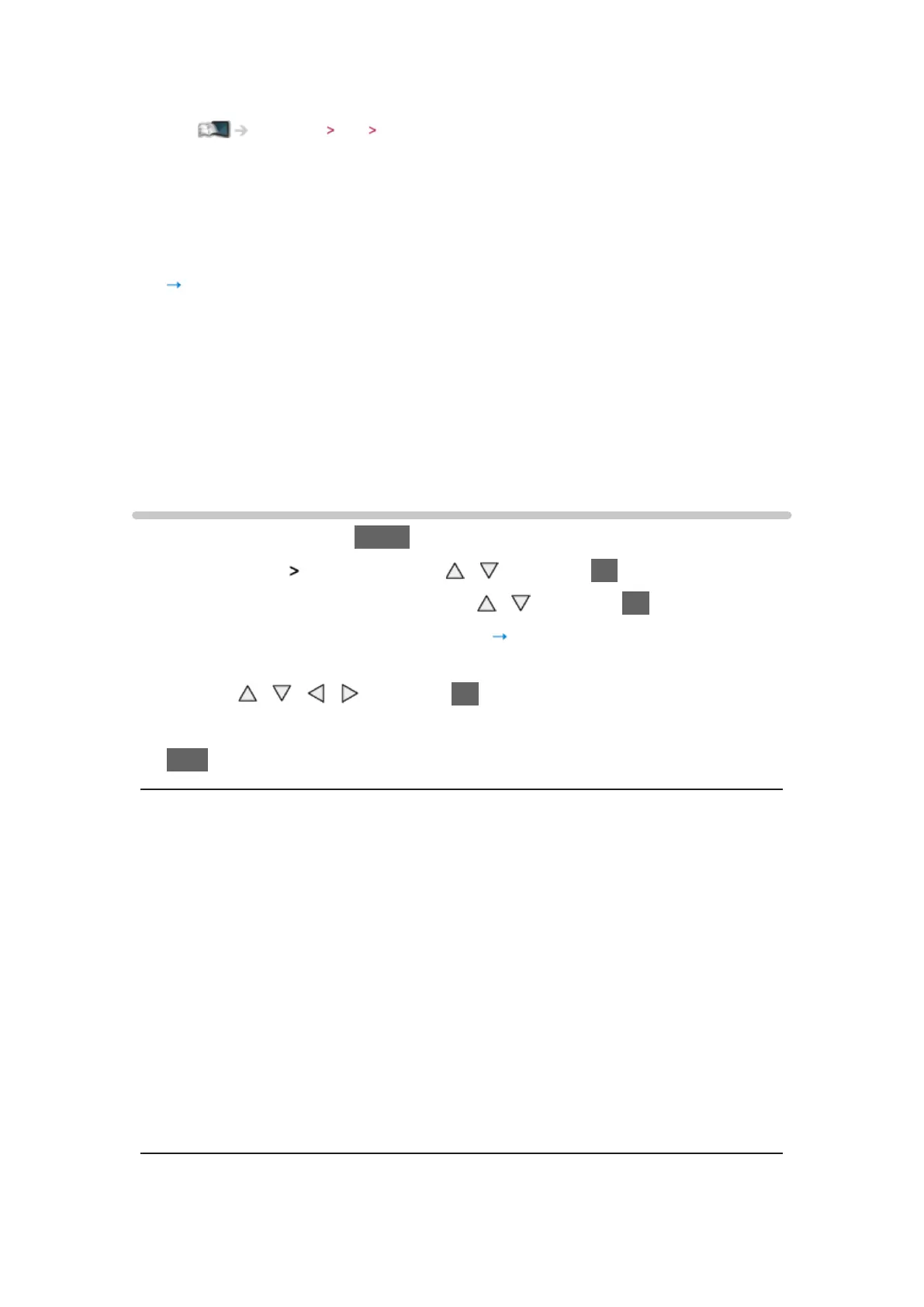
3D Settings
1. Display the menu with MENU
2. Select Picture
3D Settings with / and press OK to access
3. Select one of the following items with
/ and press OK to access
3D Detection / 3D Signal Message / 2D
3D Depth / 3D Adjustment /
L/R Picture Swap / Edge Smoother / Safety Precautions
4. Set with
/ / / and press OK to store
●
To exit the menu screen
EXIT
3D Detection
(On (Advance) / On / Off)
Selects whether to switch to the 3D mode automatically or not.
On (Advance):
Detects all the 3D format signals and displays the 3D image
automatically.
On:
Detects the particular 3D format signals (Frame Sequential, etc.) and
displays the 3D image automatically.
●
To view 3D images without any notifications and operations, set to On
(Advance).



 To Next Page