EasyManua.ls Logo

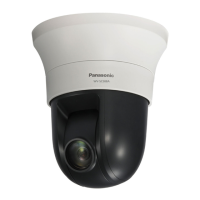
Panasonic WV-SC588 - User Manual

Panasonic WV-SC588
236 pages
Print Icon
To Next Page IconTo Next Page
Loading...
Operating Instructions
Network Camera
Model No. WV-SW598
WV-SW598J
WV-SC588
WV-SW397
WV-SW397A
WV-SW397J
WV-SW397AJ
WV-SC387
WV-SC588WV-SW598
Before attempting to connect or operate this product, please read these instructions
carefully and save this manual for future use.
The model number is abbreviated in some descriptions in this manual.

Table of Contents

Other manuals for Panasonic WV-SC588

Questions and Answers

  • D
    devin59Sep 9, 2025
    Why is my Panasonic WV-SC588 power not turned on?
    • J
      Judith GonzalesSep 9, 2025
      If your Panasonic Security Camera isn't powering on, here are a few things to check: * **DC Power:** Ensure the 12V DC power cable plug is firmly inserted into the camera's 12V DC power terminals. Confirm the power plug is firmly connected. * **PoE Device:** If using a PoE device, verify that it and the camera's network connector are connected with a Category 5 LAN cable. Check whether the connection is appropriately established. Also, the power supply will stop when the demanded power exceeds its total power limit for all PoE ports. Refer to the operating instructions of the PoE device in use. * **PoE and DC Power Combined:** If using both a 12V DC power supply and a PoE device, the network connection may not be established. Turn down the power supply from the PoE device.
  • M
    Melinda ThomasSep 7, 2025
    What to do if I cannot access the Panasonic Security Camera via the URL of the “Viewnetcam.com” service?
    • J
      Jerry AlvarezSep 8, 2025
      If you cannot access the camera via the URL of the “Viewnetcam.com” service, log into the 'My Account' page of 'Viewnetcam.com' to check the information of the registered camera.
  • M
    mcfarlandshaunAug 22, 2025
    How to fix Panasonic WV-SC588 cannot access from the web browser?
    • L
      lisa30Aug 22, 2025
      If you cannot access your Panasonic Security Camera from a web browser, first check if the LAN cable (category 5e or better) is firmly connected to the camera's network connector. Also, verify that the link indicator is lit, indicating a proper LAN connection. If it's not lit, there may be a contact failure or incorrect wiring. Ensure the camera is powered on and that the IP addresses are valid. Finally, confirm you are accessing the camera using the correct IP address.
  • P
    Patrick HudsonSep 5, 2025
    How to fix Panasonic Security Camera when I cannot download the log list?
    • C
      Christina JordanSep 5, 2025
      If you cannot download the log list, enable automatic prompting for file downloads in Internet Options, as downloading files using Internet Explorer may be disabled.
  • S
    Shawn SchwartzSep 4, 2025
    What to do if I cannot obtain images on the SD memory card of my Panasonic Security Camera?
    • S
      Sandra MccormickSep 4, 2025
      If you're unable to obtain images on the SD memory card, verify that 'Allow' is selected for 'FTP access to camera' on the [Network] tab of the 'Network' page. Also, restart the web browser and re-enter the password to ensure it is correct.
  • R
    Rebecca ClaytonSep 2, 2025
    Why can't I access my Panasonic WV-SC588 Security Camera from a cellular phone?
    • N
      Nancy MartinezSep 3, 2025
      If you cannot access your Panasonic Security Camera from a cellular phone, verify that the URL is entered correctly, ensuring '/mobile' is included at the end.
  • J
    johnsonanitaSep 1, 2025
    How to fix Panasonic WV-SC588 Security Camera when H.264 images are not displayed?
    • E
      Edwin HardySep 1, 2025
      If H.264 images are not displaying on your Panasonic Security Camera and 'Network Camera View 4S' was deleted from a PC with both 'Network Camera View 3' and 'Network Camera View 4' installed, delete 'Network Camera View 3' from the PC and then install 'Network Camera View 4S'.
  • A
    Anthony WatsonAug 31, 2025
    What to do if Panasonic Security Camera images are displayed blurry?
    • J
      Jessica GriffithAug 31, 2025
      If the images from your Panasonic Security Camera appear blurry, check the dome section for any dust or dirt. If the camera position has been moved and is causing defocusing, perform a position refresh to correct the focus.
  • L
    llevineAug 30, 2025
    Why can't I access my Panasonic Security Camera via the Internet?
    • K
      Kevin WrightAug 30, 2025
      If you're unable to access your Panasonic Security Camera via the internet, ensure that the network settings of the camera are correct. Specifically, set the default gateway or DNS server address correctly. Also, check if the 'Default gateway' setting on the 'Network' page is configured, and configure it on the IPv4 network if it is not.
  • H
    hfisherAug 28, 2025
    What to do if Panasonic WV-SC588 Security Camera authentication window is displayed repeatedly?
    • A
      Alec MillerAug 28, 2025
      If the authentication window appears repeatedly, it may be due to a changed username or password, or changed authentication settings. Try closing the web browser completely and then accessing the Panasonic Security Camera again.

Summary

Monitor Images on a PC

Monitor Images from a Single Camera

Instructions on how to view live images from one camera on a PC using a web browser.

About the “Live” Page

Explanation of the various elements and functions displayed on the camera's live viewing page.

Monitor Images from Multiple Cameras

Guide to displaying images from multiple cameras simultaneously on a multi-screen setup.

Monitor Images on a Cellular Phone;Mobile Terminal

Monitor Images on a Cellular Phone

Steps to connect to and view JPEG images from the camera using a cellular phone.

Monitor Images on a Mobile Terminal

Instructions for viewing MJPEG images from the camera on mobile terminals like iPad/iPhone/Android.

Record Images on the SD Memory Card Manually

Action at an Alarm Occurrence

Alarm Type

Details on various alarm types that trigger camera actions, including terminal, VMD, and command alarms.

Action at an Alarm Occurrence

Describes how the camera performs actions when an alarm is detected.

Transmit Images onto an FTP Server

Transmit an Alarm Image at an Alarm Occurrence

Configure automatic transmission of alarm images to an FTP server upon detection.

Transmit Images at a Designated Interval or Period

Set up periodic transmission of images to an FTP server at specified intervals.

Display the Log List

When “JPEG” is Selected for “Recording Format” of the SD Memory Card

Details on log display formats for JPEG recording, including alarm and manual logs.

When “H.264(1)” or “H.264(2)” is Selected for “Recording Format” of the SD Memory Card

Explains log display formats for H.264 recording, including alarm and manual/schedule logs.

Playback of Images on the SD Memory Card

When “JPEG” is Selected for “Recording Format” of the SD Memory Card

Instructions for playing back recorded JPEG images from the SD memory card.

When “H.264(1)” or “H.264(2)” is Selected for “Recording Format” of the SD Memory Card

Instructions for playing back recorded H.264 video data from the SD memory card.

About the Network Security

Equipped Security Functions

Overview of security features like user authentication, HTTPS, and port changes.

Display the Setup Menu from a PC

How to Display the Setup Menu

Step-by-step guide to accessing and logging into the camera's setup menu.

How to Operate the Setup Menu

Instructions on navigating and configuring settings within the camera's setup interface.

About the Setup Menu Window

Explanation of the different tabs and sections within the camera's setup menu.

Configure the Basic Settings of the Camera [Basic]

Configure the Basic Settings [Basic]

Setting up fundamental camera parameters like title, date, time, and basic configuration.

Configure the Internet Settings [Internet]

Configuring network settings for internet access, including UPnP and DDNS.

Configure the Settings Relating to the SD Memory Card [SD Memory Card]

Settings for managing the SD memory card, including recording formats and capacity.

Access Copy Images Saved on the SD Memory Card onto the PC [SD Memory Card Images]

Procedure for copying images stored on the SD memory card to a PC.

Configure the Settings Relating to the Logs [Log]

Settings for saving and managing various types of logs, including alarm and FTP error logs.

Configure the Settings Relating to Images and Audio [Image;Audio]

Configure the Settings Relating to the Image Capture Mode [JPEG;H.264]

Setting the image capture mode for JPEG and H.264 streams for specific camera models.

Configure the Settings Relating to H.264 Images [JPEG;H.264]

Detailed configuration for H.264 image quality, bit rate, and transmission settings.

Configure the Settings Relating to the Camera Operations [Cam. Function]

Settings for camera operations like home position, self-return, and digital zoom.

Configure the Settings Relating to Images and the Preset Positions [Image;Position]

Configuring image adjustments, preset positions, auto pan, patrol, and auto track functions.

Configure the VIQS Setting (“VIQS” Setup Menu)

Setting up Variable Image Quality on Specified area to optimize image data transmission.

Configure the Settings Relating to Audio [Audio]

Settings for audio transmission/reception, encoding format, and volume levels.

Configure the Multi-screen Settings [Multi-screen]

Configure the Alarm Settings [Alarm]

Configure the Settings Relating to the Alarm Action [Alarm]

Defining camera actions upon alarm detection, such as moving to preset positions or auto tracking.

Configure the VMD Settings [VMD Area]

Setting up Video Motion Detection areas for triggering alarms based on movement.

Configure the Settings Relating to the Audio Detection [Audio Detection]

Configuring the camera to detect sound levels and trigger alarms based on audio input.

Configuration of the Settings Relating to the E-mail Notification [Notification]

Setting up email notifications for alarms, system events, and SD card status.

Configure the Setting Relating to the Image Recognition [Advanced func.]

Configure the Settings Relating to the XML Notification [XML Notification]

Configuring XML notifications for transmitting auto track information to servers.

Configure the Settings Relating to the Authentication [User mng.]

Configure the Settings Relating to the User Authentication [User auth.]

Managing user accounts, access levels, and authentication methods for camera access.

Configure the Settings Relating to the Host Authentication [Host auth.]

Restricting PC access based on IP addresses and configuring access levels.

Configure the Settings Relating to the Priority Stream [System]

Optimizing image quality and refresh interval for concurrent users via priority streaming.

Configure the Settings of the Servers [Server]

Configure the Settings Relating to the E-mail Server [E-mail]

Setting up SMTP and POP server details for sending alarm emails.

Configure the Settings Relating to the FTP Server [FTP]

Configuring FTP server details for transmitting alarm images and other data.

Configure the Settings Relating to the NTP Server [NTP]

Configuring NTP server settings for accurate time synchronization.

Configuring the Network Settings [Network]

Configure the Network Settings [Network]

Setting up IP address, subnet mask, gateway, and DNS for network connectivity.

Configure the HTTPS Settings

Steps to enable HTTPS for secure camera access, including certificate generation.

Access the Camera Using the HTTPS Protocol

Guide to accessing the camera securely via HTTPS, including certificate installation.

Configure the Settings Relating to DDNS [DDNS]

Setting up Dynamic DNS services like Viewnetcam.com for internet access.

Configure the Settings Relating to the FTP Periodic Image Transmission [FTP img. trans.]

Configuring scheduled FTP transmission of images to an FTP server.

Configure the Settings Relating to the Schedules [Schedule]

Maintenance of the Camera [Maintenance]

Check the System Log [System log]

Viewing and managing system logs for troubleshooting and monitoring camera status.

Upgrade the Firmware [Upgrade]

Instructions for updating the camera's firmware to the latest version.

Check the Status [Status]

Reviewing the current status of various camera functions and network settings.

Reset the Settings;Reboot the Camera [Default reset]

Procedures for resetting camera settings to default or rebooting the unit.

Number of Users That Can Concurrently Access the Unit

Using the CD-ROM

About the CD Launcher

Overview of the CD launcher utility for software installation and access.

Installing Panasonic “IP Setting Software”

Step-by-step guide to installing the Panasonic IP Setting Software for network configuration.

Installing the Viewer Software

Instructions for installing the viewer software required to display camera images.

Configure the Network Settings of the Camera Using the Panasonic “IP Setting Software”

Using IP Setting Software to configure camera network settings like IP address and subnet mask.

About the Displayed System Log

Troubleshooting

Directory Structure of Drive B

Panasonic WV-SC588 Specifications

General IconGeneral
Total megapixels2.4 MP
Maximum resolution1920 x 1080 pixels
Supported video modes1080p
Video formats supportedH.264
Pan range0 - 360 °
White balanceAuto
Tilt angle range-25 - 205 °
Camera shutter typeElectronic
Camera shutter speed1/10000 s
Minimum illumination0.06 lx
Sensor typeMOS
Optical sensor size1/2.8 \
Digital zoom12 x
Optical zoom90 x
Focal length range4.9 - 129 mm
Normal focusing range2 m
Security algorithmsHTTPS
Video motion detectionYes
Built-in HDD-
Compatible memory cardsSD, SDHC, SDXC
TypeIP security camera
GPS (satellite)No
Placement supportedIndoor
Connectivity technologyWired
Form factorDome
Mounting typeCeiling
Product colorWhite
InterfaceRJ-45
Ethernet LAN (RJ-45) ports1
Cabling technology10/100Base-T(X)
Supported network protocolsIPv6: TCP/IP, UDP/IP, HTTP, HTTPS, RTP, FTP, SMTP, DNS, NTP, SNMP, DHCPv6 , ICMP, ARP IPv4: TCP/IP, UDP/IP, HTTP, HTTPS, RTSP, RTP, RTP/RTCP, FTP, SMTP, DHCP, DNS, DDNS, NTP, SNMP, UPnP , IGMP , ICMP , ARP
DC output current1 A
DC output voltage+12V
Power source typePoE
Operating temperature (T-T)-10 - 55 °C
Operating relative humidity (H-H)0 - 90 %
Weight and Dimensions IconWeight and Dimensions
Width144 mm
Height208 mm
Weight1300 g

Related product manuals