23
Getting Started
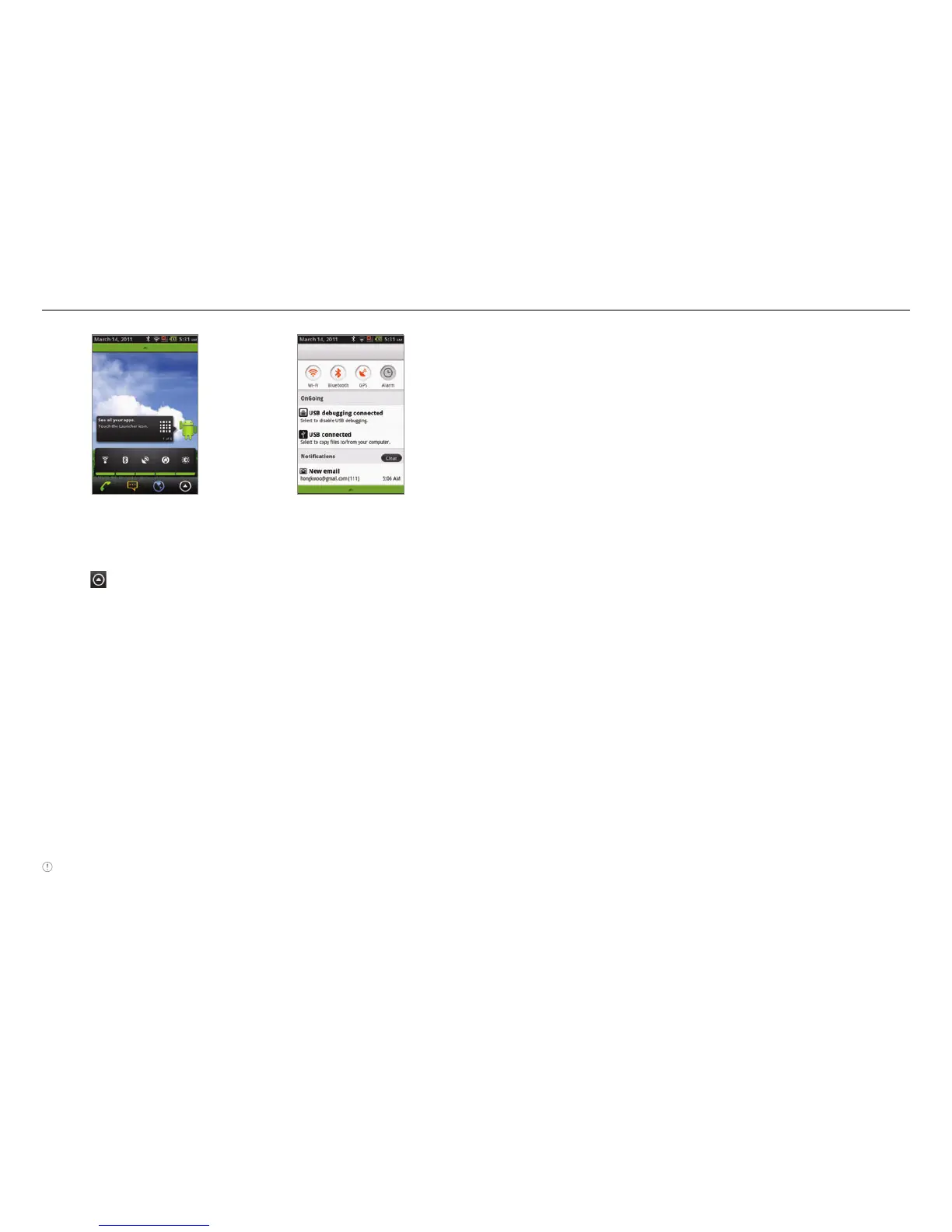
Opening Easy Setting Checking Notifications
Viewing Applications
1. Tap or press n and tap Applications.
2
. Press n and tap List View if you want to see applications in
the order of alphabet. In the list view, press n and tap Grid
View if you want to see applications at a glance.
3
. Press n and tap Rearrange if you want to place
applications for your preference.
4
. Press and hold an application and drag it to its new location
and tap Done. If you want to undo your changes, tap Cancel
or press n and tap Reset.
Selecting the language
1. Tap Settings > Language & keyboard > Select language.
2
. Select and tap a language that you want to use for
Crossover.
Note It is recommended to set the language option first before using
other functions.



 To Next Page