91
Settings
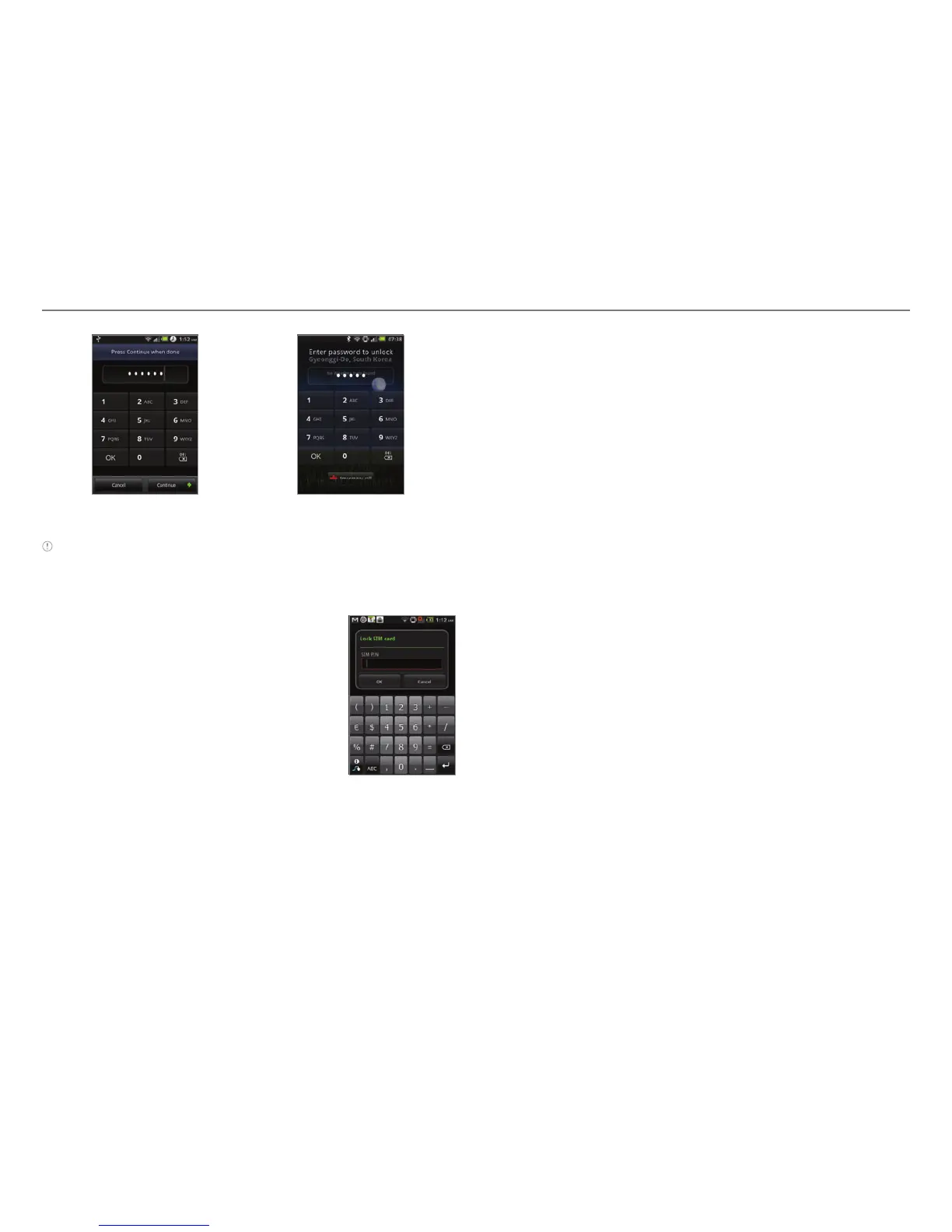
Setting PIN Entering PIN
Note Tap Settings > Location & security > Change screen lock if you
do not want to set up an additional process to unlock the screen.
Setting SIM card lock
1. Tap Settings > Location & security
> Set up SIM card lock.
2
. Tap Lock SIM card and enter the
SIM PIN if you want to require a PIN
to use the phone.
3
. Tap Change SIM PIN and enter the
old SIM PIN and a new SIM PIN if you
want to change the SIM PIN.
Setting the credential storage password
1. Tap Settings > Location & security > Set password.
2
. Enter a new password and enter it again to confirm.
3. Tap OK.
Applications
Setting keyboard shortcuts for applications
1. Tap Settings > Applications > Quick launch.
2
. Select an application for the shortcut.
Managing applications
1. Tap Settings > Applications > Manage applications >
Downloaded.
2
. Tap an application and tap Force stop if you want to stop its
operation by force. Tap Uninstall if you want to uninstall the
application.
3
. Tap Running on the top of the screen and tap an
application to manage its operation.
Viewing running services and applications
1. Tap Settings > Applications > Running services.
2
. Tap a service or an application to stop its operation or to
edit its options.
3
. Tap Force stop if you want to stop its operation.
Debugging USB
1. Tap Settings > Applications > Development.
2
. Tap USB debugging to allow the debug mode when the
USB cable is connected.
3
. Read and tap OK on the USB debugging information page.



 To Next Page