51
Personal Information
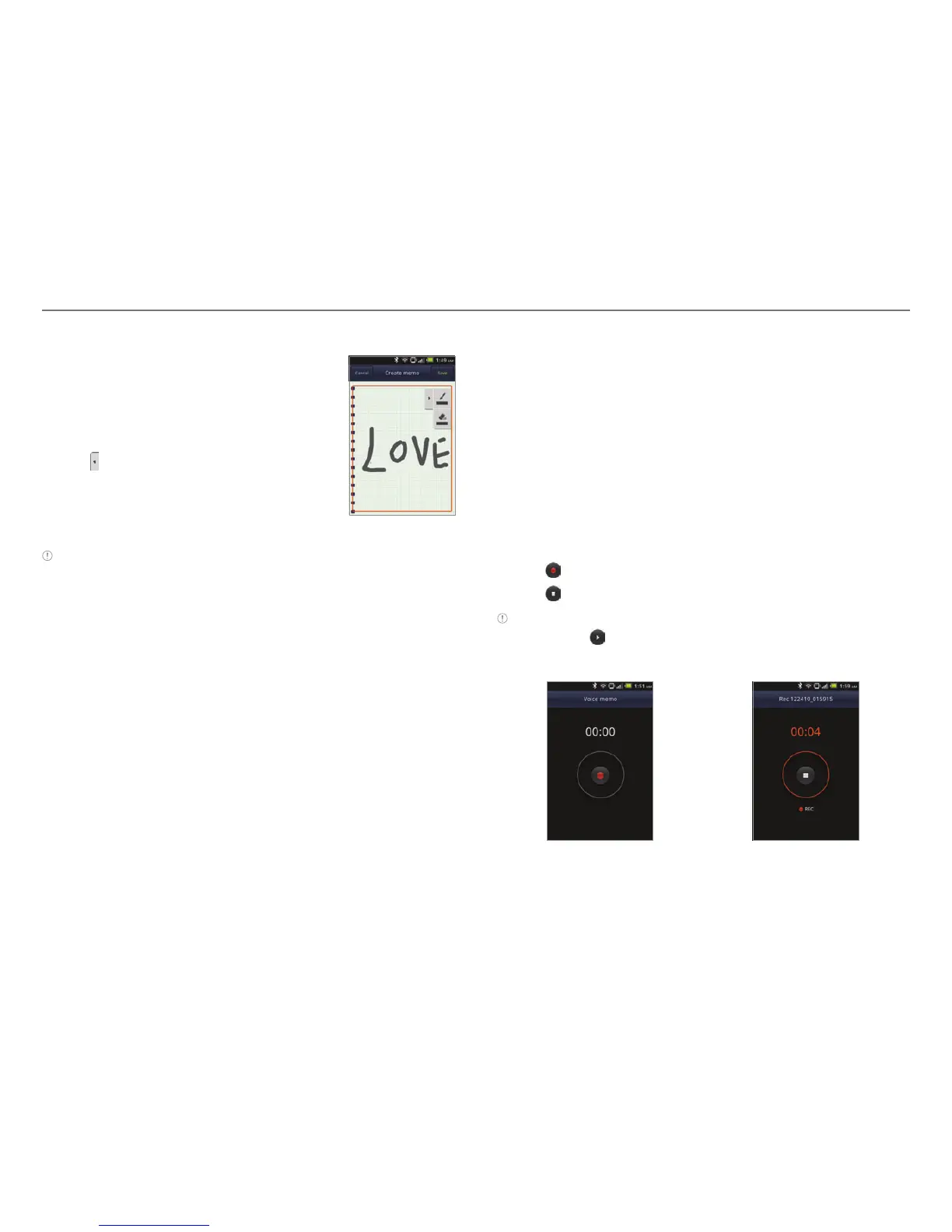
Drawing a handy memo
1. Tap Handy Memo
from the
applications menu
.
2
. Draw a memo with your finger. If
there are saved memos, tap Create
new > Hand drawing memo.
3
. Tap to select effects.
4
. Adjust the thickness of the pencil
and the eraser.
5
. Tap Save.
Adding effects
Note The screen for entering a text memo appears first if there are
no memos saved. Press
n and tap Hand drawing memo if you want
to change the memo type.
Editing a memo
1. Tap Handy Memo
from the applications menu
.
2
. Press and hold a memo to edit and tap Edit.
3
. Edit the memo and tap Save.
Sharing a memo
1. Tap Handy Memo
from the applications menu
.
2
. Press and hold a memo to share, and tap Share.
3
. Tap Bluetooth, Email, Facebook, Gmail, Messaging,
Online Locker, Picasa or Twitter. Channels might vary
depending on the memo type.
Deleting a memo
1. Tap Handy Memo
from the applications menu
.
2
. Press and hold a memo to delete, and tap Delete.
3
. Tap Yes.
Using voice memo
Record a memo using Crossover.
Recording Voice Memo
1. Tap Voice Memo
from the applications menu
.
2
. Tap to start recording your voice.
3
. Tap to stop recording your voice.
Note Once you have recorded a voice memo, the screen to play it
appears. Tap
to replay the recorded voice memo. Press l if you
want to record a new voice memo.
Ready to record Recording starts



 To Next Page