32
Communication
Removing the email account
1. Tap Email from the applications menu.
2
. Press n and tap More > Accounts in the Inbox screen.
3
. Press and hold the account that you want to remove.
4. Tap Remove account > OK.
Email settings
1. Tap Email
from the applications menu
.
2
. Tap an account.
3. Press n and tap More > Account settings.
4
. Tap Email check frequency, set the time interval to check
email and tap OK.
5
. Tap Default account if you want to set the email account as
the basic account by default.
Using Gmail
Adding a Gmail account
1. Tap Gmail
from the applications menu
.
2
. Tap Next.
3
. Tap Sign in if you have a Gmail account.
4
. Enter your user name and password.
5. Tap Sign in.
Note For more information on adding a Gmail account, refer to
Creating a Gmail account on page 18.
Reading incoming messages
1. Tap Gmail
from the applications
menu
.
2
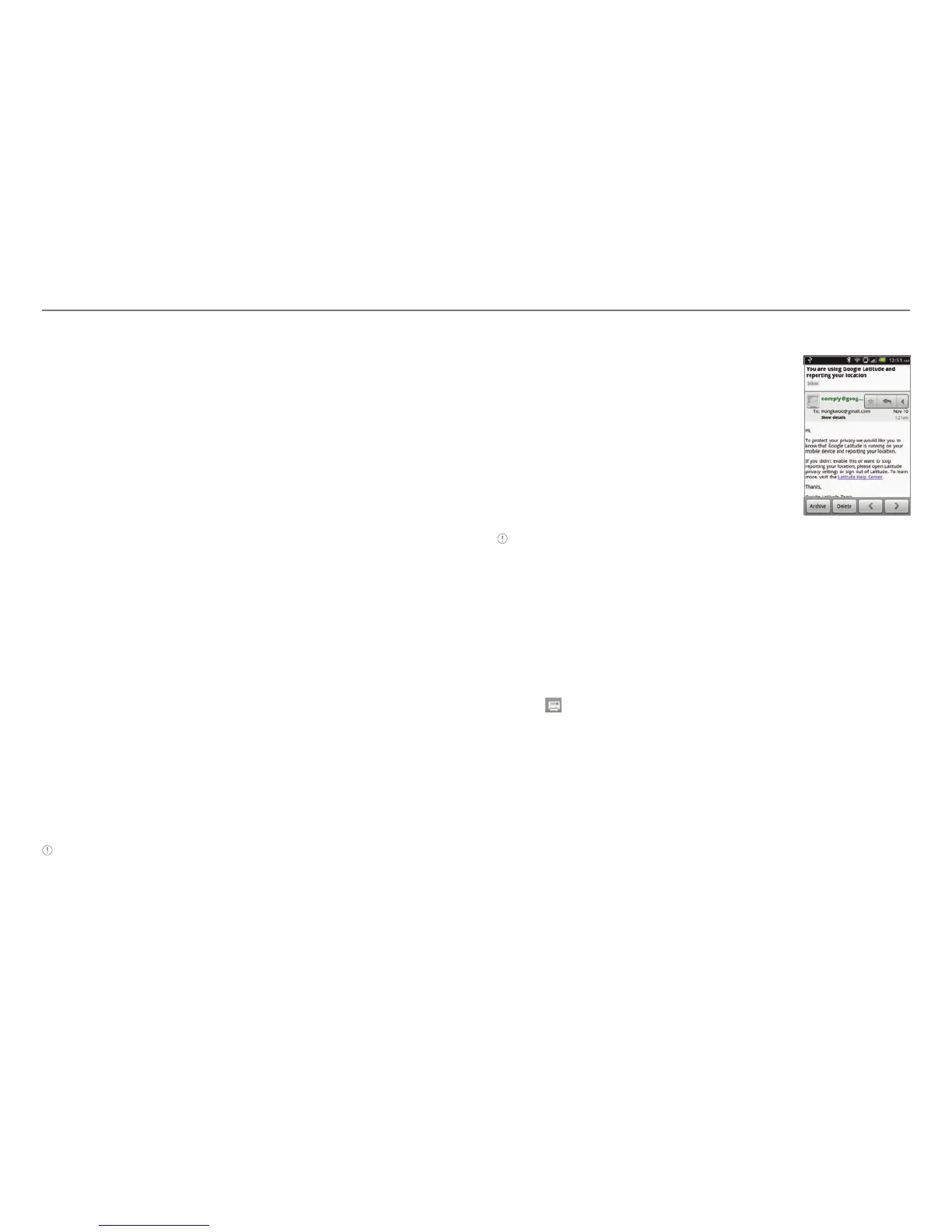
. Select and tap the message to read.
3. Tap Archive if you want to preserve
the message in a separate folder.
4
. Tap Delete if you want to delete the
message.
Note You can read messages by label. Press n in the Inbox screen
and tap Go to labels.
Sending an email through Gmail
1. Tap Gmail
from the applications menu
.
2
. Press n and tap Compose.
3
. Enter the recipient’s email address, the subject and the
message.
4
. Tap or press n and tap Send.
Designating emails as spam
1. Tap Gmail
from the applications menu
.
2
. Select and tap an email.
3. Press n and tap More.
4
. Tap Report spam if you want to report the email and put it
from your inbox.



 To Next Page