41
Entertainment
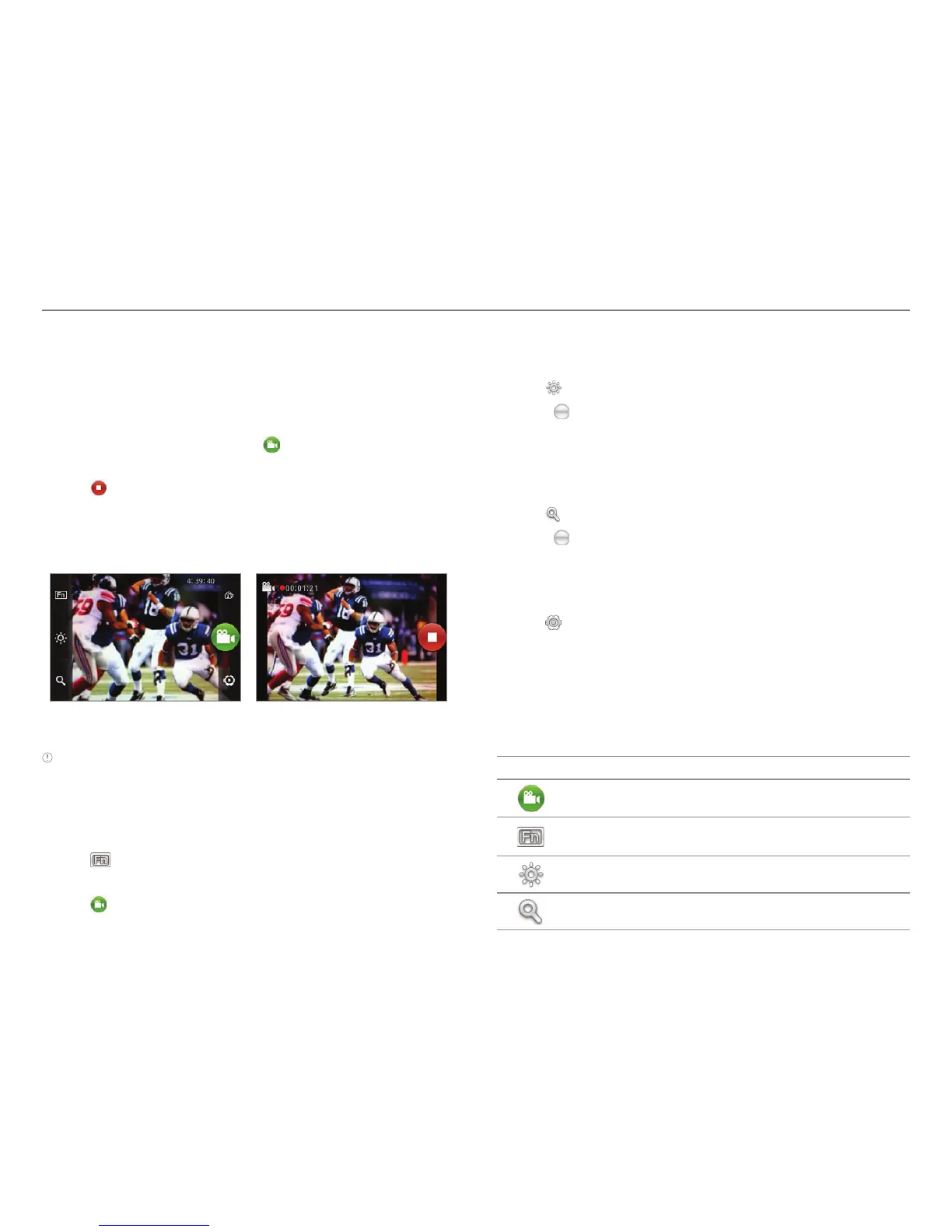
Recording videos
1. Tap Camcorder
from the applications menu
. The screen
changes to landscape mode by default.
2
. Tap on the screen and select options if necessary. Option
buttons disappear in a few seconds.
3
. Focus on the object and press . Press l if you want to
cancel recording.
4
. Tap to stop recording.
5
. Tap Share, Play or Delete.
6
. Press the CAMERA key or l if you want to record another
video.
Selecting options Recording a video
Note The screen moves to Applications if you do not touch the
screen or run an application for two minutes.
Recording videos for a certain period of time
1. Tap on the screen while in the camcorder mode.
2. Tap and tap Duration.
3
. Select and tap a time duration and tap Done.
4
. Tap . The video will record for the selected duration.
Adjusting brightness
1. Tap on the screen while in the camcorder mode.
2. Tap .
3
. Drag to the left to reduce brightness, or to the right to
increase brightness.
Zooming in/out
1. Tap on the screen while in the camcorder mode.
2. Tap .
3
. Drag to the left to zoom out, or to the right to zoom in.
Changing settings
1. Tap on the screen while in the camcorder mode.
2. Tap .
3
. Tap Resolution and adjust the resolution from
176x144(MMS) to 800x480.
4
. Tap Shutter Sound if you want to make a sound when
taking a video. The check box is selected by default.
Camcorder menu options
Icon Name Description
Video Records a video
Function
Uses functions: White Balance,
Filter, Duration
Brightness Adjusts brightness
Zoom Zooms the object in or out



 To Next Page