45
Entertainment
Viewing information
1. Tap Music Player
from the applications menu
.
2
. Press and hold a file to see information.
3. Tap Properties.
4
. Scroll up or down to view information.
Sorting files by type
1. Tap Music Player
from the applications menu
.
2
. Tap Songs on the top of the screen and select the option
you would like to sort by. Songs is set up by default.
Rating a file
1. Tap Music Player
from the applications menu
.
2
. Select and tap a file to rate.
3. Tap while the file is playing and rate from one to five
stars.
Deleting files
1. Tap Music Player
from the applications menu
.
2
. Press n and tap Delete.
3
. Tap on the file to delete. When selected, the icon turns
green.
4
. Tap Done.
Enjoying YouTube
Watching videos
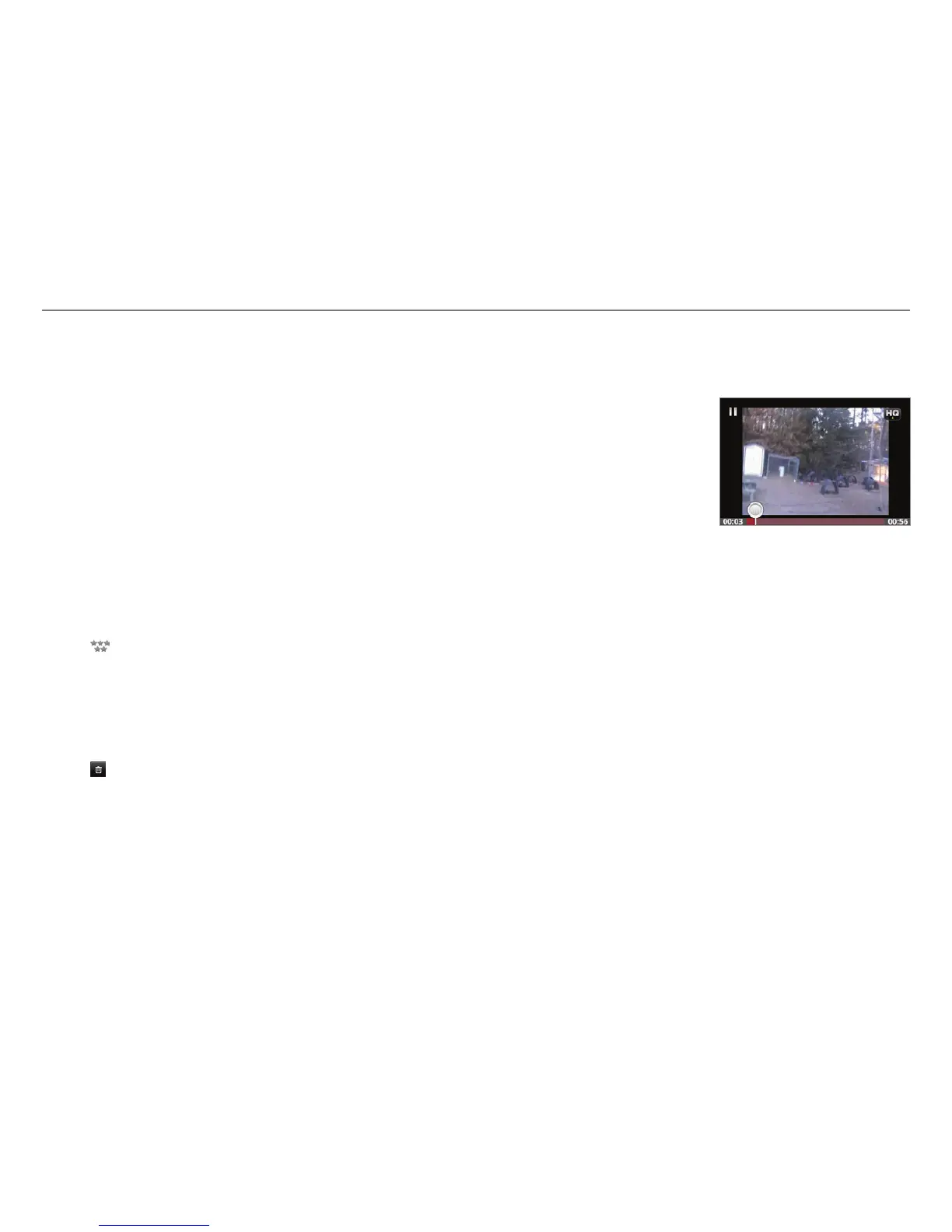
1. Tap YouTube
from the
applications menu
.
2
. Select and tap a video to
watch.
3
. Double-tap the screen
to watch the video in full
screen.
Uploading videos
1. Tap YouTube
from the applications menu
.
2
. Press n and tap Upload.
3
. Select and tap a video to upload.
4. Set a title for the video and tap Upload.
Checking upload status
1. Tap on the top of the screen and drag it down while the
video is being uploaded.
2
. Tap Uploading. You can see the status of the upload.
3
. Press n and tap Pause uploads if you want to pause
uploading. Press n and tap Resume uploads if you want to
resume upload.
4
. Tap the video on the top of the screen and tap Cancel if you
want to cancel the upload.



 To Next Page