54
Documents
Viewing documents
Read Microsoft Office documents that are stored in a variety of
formats in Crossover.
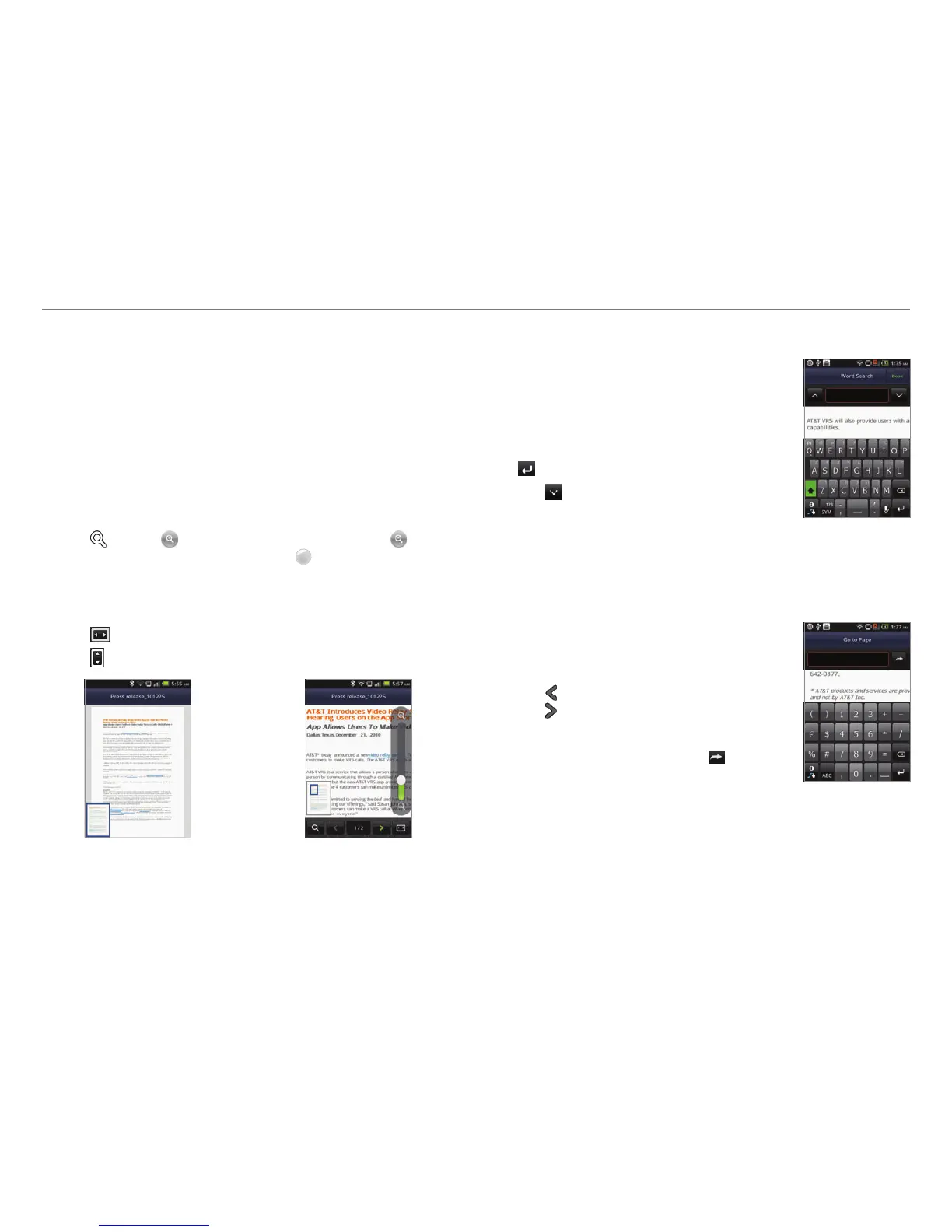
Reading documents
1. Tap Document Viewer
from the applications menu
.
2
. Select and tap a folder where you have stored documents.
3. Select and tap a document to read.
4. Tap anywhere on the screen while a document is open.
5. Tap and tap to zoom in the document or tap to
zoom out in landscape mode. Drag
downwards or
upwards to zoom in or out in portrait mode. You can also
zoom in the document by pinching your fingers apart, and
zoom out by pinching your fingers together.
6
. Tap if you want to fit the document to width.
7
. Tap if you want to fit the document to height.
Â
Searching for words in a document
1. Tap Document Viewer
from the
applications menu
.
2
. Open a document.
3. Press n and tap Word Search.
4
. Enter a word to search for and tap
in the virtual keyboard.
5
. Tap to see the word that you
have searched for in the next
sentence or page.
6
. Tap Done if you want to stop
searching for the word.
Moving to a page in a document
1. Tap Document Viewer
from the
applications menu
.
2
. Open a document.
3. Tap to move to the previous page.
Tap
to move to the next page.
4
. Press n and tap Go to Page.
5
. Enter the page to go and tap .
Sharing documents
1. Tap Document Viewer
from the applications menu
.
2
. Select and tap a folder where you have stored documents.
3. Press and hold a document to share, and tap Share.
4
. Tap Bluetooth, Email, Facebook, Gmail, Messaging or
Twitter. Channels might vary depending on the document
type.



 To Next Page