36 37
Getting Started
• Then isolates the primary voice in conversation and lters out the
background noise – so the person you’re calling hears only your voice,
without disturbing background noise.
• Dynamically equalizes and adjusts voice volume to optimize your
calling experience, so you can hear clearly and don’t need to speak
louder to overcome surrounding noise.
The noise suppression technology is built-in and already enabled in
your new mobile phone. So it’s ready to provide unsurpassed voice
clarity with every call. For information on how to turn o and on noise
suppression, see Making, receiving and ending calls or Sound Prole.
Screen navigation (Advanced Mode only)
The home screen is your starting point for using the applications on your
phone. You can customize the home screen to display application icons,
shortcuts, folders, and widgets according to your preference.
About your home screen
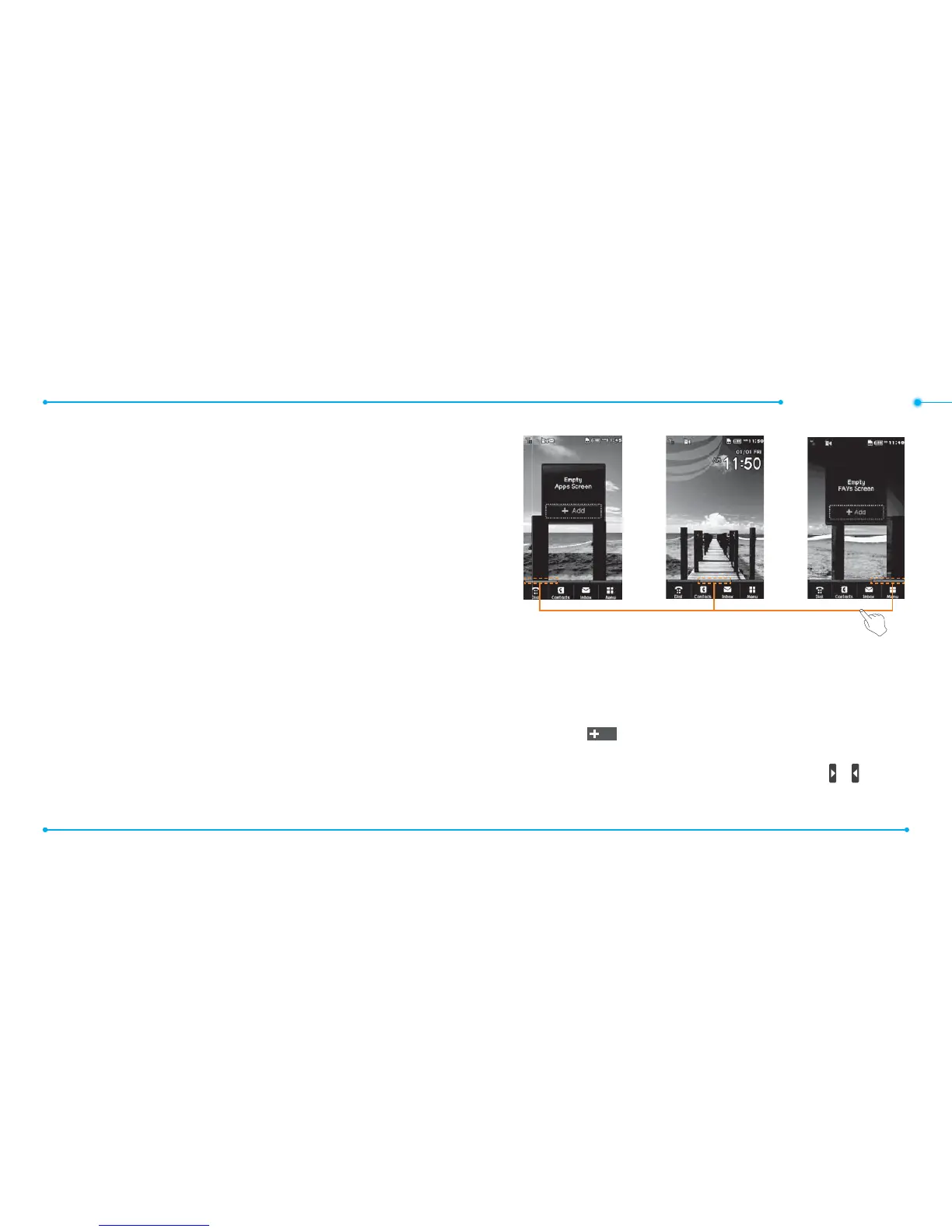
• Main screen: The phone’s main home screen.
• Apps screen: Provide operators and users Shortcuts menu that you
want to register. Max 24 icons can be added.
• FAVs screen: Widget content is stored on the screen as items. Max 15
icons can be added.
Note: You can access 3 dierent types of home screen by icking one way.
However, the position indicators are always displayed for the corresponding
home screen (i.e. Left – Apps, Center – Main, Right – FAVs).
Adding a home screen item
Shortcuts and oor screens allow you to assign items to the screen.
1. Tap Add
Add
.
2. Tap a desired menu.
3. Once you have added one or more items to the screen,
or is
displayed to customize the home screen.
®
®
Apps Screen : Left Main Screen : Center
Position indicators
FAVs Screen : Right



 To Next Page