72 73
Easy Mode - Multimedia
03
04
05
06
01
02
03
04
05
06
07
01
02
Camera
You can take pictures and record movies using the built-in camera. The
photos and video clips can be saved and sent via multimedia messages.
Taking a picture
1. Press
Q
in standby mode or tap Menu > Camera > Take Photo.
2. Focus on the object and press
Q
or tap
\
.
Note: Your photo will be saved automatically to Menu > Camera > My
Pictures.
Setting camera settings
1. Press
in standby mode or tap Menu > Camera > Take Photo.
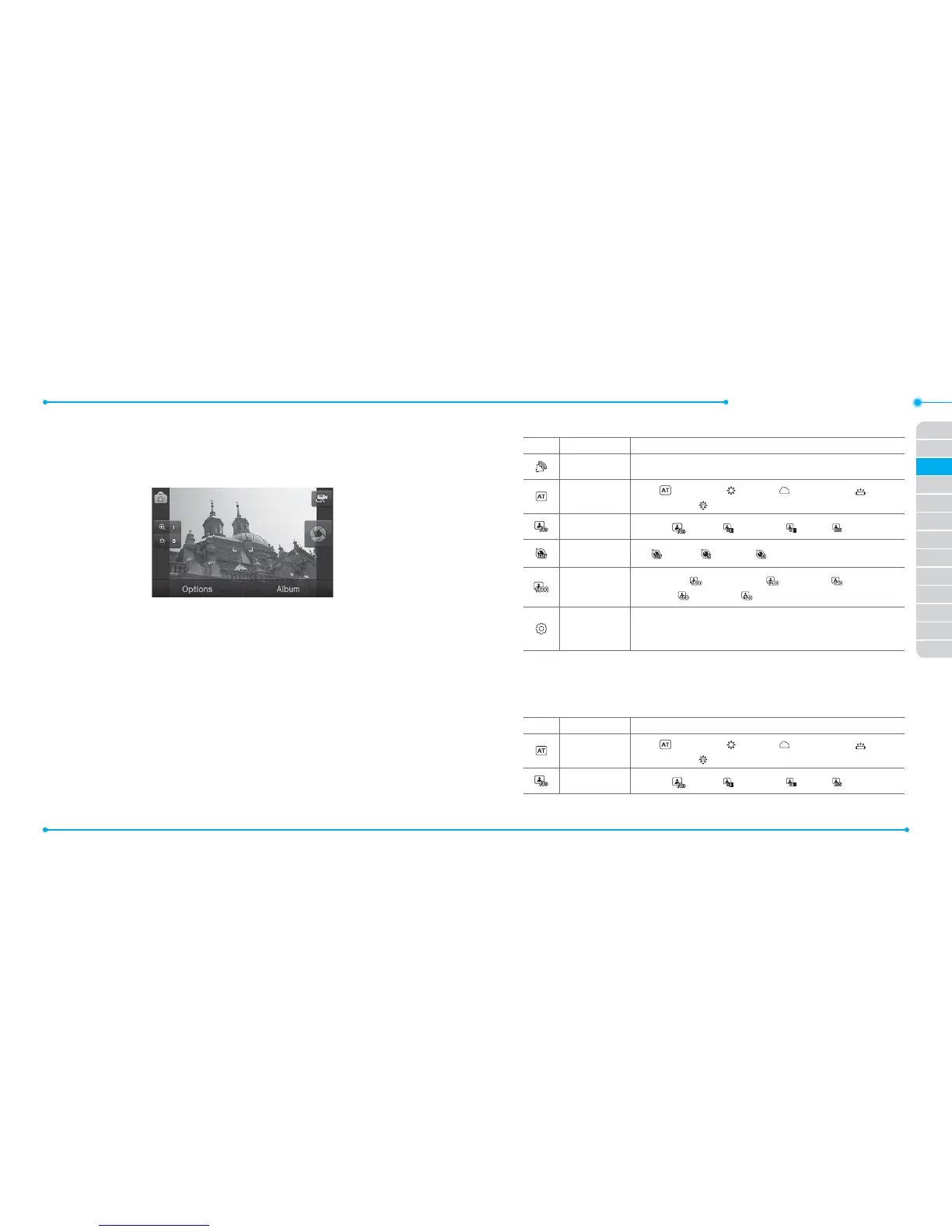
2. Tap Options > Settings to change settings prior to taking a picture.
In the options menu for camera
Icons Name Description
GEO Tagging O, On
White
Balance
Auto( ), Day Light( ), Cloudy( ), Fluorescent( ),
Incandescent(
)
Eect Normal( ), Sepia( ), Negative( ), B&W( )
Self Timer O( ), 5 secs( ), 10 secs( )
Picture Size
1600x1200( ), 1280x1024( ), 640x480( ),
400x240( ), 320x240( )
Advanced
Settings
Picture Quality, Save Location, Shutter
Sound, Timer Sound, Default File Name
Note: GEO Tagging will work only outside. When GEO Tagging activates, it
will search for the GPS for 1 minute and will ask weather go proceed or not.
In the options menu for video camera
Icons Name Description
White
Balance
Auto( ), Day Light( ), Cloudy( ), Fluorescent( ),
Incandescent( )
Eect Normal( ), Sepia( ), Negative( ), B&W( )



 To Next Page