48 49
Easy Mode - Calls and address book
03
04
05
06
01
02
03
04
05
06
07
01
02
2. Select a number to call by scrolling the screen.
3. Press
.
Answering a second call
1
1. Press . The rst call is automatically put on hold.
2. Tap
to end the second call. The call on hold is automatically
reconnected.
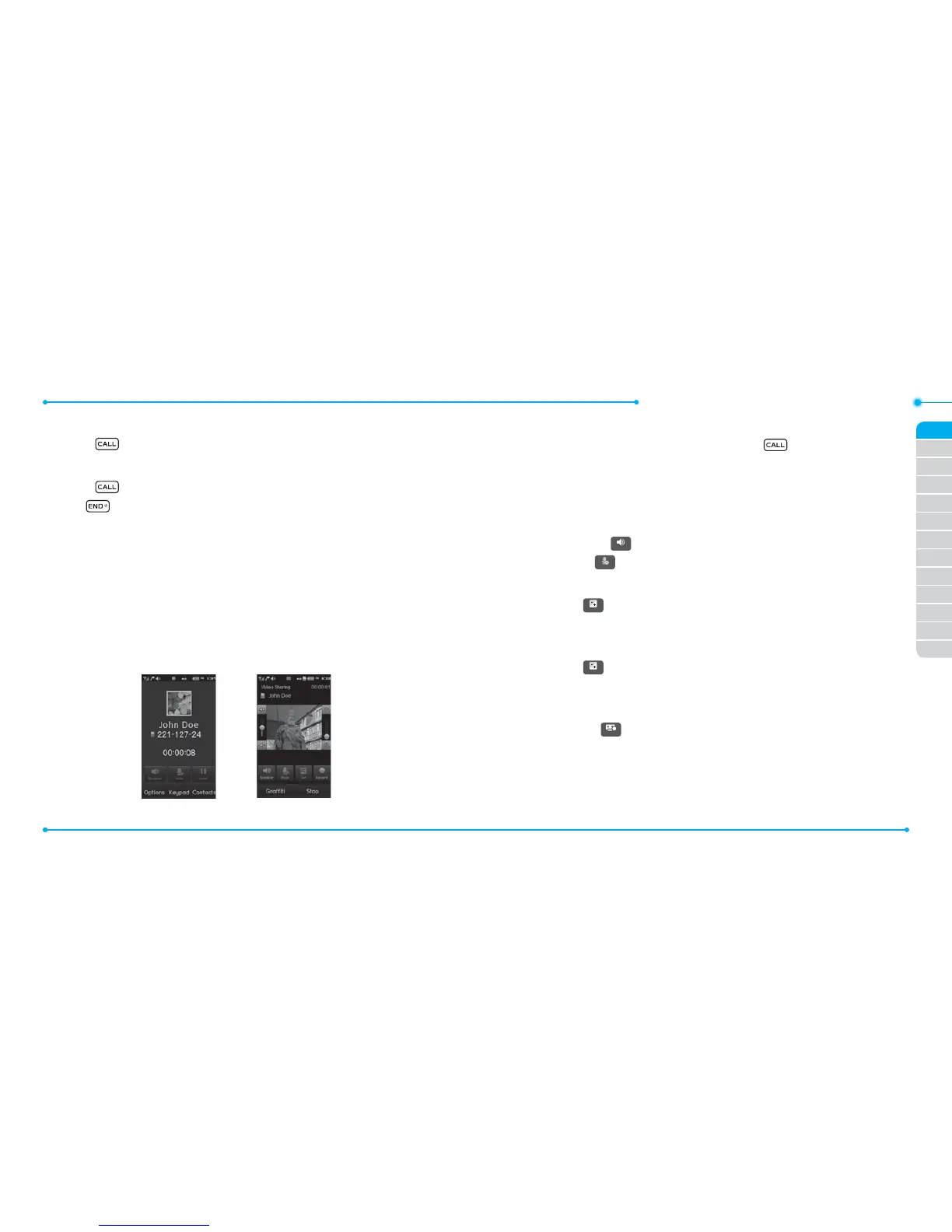
Using Video Share
You can share live or recorded video while on a call.
Note: Video Share is not available in all markets. Both parties must be in a
3G service area–a 3G icon must appear by the signal bars prior to a call
being placed, and both parties must remain in the 3G coverage area for the
duration of the Video Share.
<Call mode> <Video Share Mode>
Making video share call
1. Enter the area code and phone number > .
2. Tap Options > Video Share.
3. Select Live or Recorded.
Note: To use video share in the Recent Calls, tap Options > Video Share.
Turning o the speakerphone
1. Tap Speaker
Speaker
during video share mode.
2. Tap Mute
Mute
to mute the sound.
Increasing or decreasing the brightness
1. Tap Set
Set
.
2. Adjust the brightness by scrolling left or right.
Zoom in and out
1. Tap Set
Set
. It ranges from 1x to 3x.
2. Adjust the zoom by scrolling up or down.
Stopping the recording
1. Tap Record
Record
.
Stopping or ending video share
1. Tap Stop to end the video share.
2. It will ask you whether you will stop video share > Yes to stop.
Note: Even you end video share or close the slider, the call will not be ended.



 To Next Page