76 77
Easy Mode - Multimedia
03
04
05
06
01
02
03
04
05
06
07
01
02
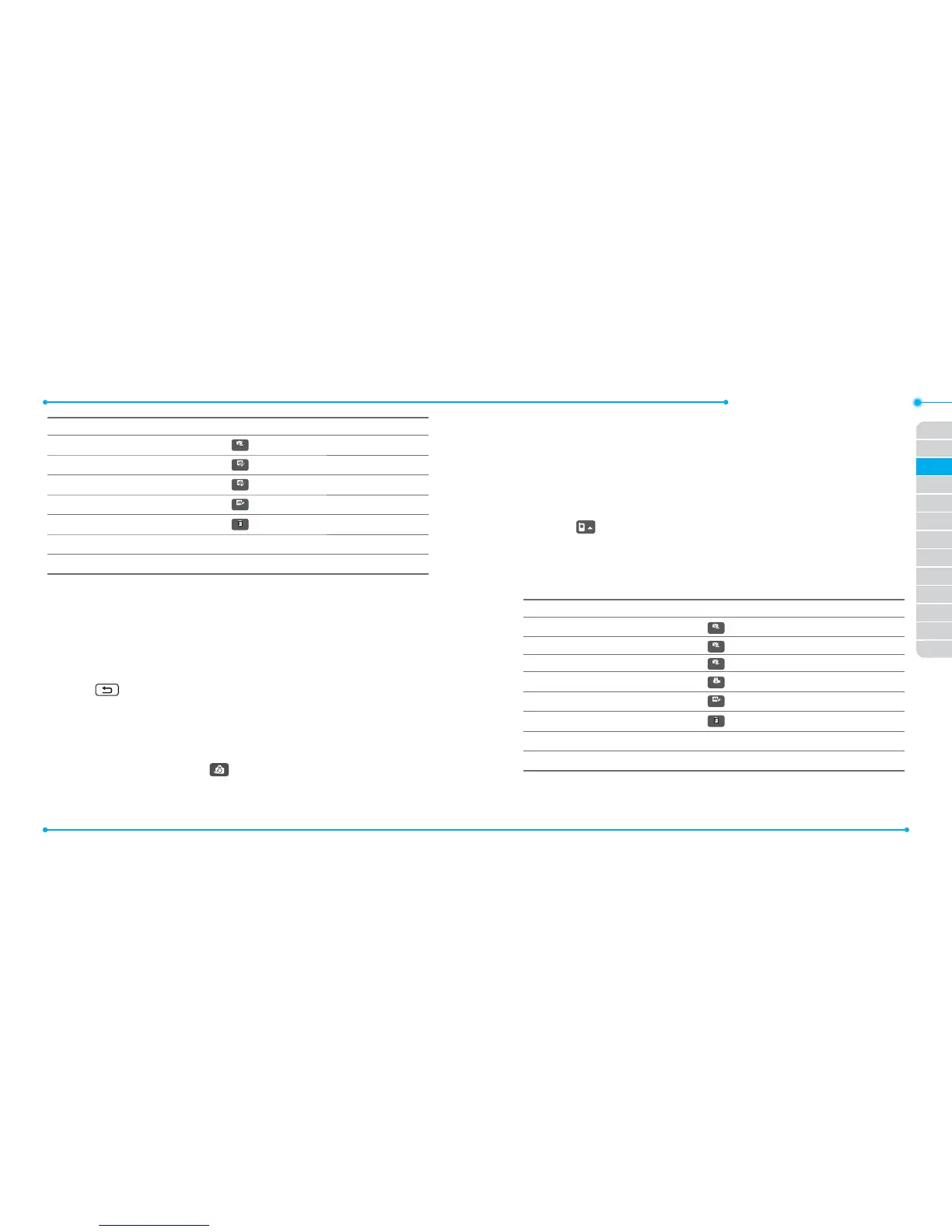
To Tap
Send to contact
6HQG
Set as wallpaper
6HWDV
> Wallpaper
Set as address book
6HWDV
> Caller ID
Rename
5HQDPH
Delete
'HOHWH
View the information Properties
View photo album Album
Recording a video
1. Tap Menu > Camera > Take Video.
2. Focus on the object and tap
]
.
3. Tap Stop to stop.
4. Tap Play to play the video clip.
5. Press
to go back to preview mode.
Changing to camera mode
1. Tap Menu > Camera > Take Video.
2. Tap Options and select Camera Mode while video camera mode is
activated or simply just tap
.
For details on taking a picture, see page 72.
Viewing the recorded video clip
1. Tap Menu > Camera > My Videos.
2. Select the video clip by tapping.
Viewing the taken picture on memory card
1. Tap Menu > Camera > My Videos.
2. Select
> Memory Card.
3. Tap My Videos.
4. Select the video by tapping.
After saving recorded video clips
To Tap
Send a multimedia message
6HQG
> as Multimedia Message
Send using Bluetooth
6HQG
> via Bluetooth
Set as online locker
6HQG
> to Online Locker
View recorded video clip
3OD\
Rename
5HQDPH
Delete
'HOHWH
View the information Properties
View video album Album



 To Next Page