35
Messaging
Entering text
Enter text by using the virtual keypad on your touch screen and
using the QWERTY keypad.
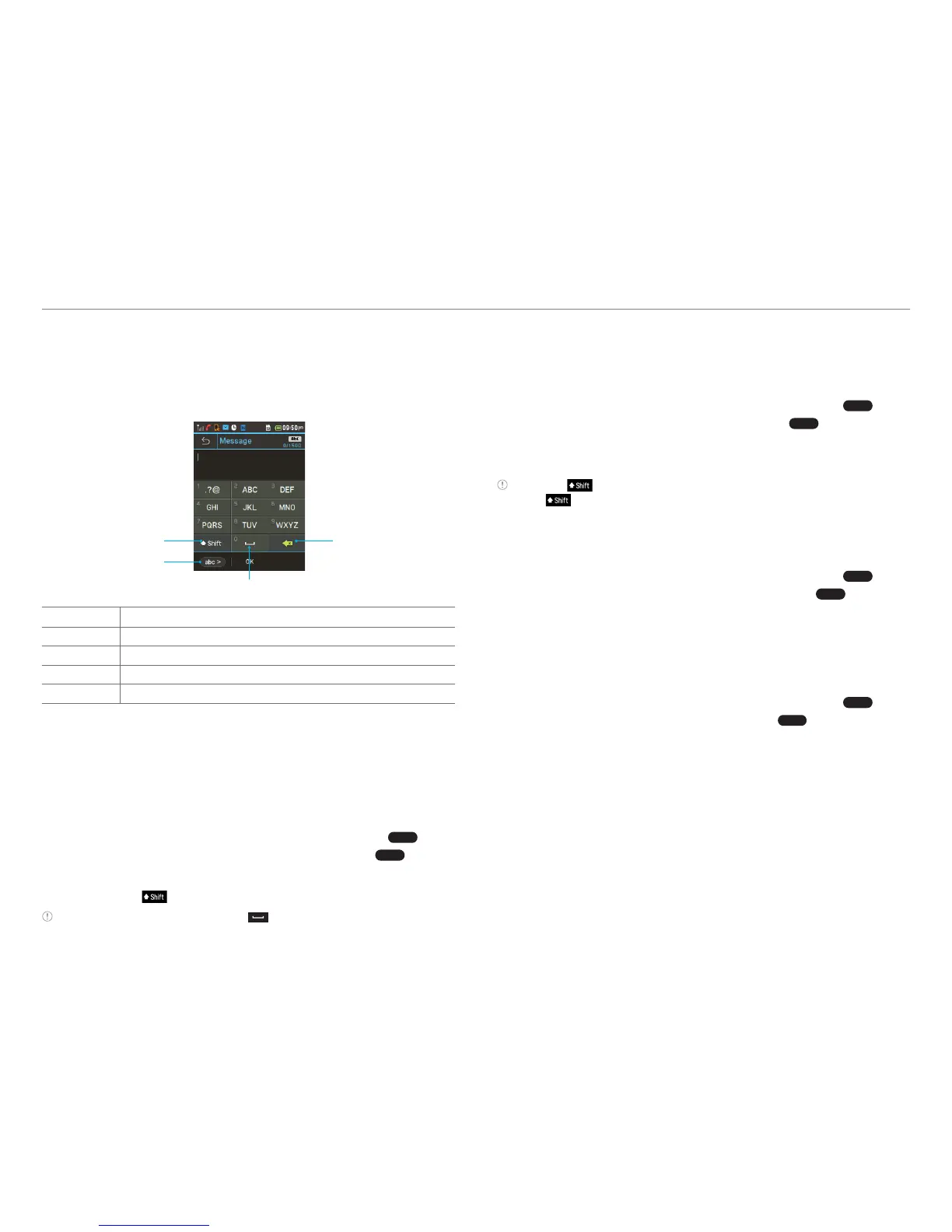
Using the virtual keypad on your touch screen
1 4
3
2
Number Function
1 Switch between upper and lower case.
2 Changes the text input mode.
3 Inserts a space
4 Deletes a character
Predictive mode
Predictive mode automatically compares your keystrokes with
an internal linguistic dictionary to determine the correct word.
It will display the most commonly used word first.
1. Tap Messages > Tap New > Tap to enter text > Tap
abc >
>
Select Predictive Mode to change the mode to
T9 >
.
2. Tap p to q to input text. To enter ‘Hello’ in the touch
k
eypad, tap
r s t t u.
Note To enter numbers, tap p to . And select the inputted numbers
on the reference area.
ABC mode
Tap the key labeled with the target letter once for the first
letter tap it twice for the second letter, and so on.
1. Tap Messages > Tap New > Tap to enter text > Tap
abc >
>
Select ABC Mode to change the mode to
abc >
.
2. Tap p to q to input text. To enter the letter “c”, tap p
3 times. T
o enter number 2, tap p 4 times.
Note Tap to input the capital letter. For example, if you want to input
A, tap
> p.
Number mode
You can input numbers in this mode.
1. Tap Messages > Tap New > Tap to enter text > Tap
abc >
>
Select Number Mode to change the mode to
123 >
.
2. Tap X to Y and Z to input numbers.
Symbols mode
You can input symbols.
1. Tap Messages > Tap New > Tap to enter text > Tap
abc >
>
Select Symbols to change the mode to
.?
@
>
.
2. Tap a symbol to input it.
Using the QWERTY keypad
Open the phone to use the QWERTY keypad.
For details on
QWERTY keypad
,
see page 6
.



 To Next Page