44
Multimedia
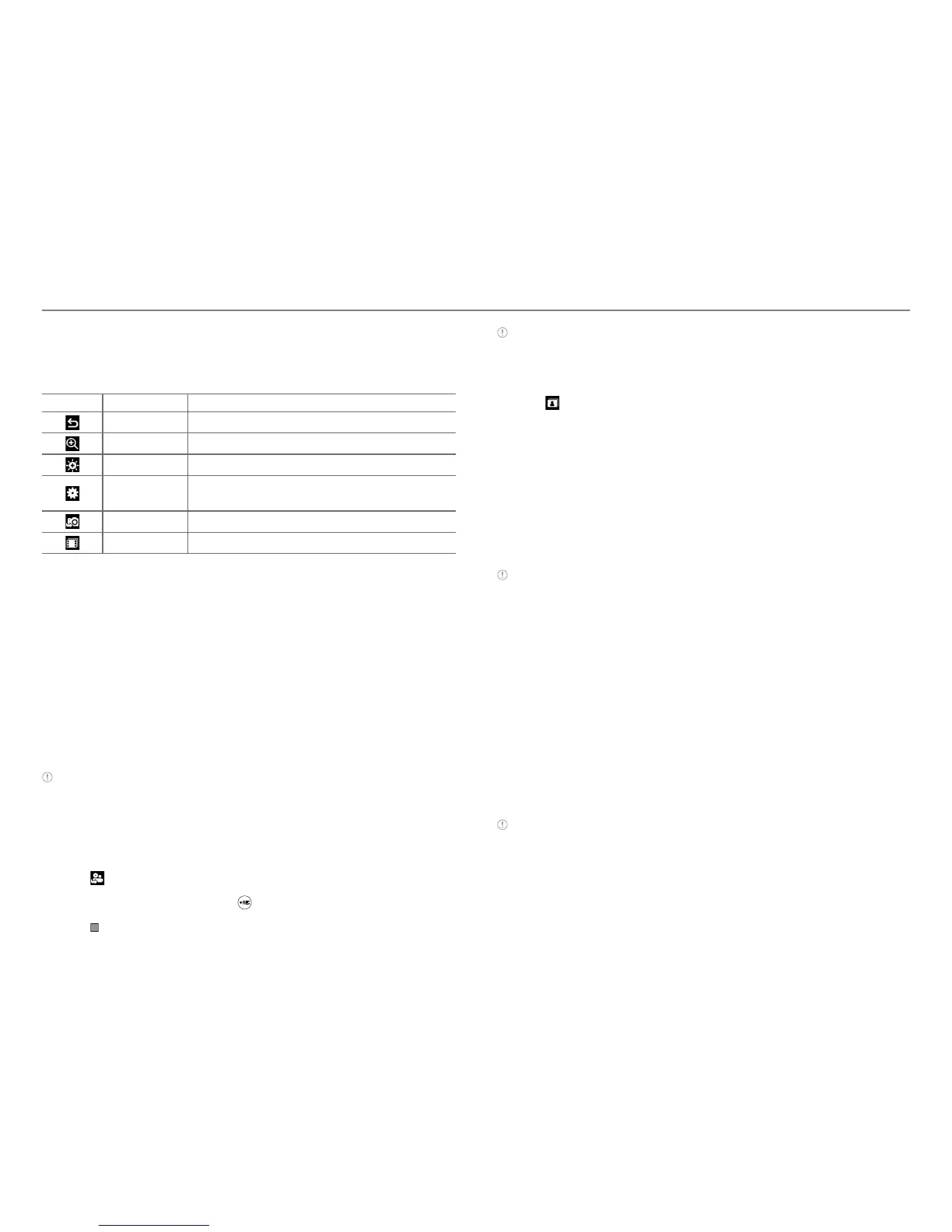
Video camera menu options
1. Tap Menu > Video Camera, into Video Camera mode.
2. Tap to change settings prior to recording video.
Icons Name Description
Back Return to previous menu
Zoom 1, 2,3,4,5,6,7,8 (up to 2x zoom)
Brightness -3, -2, -1, 0, +1, +2, +3
Settings
White Balance/ Effect/ Self Timer/
Resolution/ Storage/ Advanced
Camera Switch to camera mode
Album View the videos stored in the device
Zooming in and out
1. Tap ^ then tap _ or v. It increases or decreases the zoom
ratio.
Increasing or decreasing the brightness
1. Tap ` then tap b or c . It ranges from -3 to +3.
Taking a picture
1. Tap Menu : > Camera.
2. Focus on the subject and tap \.
Note Your photo will be saved automatically to the phone memory.
Picture Files can be save up to YYMMDD_9999. No more than 9999
pictures a day may be taken from camera.
Changing to video camera mode
1. Tap Menu : > Camera.
2. Tap
.
3. Aim at the subject and tap
.
4. Tap
to stop recording.
Note Your video will be saved automatically to the phone memory.
Viewing a saved picture
1. Tap Menu : > Camera.
2. Tap
.
3. Select the picture to view.
Picture album
You can save photos to your phone or an external memory
card and view, send or delete them from the Picture album.
JPEG format is supported, and other formats are saved in the
Pictures folder.
NoteTo access the Pictures folder, tap Menu : > Pictures.
Viewing the saved pictures
1. Tap Menu : > Pictures.
2. Select a picture.
Zooming the saved picture
1. Tap Menu : > Pictures.
2. Select the picture and tap Options> Zoom or double tap
the picture into zoom mode.
3. Tap _ /v on the picture or press volume key for zoom in/out.
4.
Double tap the picture again, return to view mode.
NoteZoom mode is activated when the resolution of the picture is larger
than the resolution of device.



 To Next Page