22
Getting Started
Navigating through menus
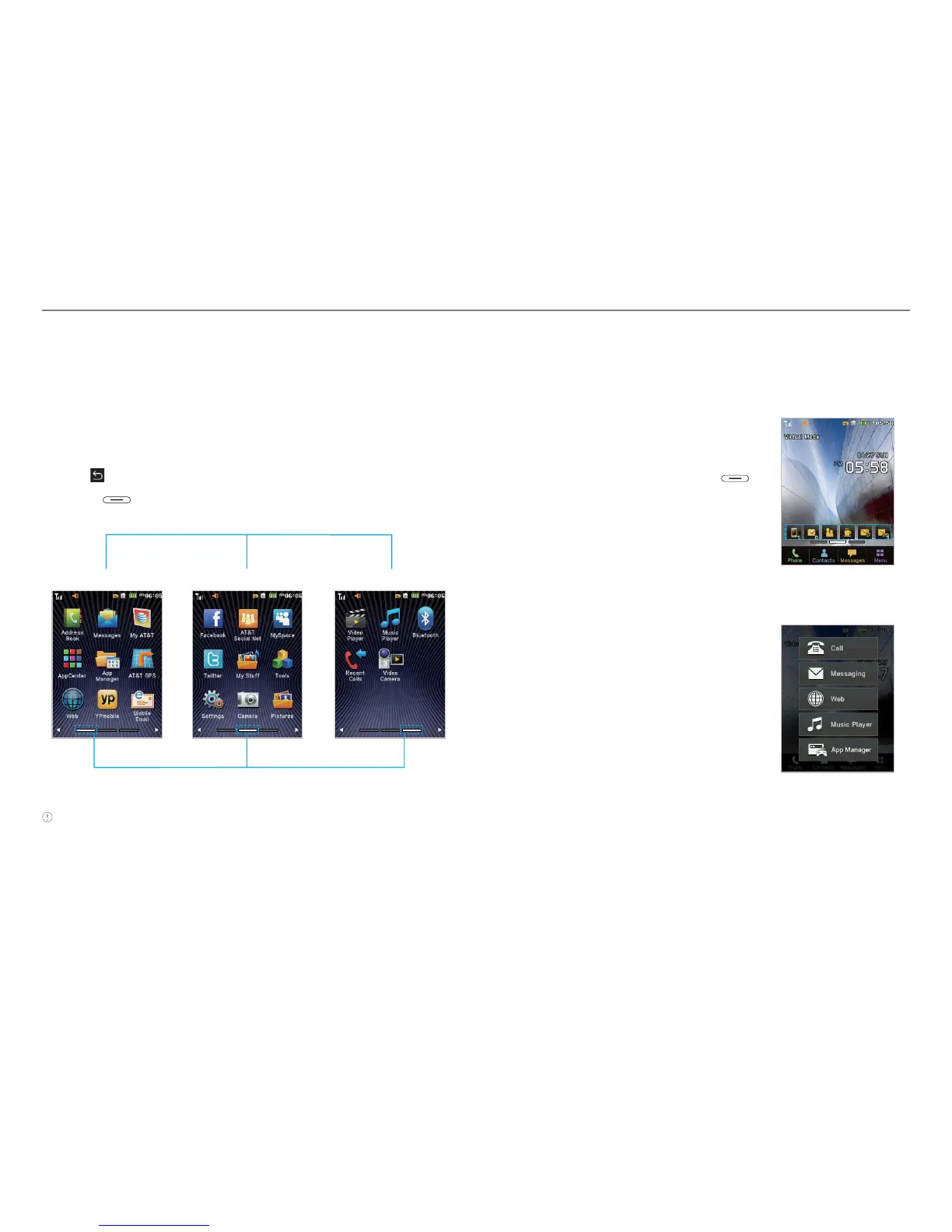
P6020 has 3 different menu screens to provide quick access
to menus.
1. Tap Menu :.
2. Flick the screen from left to right or right to left to navigate.
3. Tap the desired menu icons to open.
4. Tap
to go back to the previous menu.
5. Press
to exit.
Video
Camera
<Center> <Right><Left>
Position indicators
Extended Menu
®
®
Note The position indicators are always displayed for the corresponding
menu screen.
Missed events
When you miss calls, messages, email, instant messages, JAVA
or voice messages, icons will pop up and let you know you have
missed events.
The icon will be shown at the Missed
Events Area. Tap each icon to check the
details. To clear missed events without
checking the details, simply press
.
Using the Multitask menu
Press and hold the side up key to launch
the Multitask menu that can be accessed
from any active window or page on the
phone. There is no need to stop what
you are doing, if you want to activate
another common feature. The idea is
to allow you to temporarily exit from
your current location to access a group
of common functions such as Call,
Messaging, Mobile Web, Music player,
and Games & Apps. This key keeps you
from having to completely exit from your
current task or window, whether that be
a text message, a web page, or an active
call, to do something else.



 To Next Page