20
Getting Started
An alarm is set.
Schedule Alarm is set.
Web is active, secured and downloading.
Bluetooth is active.
Bluetooth hands-free headset is connected.
Bluetooth A2DP headset is connected.
Bluetooth hands-free + A2DP headset is
connected.
Data transfer via Bluetooth is in progress.
Headset is connected.
USB is connected.
TTY is active.
A GPRS signal is available. It is displayed when
there is an active GPRS session
.
1
An EDGE signal is available. It is displayed when
there is an active EDGE session
.
1
A 3G signal is available. It is displayed when there
is an active 3G session.
1
A microSD card is inserted.
Battery strength.
When the battery charge is low,
is displayed.
Play, Pause, Stop Status of BGM Playback
1
Network dependent
Screen navigation
The home screen is your starting point for using applications
on your phone.
You can customize the home screen to display application
icons, shortcuts, folders, and widgets according to your
preference.
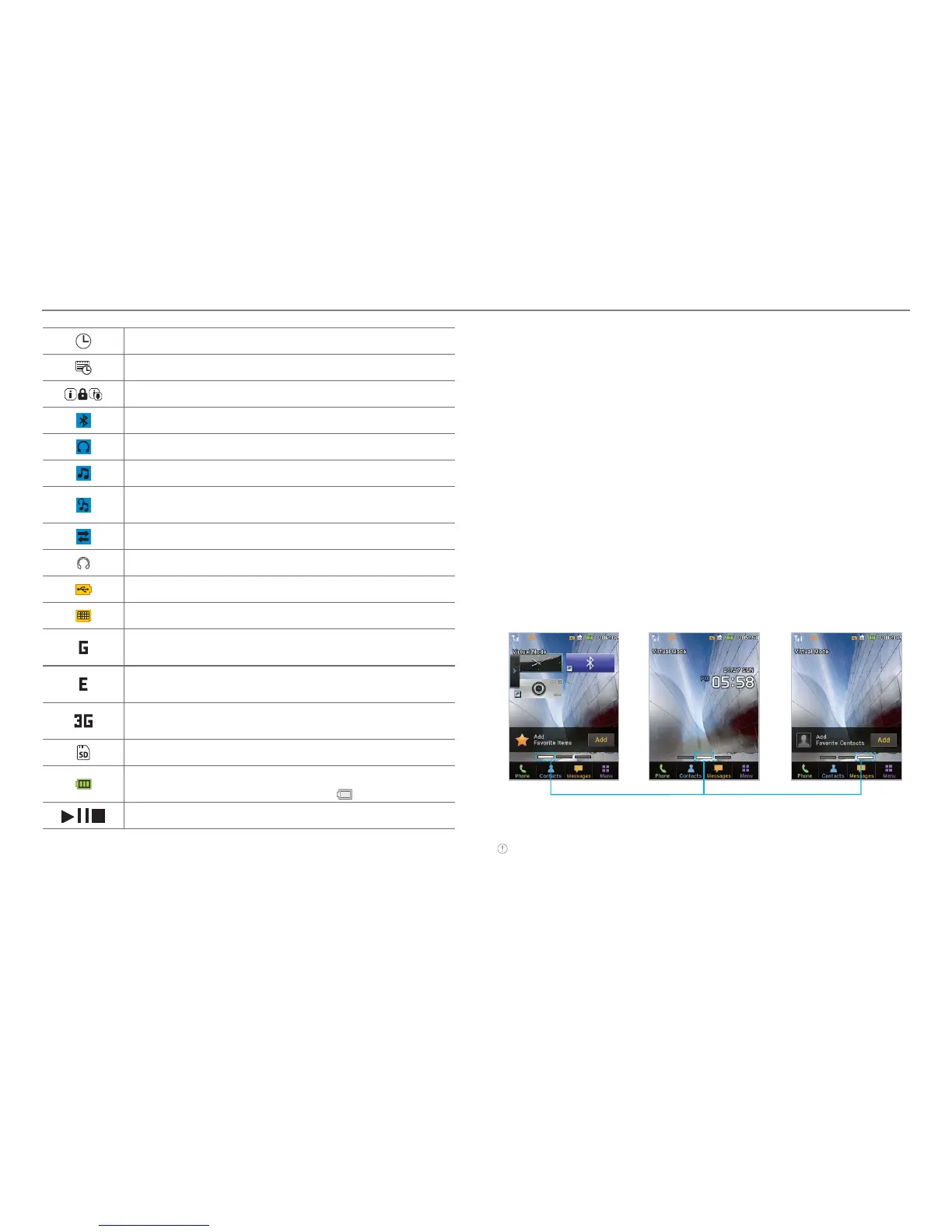
About your home screens
x Main Screen: The phone’s main home screen.
x Contents Screen: A customizable screen for shortcuts.
Max 20 icons can be added.
x Contacts Screen: A customizable screen for favorite
contacts. Max 20 icons can be added.
<Main Screen :
Center>
<Contacts Screen :
Right>
<Contents Screen :
Left>
Position indicators
®
®
Note You can access the 3 different home screens by flicking in both
directions. However, the position indicators are always displayed for
the corresponding home screen (i.e. Left – Contents, Center – Main,
Right – Contacts).



 To Next Page