64
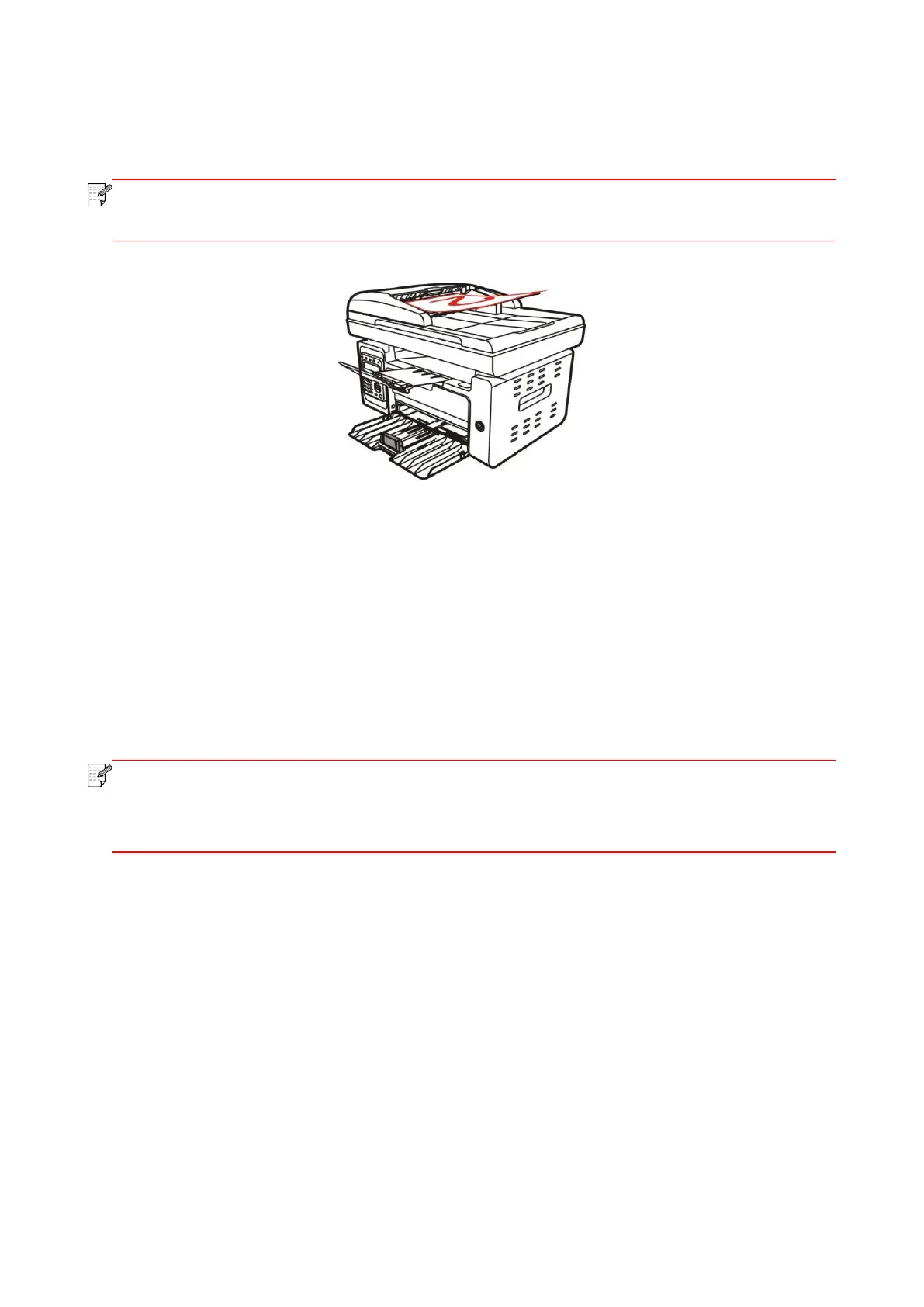
5. After completion of copying one side, put the paper into the entrance as shown in figure (without
turnover or rotation).
• If the turnover prompt on panel times out, the machine will execute one-sided copying
automatically.
6. Press "Start" to begin copying the other side.
8.4.9. Paper setting
Select the paper size and paper type of original copying in Paper Settings menu.
Paper dimension: A4, Letter, B5, A5, A6, Executive, Legal and Folio.
Paper type: common paper, thick paper, envelope paper, film paper, card paper, tagboard and thin
paper.
• After “multipage” and “clone function” are set, “paper dimension” supports “A4” and
“Letter” only.
• For copying with the ADF, only plain paper is available in "Paper Type".
8.5. ID copy setting
Change related setting through setting menu for better copy result.
1. Press "ID copy " and then "Menu" on control panel to enter the "Menu Settings" interface.
2. Press "OK" to enter the " ID copy setting " interface.
3. Press “direction key to select option to be set and press “OK key” to set option.



 To Next Page
 Loading...