3: Using the BASIC Stamp Editor
BASIC Stamp Programming Manual 2.0c • www.parallaxinc.com • Page 35
has never been saved to disk will default to “Untitled#”; where # is an
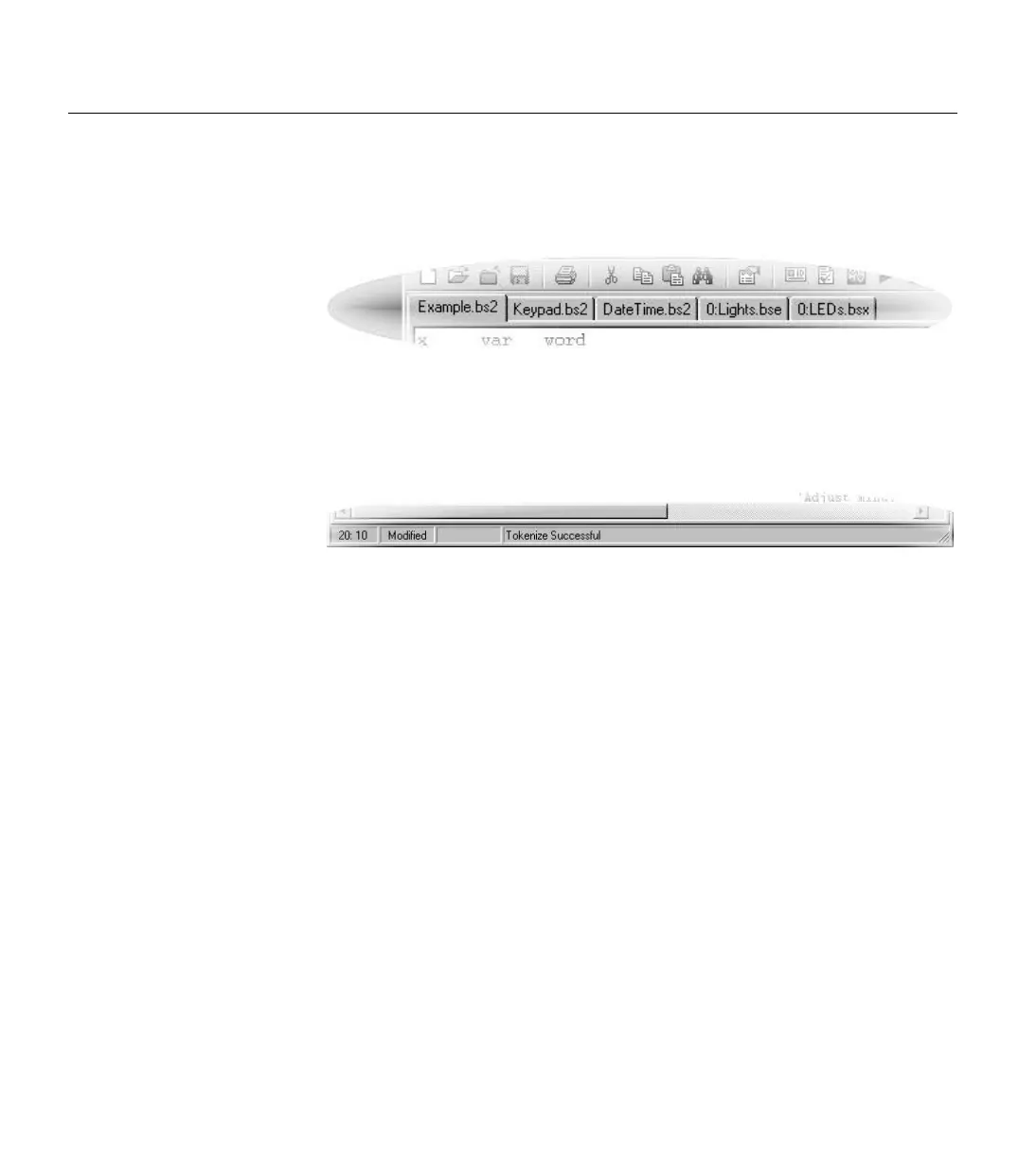
automatically generated number. A user can switch between source code
files by simply pointing and clicking on a file’s tab.
The status of the active source code page is indicated in a status bar below
it and the full path to the source code (if it has been loaded from or saved
to disk) will appear in the title bar of the BASIC Stamp Editor. The status
bar (see Figure 3.3) contains information such as cursor position, file save
status, download status and syntax error/download messages.
After entering the desired source code in the editor window, selecting Run
-> Run (or pressing Ctrl-R) will tokenize and download the code to the
BASIC Stamp (assuming the code is correct and the BASIC Stamp is
properly connected).
Because the Windows editor supports more than one model of the BASIC
Stamp, it is necessary to tell the editor which model you are trying to
program.
There are three methods the editor uses to determine the model of the
BASIC Stamp you are programming for. They are: 1) the STAMP
directive, 2) the extension on the file name of the source code and 3) the
Default Stamp Mode (as set by preferences). Whenever a file is loaded,
tokenized, downloaded or viewed in the Memory Map, the BASIC Stamp
looks for the STAMP directive first. If it cannot find the STAMP directive
in the source code, it looks at the extension on the file name (for a .bs2,
.bse, .bsx or .bsp). If it doesn't understand the extension, then it uses the
Default Stamp Mode, as defined by preferences.
The best way to force the editor to recognize the intended model of the
BASIC Stamp is to use the STAMP directive, since the STAMP directive
will override all other settings. If you forget to enter the STAMP directive
SUPPORTING MULTIPLE BASIC
S
TAMP MODELS – USING THE
STAMP DIRECTIVE.
Figure 3.2: Example Editor tabs.
Shown with 5 separate files open.
Figure 3.3: Example Status Bar.



 To Next Page