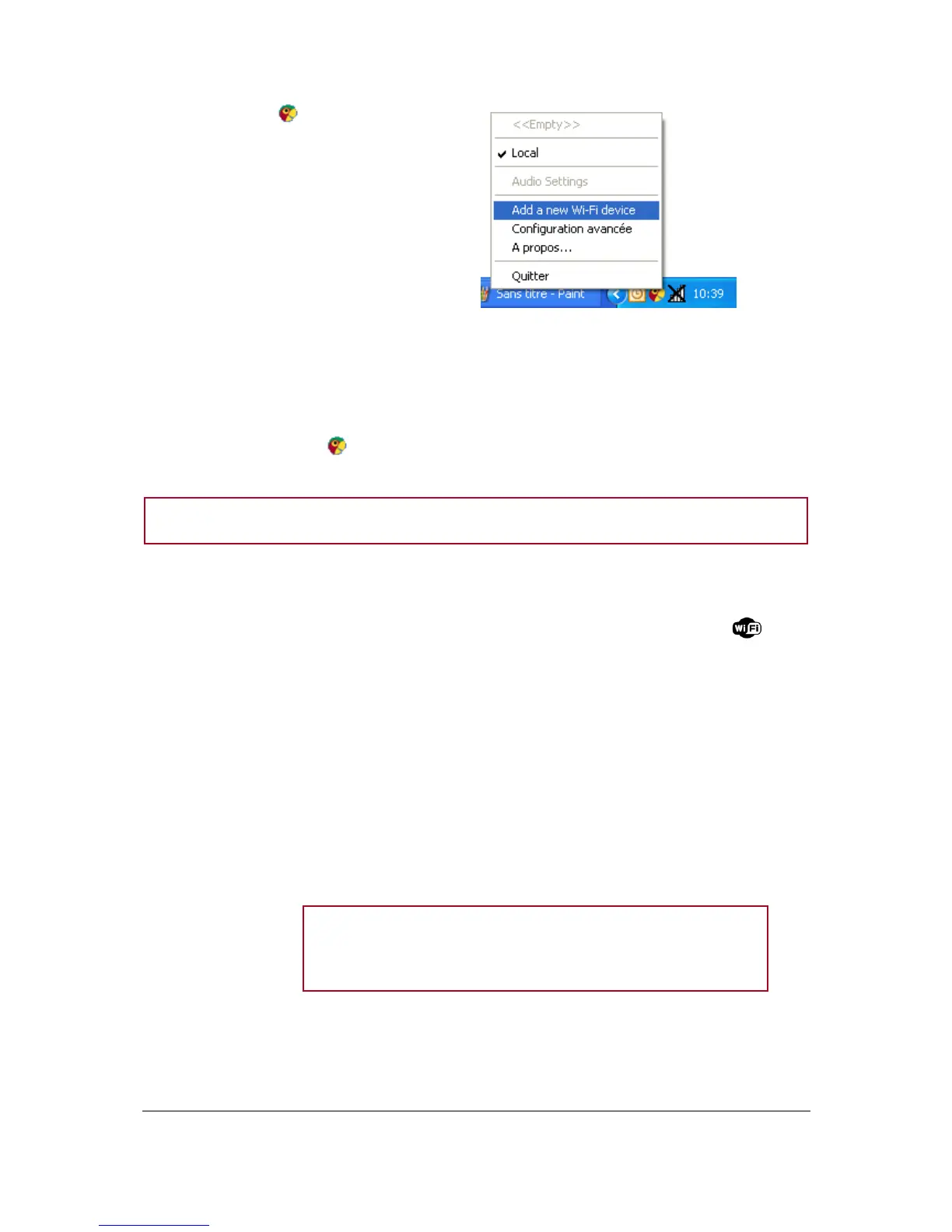
2. Click on the icon at the bottom right
of your screen and select Add a new Wi-
Fi device.
> The connection window is displayed.
3. Select No then click on Next.
> A confirmation window is displayed.
4. Click on Next.
> You will lose your internet connection during the configuration (5 minutes max). You will get
your internet connection back as soon as the configuration is over.
> A window allowing you to change the name of the Zikmu is displayed.
5. Enter a new name if necessary and click on Next.
> If you click on the icon at the bottom right of your screen, the Zikmu is now displayed
among the available Wi-Fi peripherals.
Note: You can modify this name subsequently using the Parrot Audio Configuration Tool software.
Resetting Wi-Fi parameters
If you encounter problems while connecting your PC to the Zikmu via Wi-Fi, hold down the button
until all control panel icons blink once.
Using the Zikmu with a computer connected to the access point via an
Ethernet cable
If your computer is connected to your access point via an Ethernet cable, then use the Parrot Audio
Configuration Tool software to establish the connection between your computer and the speakers.
Identify the name of your Wi-Fi network.
Note: The name of this network is also referred to as SSID (Service
Set Identifier). It is generally located under your router. If you have
changed this name, use the new name.
If your network is secured, you need the WEP / WPA or
WPA2 protection code to establish the connection.


 To Next Page