Date:
• Navigate up and down to select the date.
• Navigate left and right to move between
days, months and years.
• Press the OK button to confirm selection.
Press Play Slideshow to leave this menu and
play the slideshow.
Note 1:
The time and date must be set before the Event
Reminder and Auto on/off functions can be set.
Note 2: Show clock
You can have a clock displayed on the screen
on the top of your pictures in Slideshow and
browse mode.
3.5.4 Choosing clock mode
The clock can either be viewed in the Full
screen, Slideshow or both:
Full Screen- displays the clock in center of the
screen and no photos will be displayed.
Slideshow- displays the clock in the bottom
right of the screen.
Both- displays the clock in both full screen and
slideshow modes.
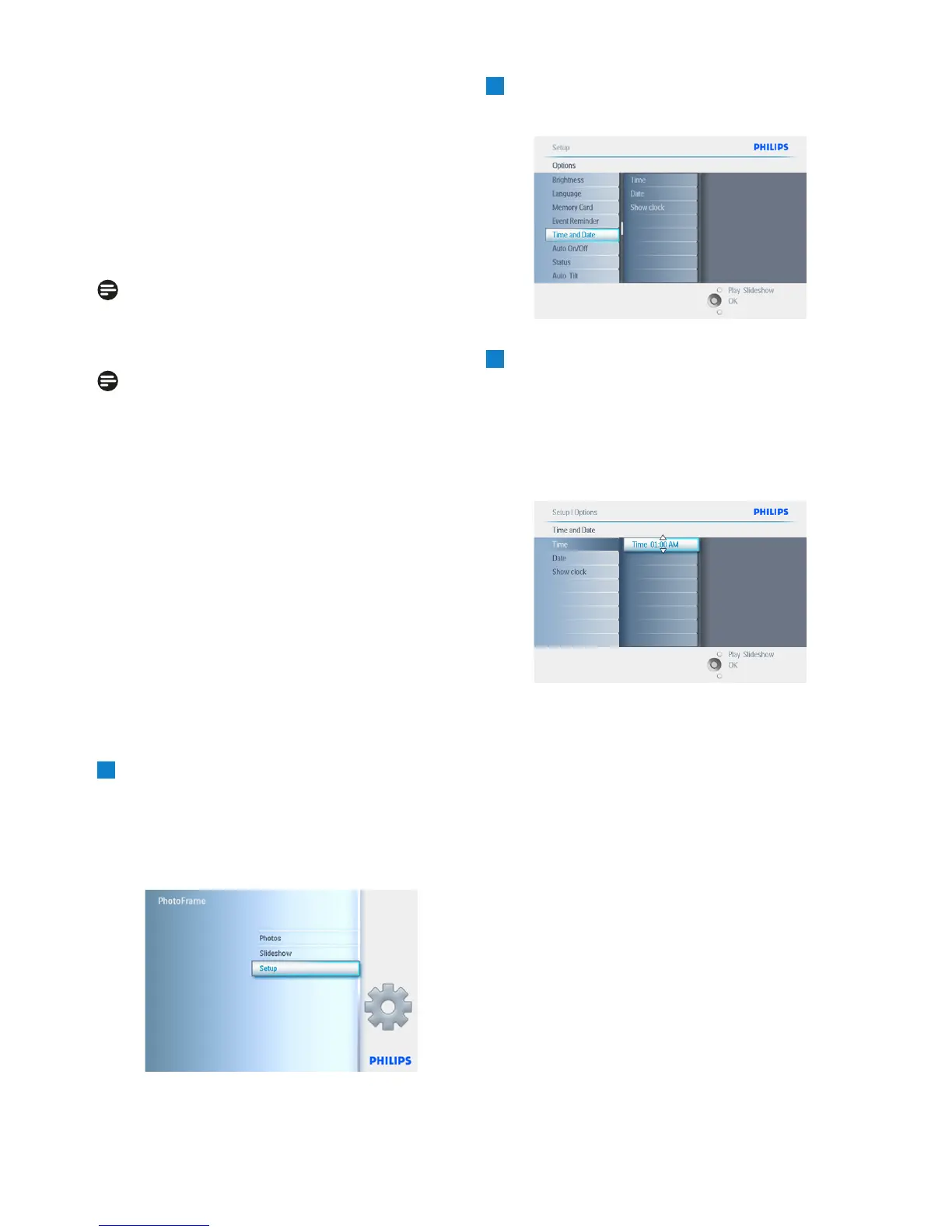
1
• Press the menu button to access the
Main Menu.
• Navigate down to highlight the setup icon.
• Navigate right or press the OK button to
access the setup menu.
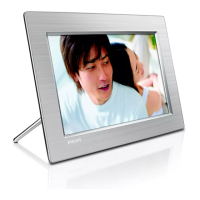
2
• Navigate down to Clock.
• Navigate right to access the Time settings.
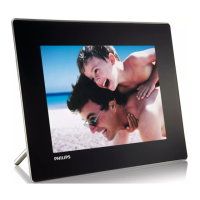
3
• Navigate up and down to select Show
clock.
• Navigate right then up and down to
select No Clock ,Full Screen , In Slideshow
or Both.
• Press the OK button to confirm selection.
Press Play Slideshow to leave this menu and
play the slideshow.
10
Getting Started


 To Next Page