Parental control (Child lock)
This function protects your TV-Video Combi from unwanted
use. All button functions on the front of the machine are
blocked.
DProgrammed recordings will still be recorded (in
spite of the parental control) and cannot be
interrupted.
a Please make sure the TELETEXT decoder is switched off
using the button TELETEXT e .
b Press the u button on the remote control for approx. 5
seconds.
The standby lamp (STANDBY 5) on the front of the machine
blinks for approx. 3 seconds to confirm this action.
Keep the remote control in a safe place.
c If you want to switch the parental control function off,
press the u button on the remote control for approx. 5
seconds.
The standby lamp (STANDBY 5) on the front of the machine
blinks for approx. 3 seconds to confirm this action.
DIf a button at the front of the machine is pressed
while parental control is active, ’CHILD LOCK
ACTIVE’ will appear on the screen for a few
seconds. The standby lamp (STANDBY 5) blinks as
long as a button on the front is pressed.
Switching OSD information on/off
You can tailor the on-screen display (OSD) of the current mode
(e.g.: playback, record…). to your personal needs.
a Press the MENU button on the remote control. The main
menu will appear.
b Select the line ’SPECIAL SETTINGS’ with the buttons
=P r or ;P q and confirm with the SqP
button.
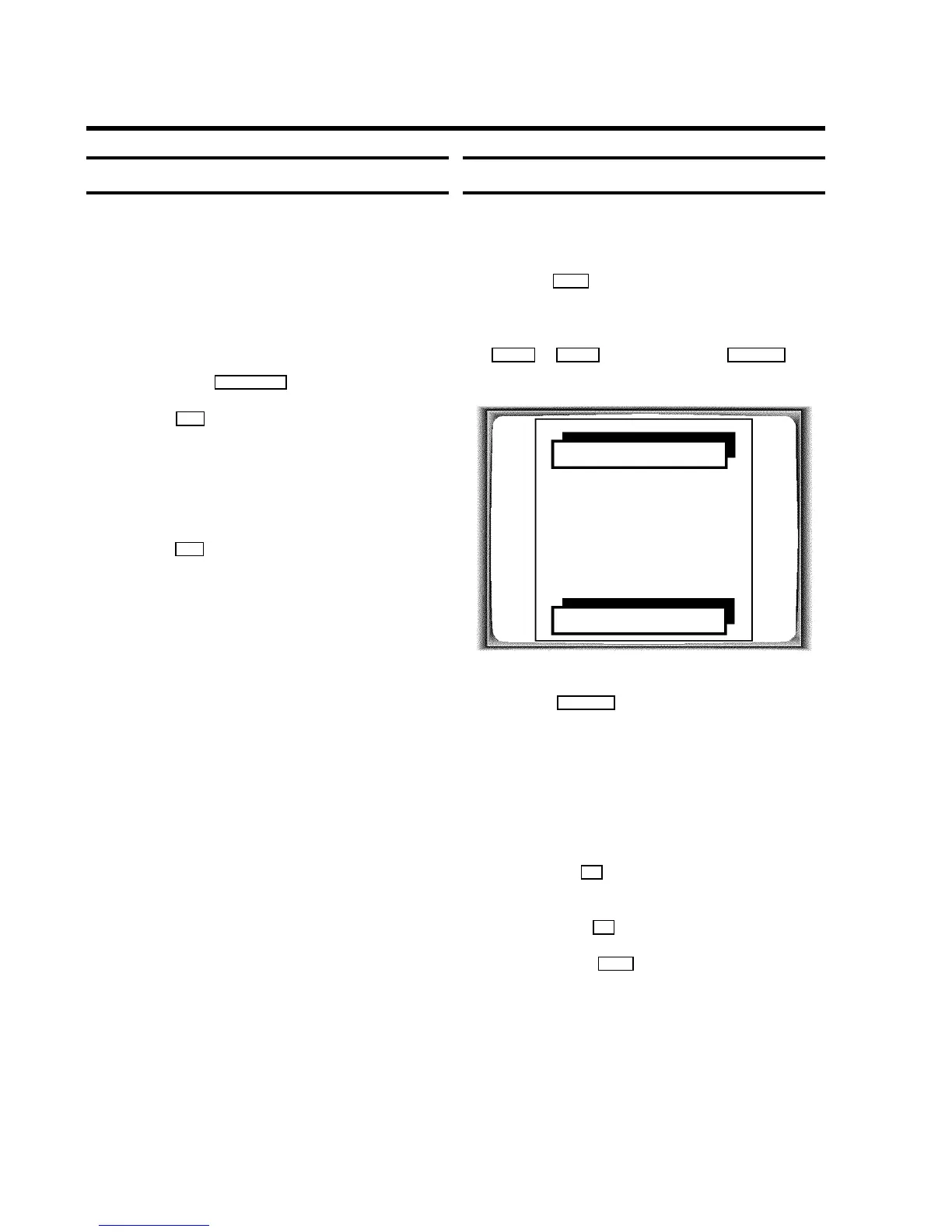
SPECIAL SETTINGS
RECORD SPEED W SP X
OSD AUTO
EXIT: MENU STORE: OK
c In the line ’OSD’, select one of the options shown using
the button SqP .
’AUTO’:
The OSD information appears with every selected mode
for a few seconds and disappears again.
’MAX’:
Additionally, date and time are displayed with every
selected mode.
’OFF’:
The OSD information is switched off. However, you can
use the button OK to display the OSD information on the
screen.
d Confirm with the OK button.
e To end, press the MENU button.
8. ADDITIONAL FUNCTIONS
22













 To Next Page