32BDL4050D
20
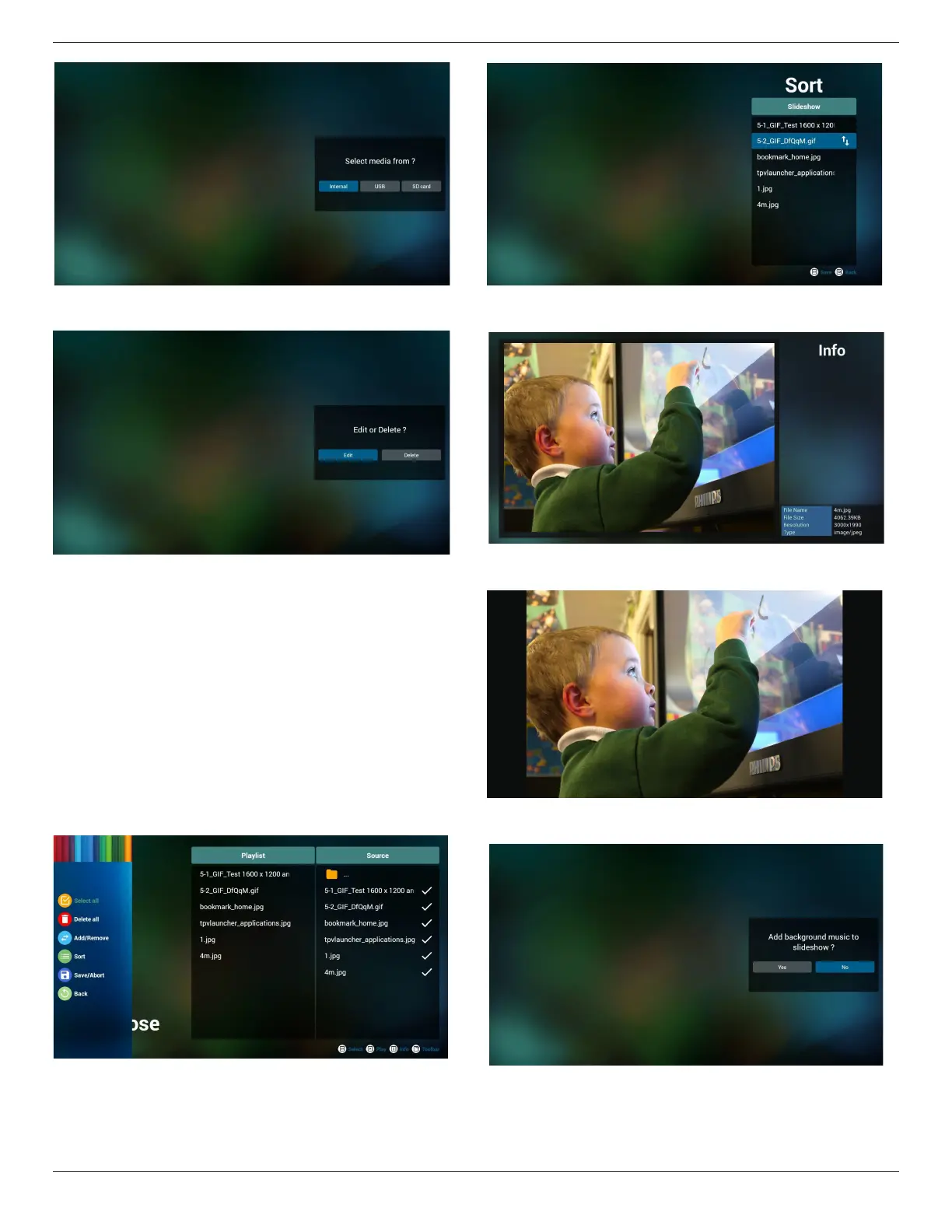
5. Youcouldeditordeleteanon-emptyplaylist,justchoosethedesired
playlistwhichiswithpencilicon.
6. Onceyoustarttoeditaplaylist,youwillseebelowscreen.
Source-lesinstorage.
Playlist–lesinplaylist.
Thereare4iconswhichmaptothekeysofremotecontroller.Option
key–launchslidebar
Playkey–playmediale.
Infokey–showmediainfo.
Okkey–select/unselectle.
6-1Intheslidebar,ithelpsyoutodothefollowing:
-selectall:selectallstorageles.
-deleteall:deleteallplaylistles.
-add/remove:updateplaylistfromsource.
-sort:sortplaylist.
-save/abort:saveorabortplaylist.
-back:return.
7. ifyouchoose“Sort”intheslidebar,youcanchangetheorderofles
onebyone.
8. Pressinfokeyafteryouchoosedesiredle,youwillgetthedetail
information.
9. Pressplaykeyafteryouchoosedesiredle,youwillplaysthemedia
ledirectly.
10. Ifyoumakeaplaylistwithallimagesles,beforesaving,theappwillask
youifyouwanttohavebackgroundmusicwhileplayingslideshow.








 To Next Page