32BDL4050D
31
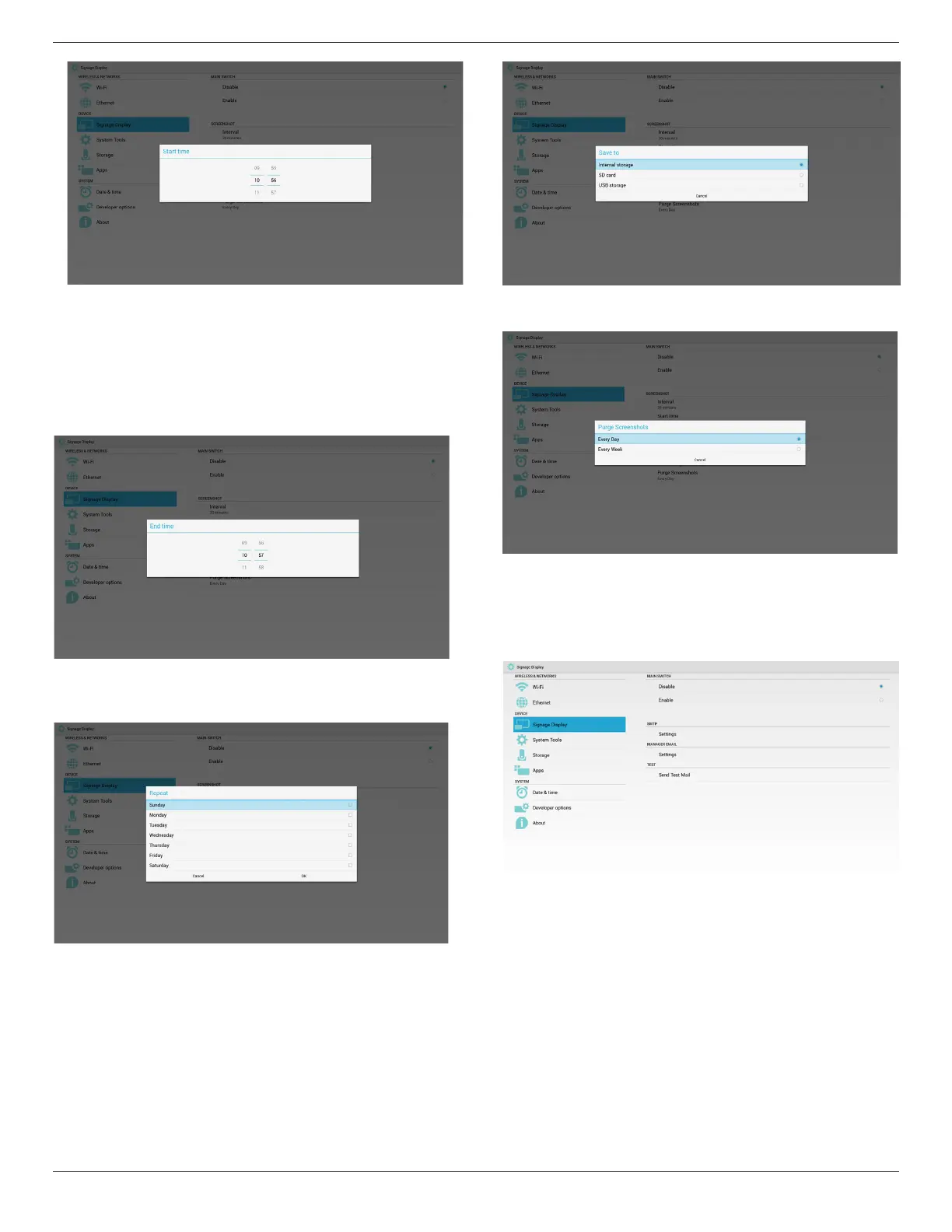
3)EndTime
Set up screenshot End time
Note:
(1)NoCancel,Conrmbuttonindialog.
(2)JustpressBackkeytoexitdialogforsetup
(3)(StarttimecannotbenewerthanEndtime.Itwillshowerror
toast.
4)Repeat
Setscreenshotrepeatcycle.Usercanchoosescreenshottimeframe.
(Multipleselection)
5)Saveto
Setupscreenshotsavepath.Internalstorage,SDcardorUSB
storage.
Note:
picturestoragepath:
(1)Inrootofinternalstorage/usbstorage/sdcard,PDwillcreate
folderautomatically.
(2)thepicturewillsavetophilips/Screenshot/.
6)PurgeScreenshots
Setuppurgetimeframe.OnedayorOneweek.
5.4.2. Server Settings
1. EmailNotication
ViaEnable/DisabletocontrolEmailOn/Off.AfterEnable,usercansetup
Emailnoticationconguration.
1)SMTP
Email
SetSMTPconguration.UsercansetGmailaccountorothermail
account.UsercanselectothermailaccountandsetupSMTPserver,
Securitytypeandportitme
Note:
Passwordinputlimitation
(1)Length:6-20characters
(2)Format:nolimit
(3)Donotusetheport:5000




 To Next Page