32BDL4050D
43
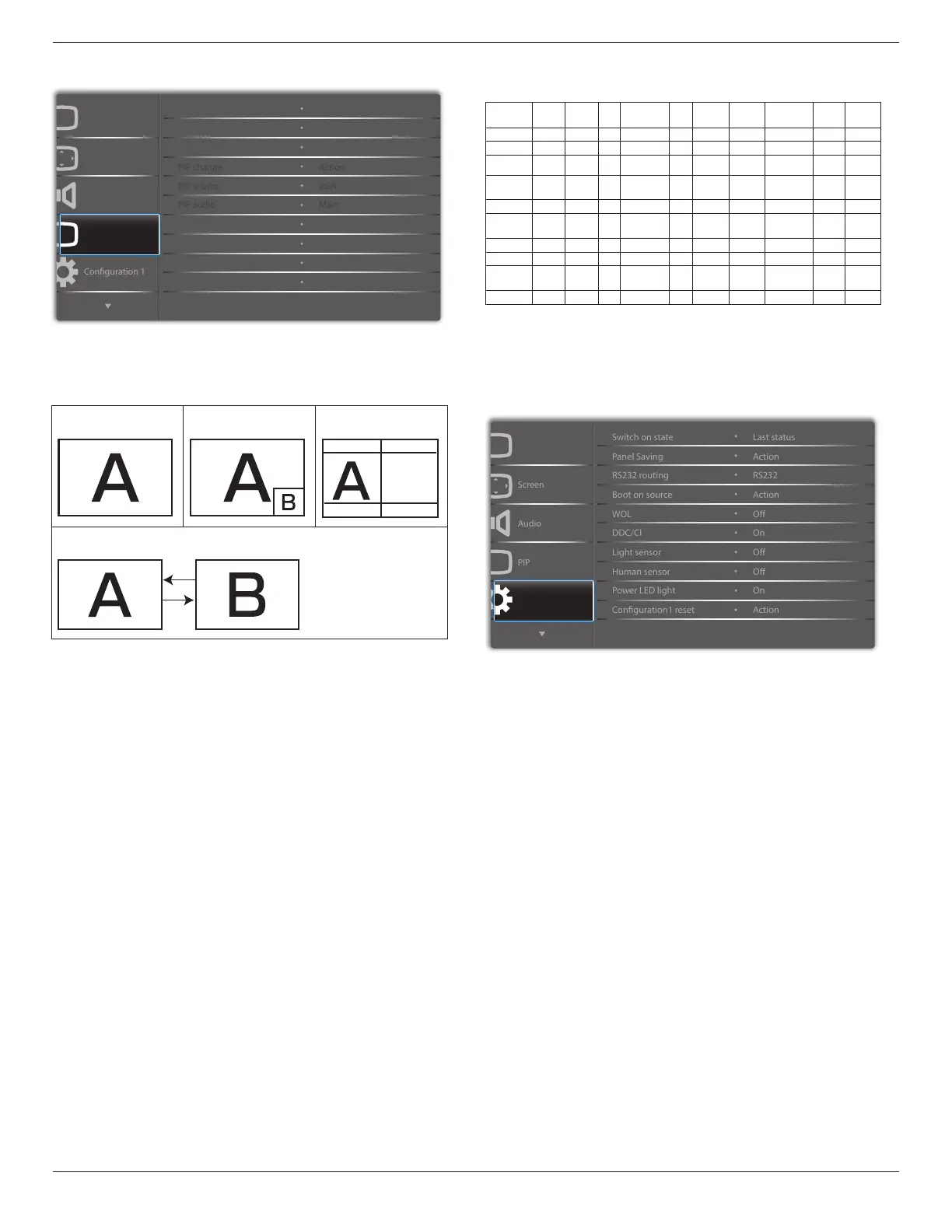
6.2.4. PIP menu
PP
Audio
PIP
Screen
Picture
PIP size
PIP position
PIP reset
Sub mode
Small
Bottom-Right
O
Action
Sub mode
Selectthesubmode.
Choosefrom:{Off}/{PIP}/{POP}/{Quick swap}/{PBP}.
Off PIP PBP 2Win
Sub Win1
Input
Quick swap
Switchmainontopor
subontop.
PIP size
SelectthesizeofthesubpictureinthePIP(Picture-in-Picture)mode.
Choosefrom:{Small}/{Medium}/{Large}.
PIP position
SelectthepositionofthesubpictureinthePIP(Picture-in-Picture)mode.
Choosefrom:{Bottom-Right}/{Bottom -Left}/{Top-Right}/{Top-Left}.
PIP change
ExchangeMainandPIP / PBP / Quick swapinputsignal.
PIP source
Selecttheinputsignalforthesubpicture.
PIP audio
SelecttheaudiosourceintheSubmode.
•{Main}-Selectaudiofromthemainpicture
•{Sub}-Selectaudiofromthesubpicture.
PIP reset
ResetallsettingsinthePIPmenutofactorypresetvalues.
• ThePIPfunctionisavailableonlyforcertainsignalsourcecombinations
asshowninthetablebelow.
HDMI1 HDMI2 DVI DisplayPort VGA
Medoa
Player
Browser SmartCMS
PDF
Reader
Custom
HDMI1 O X X O O X X X X X
HDMI2 X O X O O X X X X X
DVI X X O O O* X X X X X
DisplayPort O O O O O O O O O O
VGA O O O* O O O O O O O
Medoa
Player
X X X O O O X X X X
Browser X X X O O X O X X X
SmartCMS X X X O O X X O X X
PDF
Reader
X X X O O X X X O X
Custom X X X O O X X X X O
(O:PIPfunctionavailable,X:PIPfunctionunavailable)
• TheavailabilityofthePIPfunctionwillalsodependontheresolution
oftheinputsignalbeingused.
6.2.5. Configuration1 menu
P
Picture
Conguration 1
Switch on state
Selectthedisplaystatususedforthenexttimeyouconnectthepower
cord.
• {Power off}-Thedisplaywillremainoffwhenthepowercordis
connectedtoawalloutlet.
• {Forced on}-Thedisplaywillturnonwhenthepowercordis
connectedtoawalloutlet.
• {Last status}-Thedisplaywillreturntothepreviouspowerstatus(on/
off/standby)whenremovingandreplacingthepowercord.
Panel saving
Choosetoenablethepanelsavingfunctionsandthusreducetheriskof
“imagepersistence”or“ghost-imaging”.
• {Brightness}-Select{On}andtheimagebrightnesswillbereducedto
anappropriatelevel.TheBrightnesssettinginthePicturemenuwillbe
unavailablewhenselected.
• {Pixel shift}-Selectthetimeinterval({Auto}/{10~900}Seconds
/{Off})forthedisplaytoslightlyexpandtheimagesizeandshiftthe
positionofpixelsinfourdirections(up,down,left,orright).
RS232 routing
Selectthenetworkcontrolport.
Choosefrom:{RS232}/{LAN ->RS232}.
Boot on source
Choosetoselectsourcewhenbootup.
Input:selectinputsourcewhenbootup.




 To Next Page