32BDL4050D
40
6. OSD Menu
AnoverallviewoftheOn-ScreenDisplay(OSD)structureisshown
below.Youcanuseitasareferenceforfurtheradjustingyourdisplay.
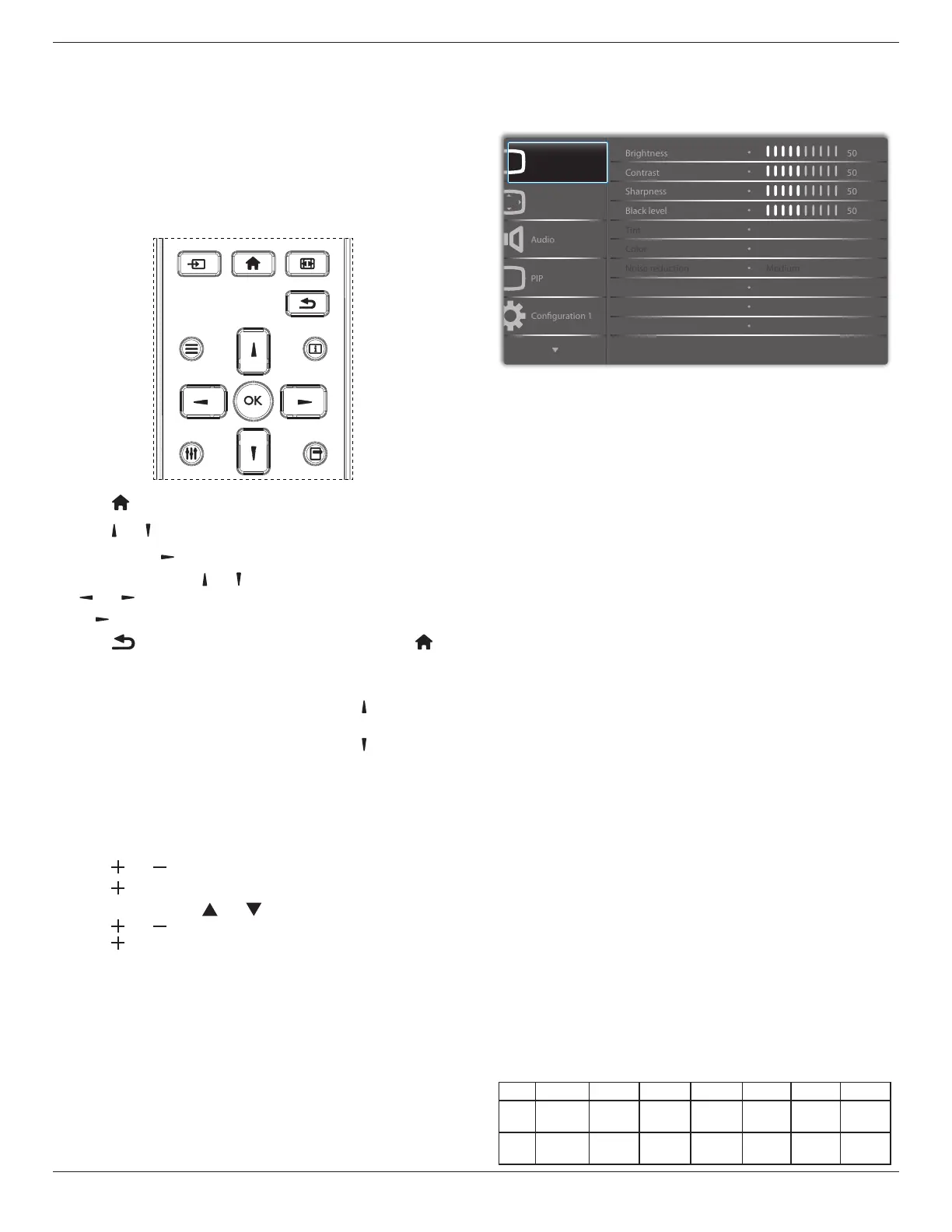
6.1. Navigating the OSD Menu
6.1.1. Navigating the OSD menu using the
remote control
FORMAT
SOURCE
INFOLIST
OPTIONSADJUST
1. Press[ ] buttonontheremotecontroltodisplaytheOSDmenu.
2. Press[ ] or[ ] buttontochoosetheitemyouwanttoadjust.
3. Press[OK]or[ ] buttontoenterthesubmenu.
4. Inthesubmenu,press[ ] or[ ]buttontotoggleamongitems,press
[ ]
or[ ]buttontoadjustsettings.Ifthereisasubmenu,press[OK]
or[ ]buttontoenterthesubmenu.
5. Press[ ]buttontoreturntothepreviousmenu,orpress[ ]
buttontoexittheOSDmenu.
NOTES:
• WhenthereisnoOSDmenuonthescreen,press[ ]todisplaythe
menuof{Smart picture}.
• WhenthereisnoOSDmenuonthescreen,press[ ]todisplaythe
menuof{Audio source}.
6.1.2. Navigating the OSD menu using the
display’s control buttons
1. Press[MENU]buttontodisplaytheOSDmenu.
2. Press[ ]or[ ]buttontochoosetheitemyouwanttoadjust.
3. Press[ ]buttontoenterthesubmenu.
4. Inthesubmenu,press[ ]or[ ]buttontotoggleamongitems,
press[ ]or[ ]buttontoadjustsettings.Ifthereisasubmenu,
press[ ]buttontoenterthesubmenu.
5. Press[MENU]buttontoreturntothepreviousmenu,orpress
[MENU]buttonseveraltimestoexittheOSDmenu.
6.2. OSD Menu Overview
6.2.1. Picture menu
P
Screen
Picture
Gamma selection
Color temperature
Color control
Native
Native
Brightness(Picture)
Adjusttheoverallimageandbackgroundscreenbrightness(backlight).
Contrast
Adjusttheimagecontrastratiofortheinputsignal.
Sharpness
Thisfunctionisdigitallycapabletokeepcrispimageatanytimings.
Itisadjustabletogetadistinctimageorasoftoneasyoupreferandset
independentlyforeach
picturemode.
Black level
Adjusttheimagebrightnessforthebackground.
NOTE:sRGBpicturemodeisstandardandcannotbechanged.
Tint(Hue)
Adjustthetintofthescreen.
Press+buttontheeshtonecolorbecomesgreenish.
Press-buttontheeshtonecolorbecomespurplish.
NOTE:VIDEOmodeonly.
Color(Saturation)
Adjustthecolorofthescreen.
Press+buttontoincreasecolordepth.
Press-buttontodecreasecolordepth.
NOTE:VIDEOmodeonly
Noise Reduction
Adjustthenoisereductionlevel.
Gamma selection
Selectadisplaygamma,It’srefertothebrightnessperformancecurveof
signalinput.Choosefrom{Native}/{2.2}/{2.4}/{sgamma}/{D-image}.
NOTE:sRGBpicturemodeisstandardandcannotbechanged.
Color temperature
Itisusedtoadjustthecolortemperature.
Theimagebecomesreddishasthecolortemperaturedecreases,and
becomesbluishasthecolor.
CCT
10000ºK 9300ºK 7500ºK 6500ºK 5000ºK 4000ºK 3000ºK
X
0.279±
0.030
0.283±
0.030
0.299±
0.030
0.313±
0.030
0.346±
0.030
0.382±
0.030
0.440±
0.030
Y
0.292±
0.030
0.298±
0.030
0.315±
0.030
0.329±
0.030
0.359±
0.030
0.384±
0.030
0.403±
0.030







 To Next Page