49BDL5057P
49
and 15-sets on the horizontal sides).Thisfunctionrequiresadaisy-chain
connection.
• Switch on delay:Setthepower-ondelayingtime(inseconds).The
defaultoption{Auto}allowsasequentialpowering-onforeachdisplay
bytheirIDnumberwhenmultipledisplaysareconnected.
Theoptionsare:{Off(0)/Auto(1)/2-255}
• Brightness:{Normal}/{ACS}
• {Normal}:Adjusttheoverallimageandbackgroundscreen
brightness(backlight).
• {ACS}:Applybrightnessvalue(backlight)whichisadjustedbyMIC
tool.ThedefaultvaluebeforeadjustmentisthesameasOSD
brightnessvalue,e.g.,70)
• Type:{Manual}/{Tilingtool}
• Source resolution:{FullHD}(Default)/{4K}
• H monitors-Selectthenumberofdisplaysonthehorizontalside.
• V monitors-Selectthenumberofdisplaysontheverticalside.
• Position-Selectthepositionofthisdisplayinthescreenmatrix.
• Frame comp. -Choosetoturntheframecompensationfunctionon
oroff.Ifselected{Yes},thedisplaywilladjusttheimagetocompensate
forthewidthofthedisplaybezelsinordertoaccuratelydisplaythe
image.
NOTE: Doesn’tsupportscreenformatfunctionintilingusingcascade
mode.
Off Timer
Setautomaticallypowerofftime(inhours).
Date and time
Adjustthecurrentdateandtimeforthedisplay’sinternalclock.
Date and time
Year
Month
Day
Hour
Minute
Daylight saving time
Current date time
2015 . 01 . 01 22 : 41 : 00
Press [OK] to set clock
2015
1
1
22
40
Auto Sync No
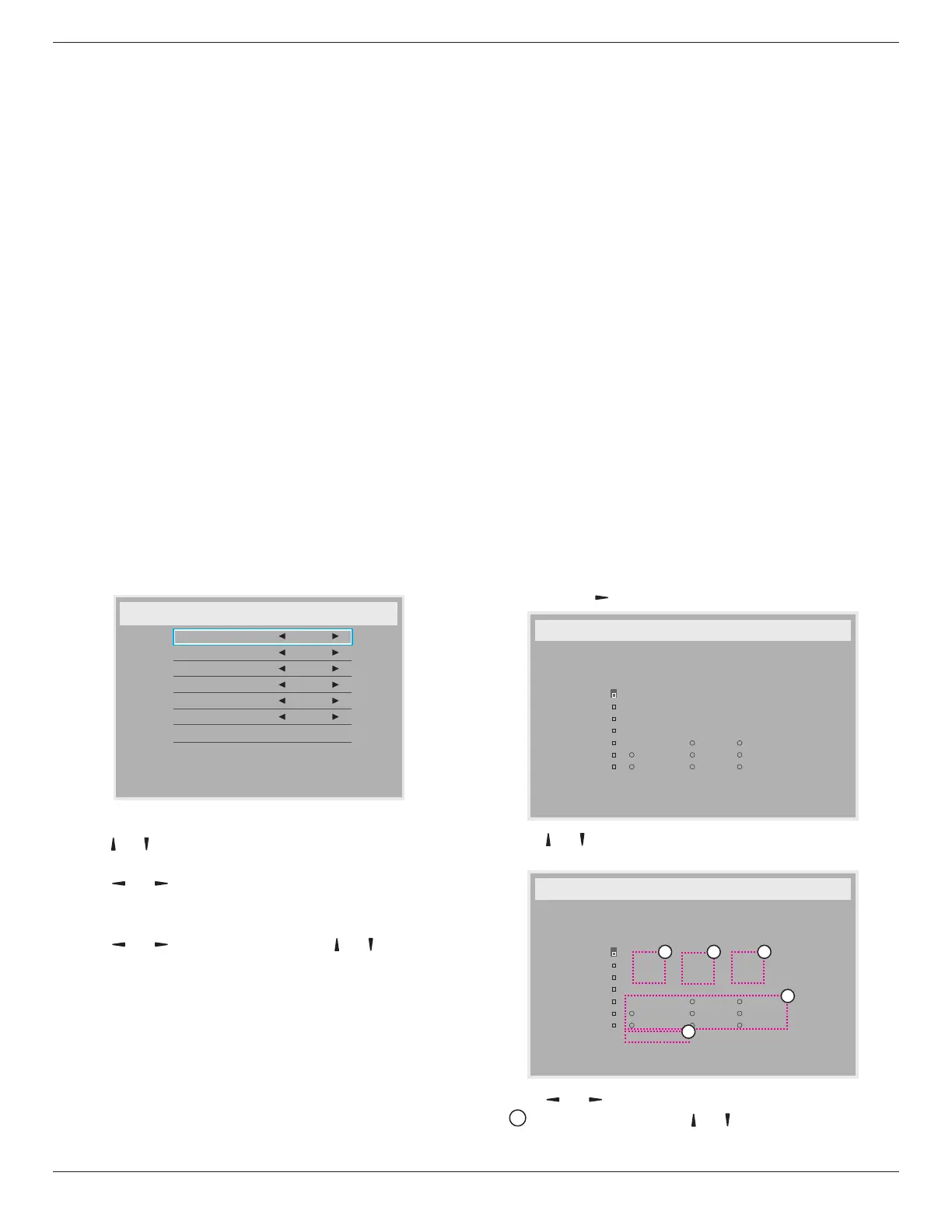
1. Press[OK]buttontoenterthesubmenu.
2. Press[ ] or[ ]buttontotogglebetween{Year},{Month},{Day},{Hour},
{Minute},and{Daylight saving time}.
3. Press[ ]
or[ ]buttontoadjustallsettingsexcept{Daylight saving
time}.
4. Press[OK]buttontoenterthe{Daylight saving time}submenu.
5. Press[ ]
or[ ]buttontoselectitem,press[ ] or[ ] buttonto
adjust.
The Daylight saving time denition and behavior:
Thecurrentimplementationofdaylightsavingisaremindertoolforthe
customerwhichdoesn’tknowhowtoadjusttheclockfordaylightsaving
onandoff.Itdoesnotadjusttherealtimeclockautomatically.Problemis
thattherearenostablerulesperregion,orcountrywhentoadjustthe
clock.Tosolvethistheusermustbeabletosetthedaylightsavingstart
enstopdate.Whendaylightsavingcorrectionison(userselectable)then
therealtimeclockshouldbeadjustedatthemomentintimesetinthe
daylightsavingonandoffdate.Atdaylightstartdatetheclockshouldbe
putforward1hourat2o’clock.Atdaylightstopdatetheclockshouldbe
putback1hourat2o’clock.
Theexistingdaylighton/offmenuitemshouldbereplacedwiththe
followingmenustructure:
• Menuitem<Daylightsavingsetup>openssubmenucontainingthe
followingitems:
• Menuitem<Daylight-savingstartdate>Selectionitem<1st,2nd,3rd,
4th,last>Sundayofselectionitem<1-12month>
• Menuitem<Daylight-savingstopdate>Selectionitem<1st,2nd,3rd,
4th,last>Sundayofselectionitem<1-12month>
• optional
• Menuitem<Correctiontime>Selectionitem<0.5,1.0,1.5,2.0>hour
• Menuitem<Daylightsavingcorrection>Selectionitem<on,off>
when“daylightsaving”is“on”therealtimeclockwouldhavebeenadjusted
automaticallyforwinterandsummertimewhenpassingthecritical
momentintime(egmarch29,2009,02.00o’clock:timewillbeset1hour
laterorOctober25,2009,02.00o’clock:timewillbeset1hourearlier)
Schedule
Thisfunctionallowsyoutoprogramupto7(seven)differentscheduled
timeintervalsforthedisplaytoactivate.
Youcanselect:
• Thetimeforthedisplaytoturnonandturnoff.
• Thedaysinaweekforthedisplaytoactivate.
• Whichinputsourcethedisplaywilluseforeachscheduledactivation
period.
NOTE: Werecommendyoutosetupcurrentdateandtimeinthe{Date
and time}menubeforeusingthisfunction.
1. Press[OK]or[ ]buttontoenterthesubmenu.
Schedule
Today
1
2
3
4
5
7
6
2015 . 01 . 04 SUN 04 : 14 : 01
On
:
_
:
_ _ _ _
O
Input
WED
SAT
MON
THU
SUN
TUE
FRI
Every week
Clear all
playlist 0
2. Press[ ] or[ ] buttontoselectascheduleitem(itemnumber1~7),
andthenpress[OK]buttontomarkittheitemnumber.
Schedule
Today
1
2
3
4
5
7
6
2015 . 01 . 04 SUN 04 : 14 : 01
On
:
_
:
_ _ _ _
O
Input
WED
SAT
MON
THU
SUN
TUE
FRI
Every week
Clear all
playlist 0
4
1
3
2
5
3. Press[ ]
or[ ]buttontoselecttheschedule:
1
Power-onschedule:Press[ ] or[ ]buttontosetthehourand
minuteforthedisplaytoturnon.








 To Next Page