65BDL3052E/75BDL3052E/86BDL3052E
36
6.1.2. Signage Display
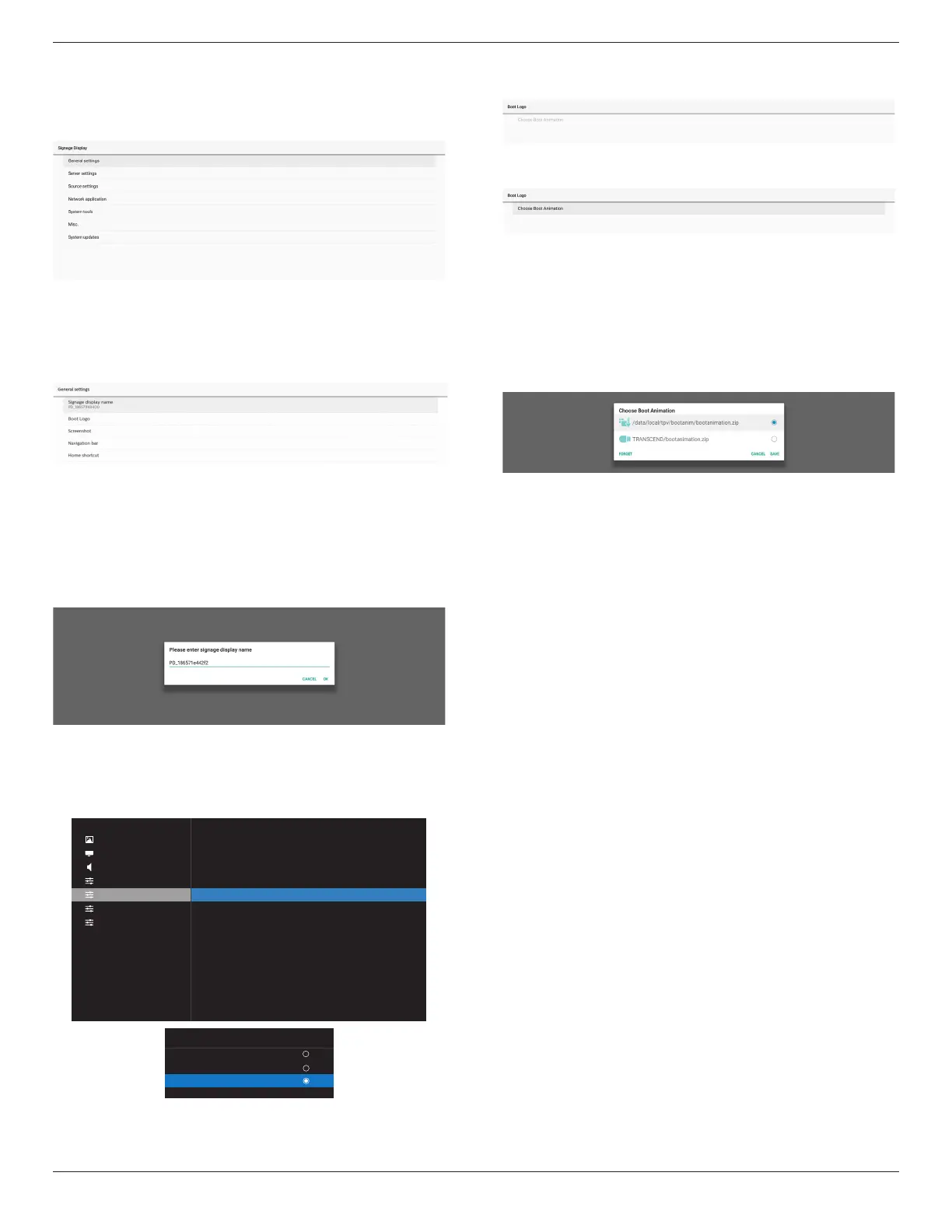
Settings -> Signage Display, to setup most features of signage
display. See below for more detailed information about
Signage Display settings.
6.1.2.1. General Settings
Settings -> Signage Display -> General Settings Set up
Signage Display name, User logo, Screenshot, Navigation bar
and Home shortcut.
Signage Display Name
Settings -> Signage Display -> General Settings -> Signage
Display Name
Set up Signage Display name, the default name is
Ethernet MAC address with prex “PD_”. For example,
“PD_000b12223398”. The maximum length of name is 36
characters in UTF8 format. Click to rename it.
Boot Logo
Settings -> Signage Display -> General Settings -> Boot Logo
User can set up device boot up logo (boot animation) when
OSD Menu -> Conguration 2 -> Logo is set to “User” mode.
Picture
Screen
Audio
Con�guration 1
Con�guration 2
Advanced option
Android Settings
45
50
50
10
On
Action
34.38°C 93.88°F
Action
Action
OSD turn off
OSD H position
OSD V position
Information OSD
Logo
Monitor ID
Heat status
Monitor information
HDMI version
Con�guration2 reset
Logo
O
On
User
If “Logo” is not set to “User” mode, user cannot select custom
boot animation.
When it is set to “User” mode, the option “Choose Boot
Animation” becomes available.
When Logo is set to “User” mode, the default Philips logo will
be replaced by user selected boot animation le.
Click “Choose Boot Animation” and a pop-up menu appears
for user to select boot animation le. Content saved on a SD
card or USB memory card will be scanned automatically.
Boot animation le name must be set as “bootanimation.
zip”, any other format is invalid.
All available boot animation les can be found in the
following folder:
1. File under /data/local/bootanimation/:
The boot animation le that are copied from USB or SD
card.
2. File under {SD_STORAGE_ VOLUME_NAME}/:
The boot animation le saved on the SD card.
3. File under {USB_STORAGE_VOLUME_NAME}/:
The boot animation le saved on the USB storage.
Dialog options:
1. FORGET
Clear “bootanimation.zip under /data/local/
bootanimation/.
Custom boot animation will not be used during system
boot up.
2. CANCEL
Cancel and close the dialog box.
3. SAVE
Copy selected le to /data/local/bootanimation/. After
doing this, user can remove their external storage (USB
and SD). System uses the boot animation le under /
data/local/bootanimation.







 To Next Page